You can use TaxCaddy to pay your State tax payments by check. Payments made through TaxCaddy will be mailed to your taxing authority within 1 business day, and may take 2-5 business days to be delivered. To pay by check, your tax professional will need to upload a tax payment voucher and clear it for official use by the taxing authority.
If you've already paid your tax payments or prefer to pay your tax payments through other means, then you can mark your tax payment voucher as paid.
TaxCaddy.com on PC, Mac, or tablet
Follow these steps to pay by check from the
Tax Payments
screen.
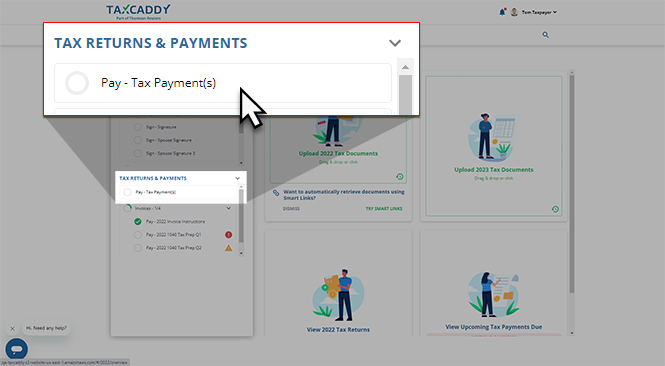
If your tax professional has uploaded a tax payment voucher to your account, you can select
Pay - Tax Payment(s)
to view these payment vouchers.
Select
Pay - Tax Payment(s)
to view all tax payments that your tax professional has uploaded to your account.
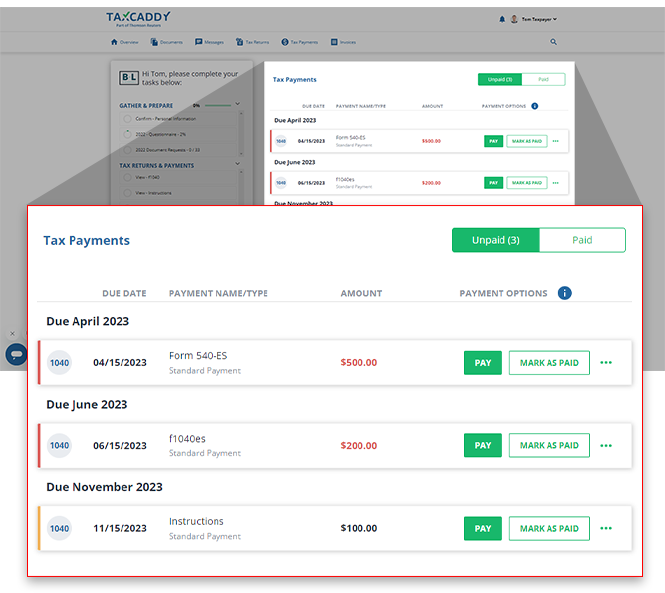
Your current tax year's tax payments will appear beside your
Task List
in the
Tax Payments
panel.
The
UNPAID
tab contains payments that are overdue or due in the future. Overdue tax payments will be listed with a red line beside the payment tile, while payments due in the future will be listed with a yellow line.
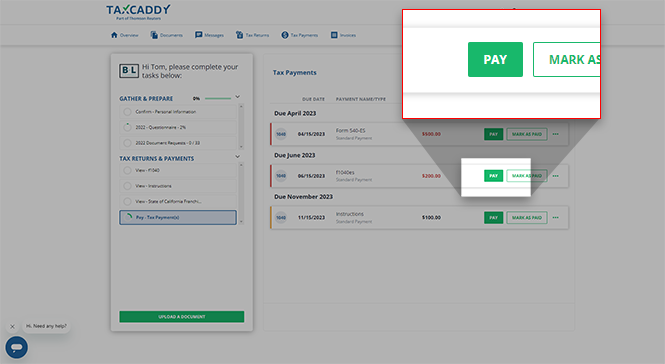
Select
PAY
on a tax payment voucher to begin the process of paying your tax payment by check.
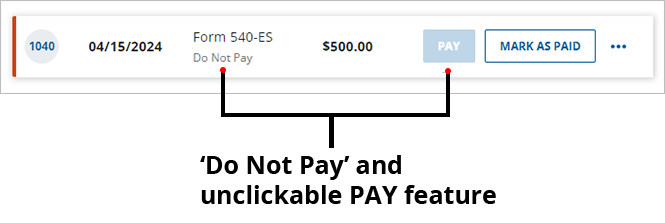
If
Do Not Pay
is listed as the
PAYMENT TYPE
for a tax payment and
PAY
not available, then your tax professional will need to set up this payment to be payable by check and clear the tax payment for official use with the taxing authority. Contact your tax professional to address this.
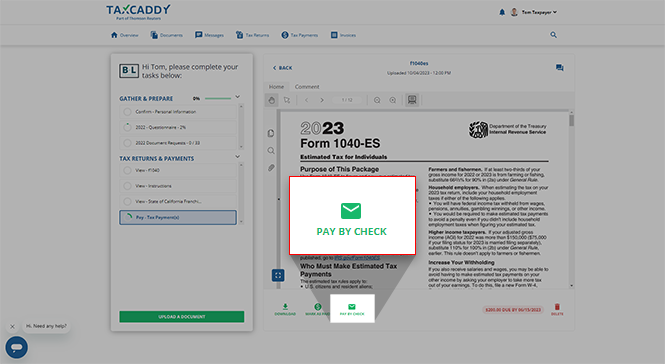
Alternatively, you can select
PAY BY CHECK
if you are viewing the tax payment document in the Document Viewer.
The option to pay by check is only available under the following conditions:
The tax payment hasn’t been paid.
The tax payment is set up to be payable by check and has cleared the tax payment for official use with the taxing authority.
Tax payment is for
State
taxing authority.
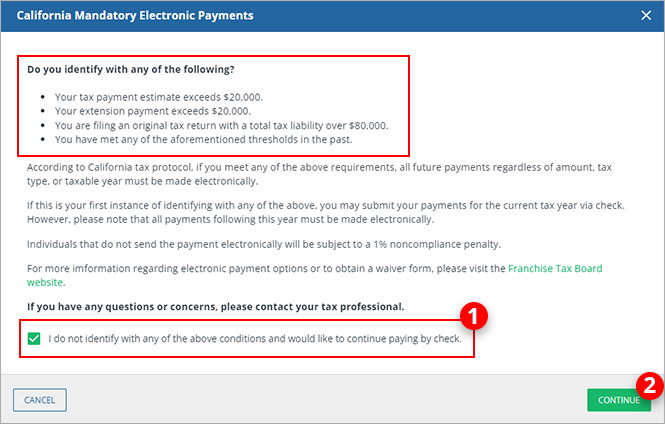
Skip to the next step if you don’t see a window for mandatory electronic payments. For California and Virginia state tax payments, some taxpayers may not be eligible to send a check by mail. If you meet your state's criteria listed above the window, then you are required to make online payments only. If you don't fall under any of these conditions, select the checkbox and select
CONTINUE
.
If you have any questions or concerns, you can use TaxCaddy to message your tax professional.
You will be directed to the
Pay by Check
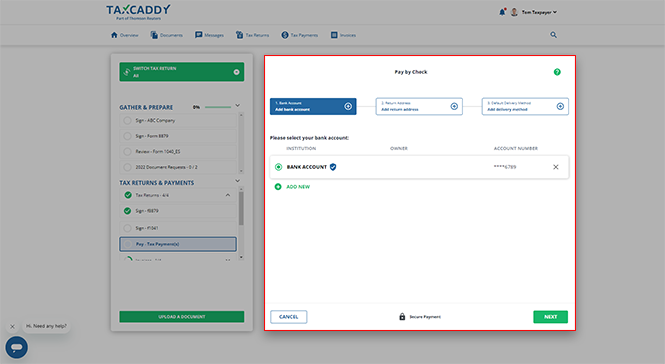
panel where you will be prompted to provide us with your bank account information, return address, and delivery method for mailing purposes.
To make a tax payment, you need to first add your bank account to TaxCaddy if one is not already added. To add a bank account, select
ADD NEW
.
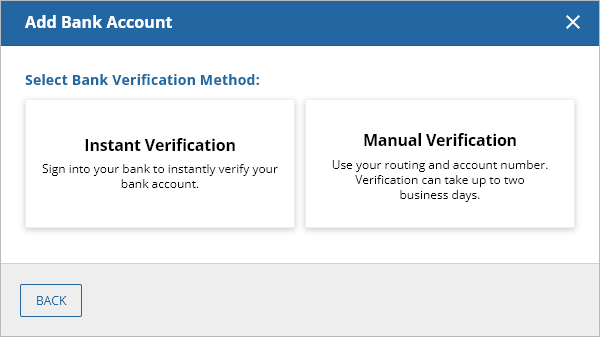
To make a payment, you'll need to verify your bank account. You can select between
Instant Verification
or
Manual Verification
.
Instant Verification
- Requires you to sign into and instantly verify your bank account.
Manual Verification
- Requires you to add your
Routing Number
,
Account Number
,
Account Owner's Name
, and
Account Type
. Once the bank account has been added, you will receive micro-deposits in 2 business days. Enter the amounts to complete your account verification.
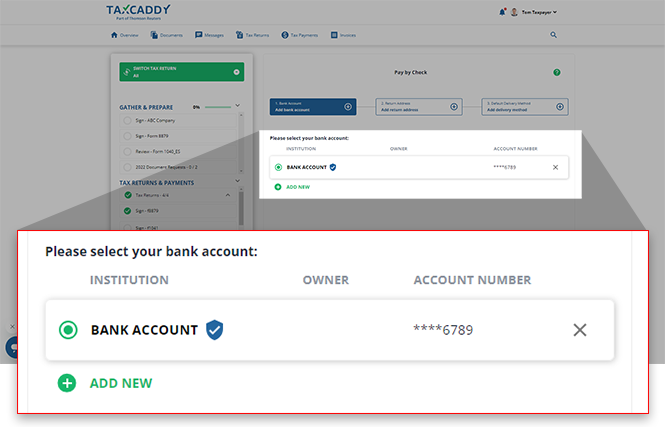
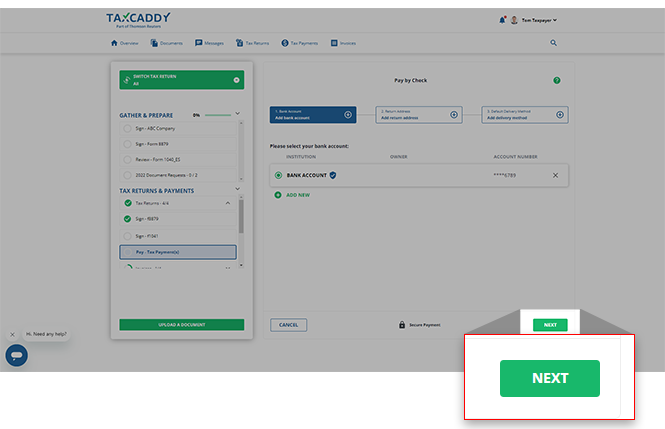
Select the bank account after it has been added successfully.
Select
NEXT
to go to the next step.
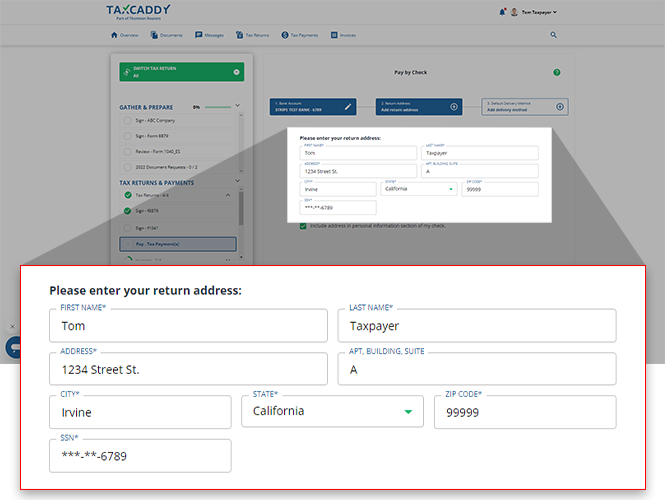
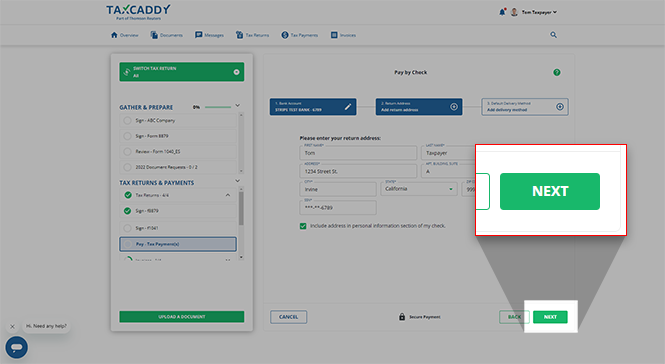
Enter or verify your name, return address, and SSN (Social Security Number). The return address information is where the check will be returned if it can't be delivered to its destination. Your SSN is required to populate the Memo field on your check.
All required fields show an asterisk * next to the field name (for example,
FIRST NAME*
). The
SSN
field only accepts numbers. You can't enter hyphens/dashes or spaces.
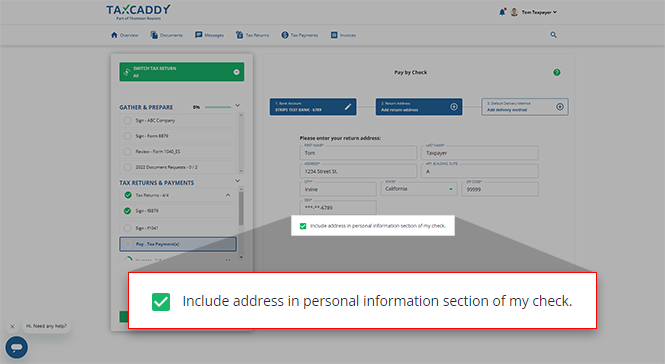
To add your name and address to your check, select the checkbox for
Include address in the Personal Information section of my check
(recommended). Clear the checkbox if you don’t want to include your personal information on the check.
Once all the required fields are entered, select
NEXT
to go to the next step.
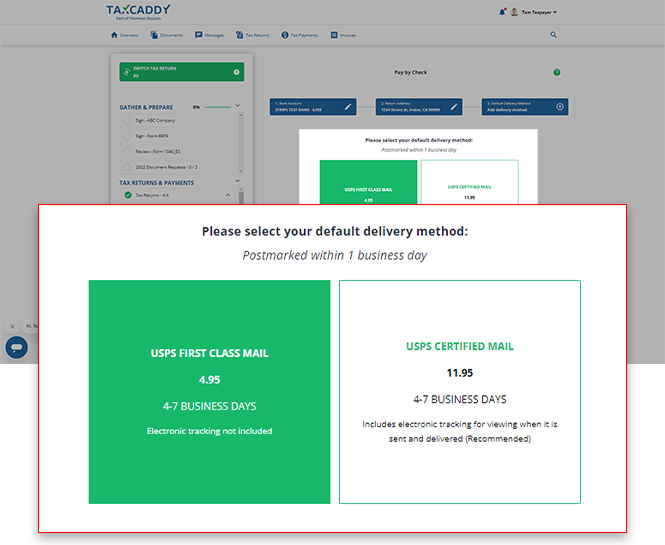
Select your preferred mailing option. Based on your selection, the mailing cost will be added to your payment total.
USPS First Class
: Delivery between 4-7 business days. Doesn’t provide an electronic tracking number.
USPS Certified
: Delivery between 4-7 business days. Provides an electronic tracking number to monitor mail delivery on the USPS website.
On the
Check Summary
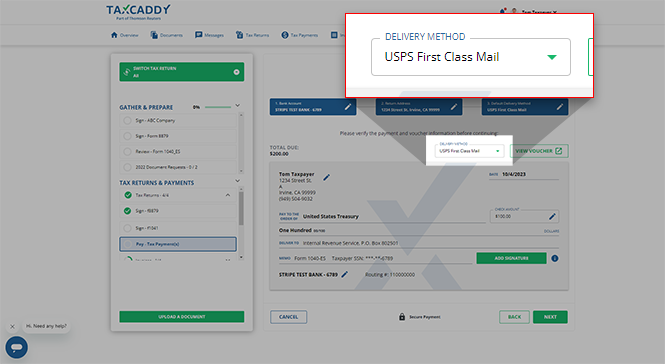
step, you can review your tax payment details and mailing options, and review/edit your check before it is sent.
Under
DELIVERY METHOD
, you can revise your preferred mailing option. Based on your selection, the mailing cost will be added to your payment total.
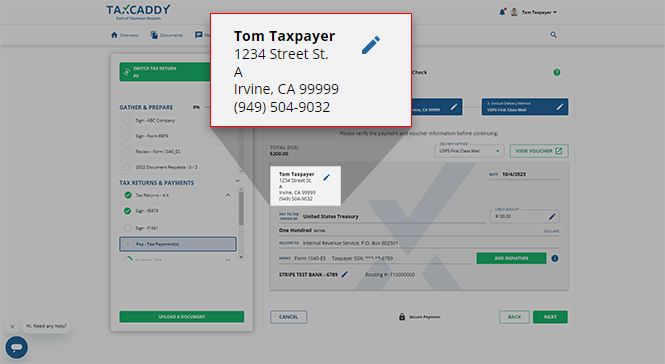
Verify the tax payment details. If the information is incorrect, select
Edit
to edit the name or address on your check. Select
BACK
to go back to the
Address
step.
You won’t see your personal information on the check if you didn’t select the
Include address in the Personal Information section of my check
checkbox in the previous step.
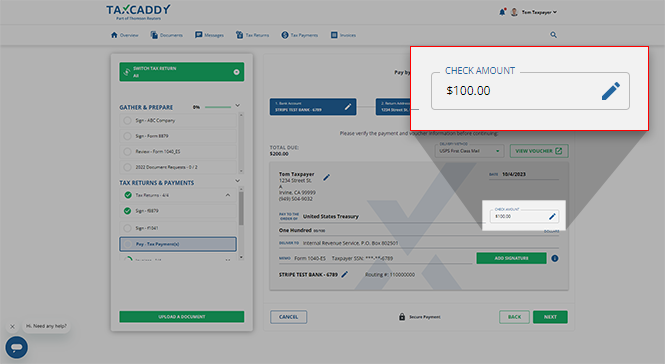
To modify the payment amount, edit the value in the
CHECK AMOUNT
field.
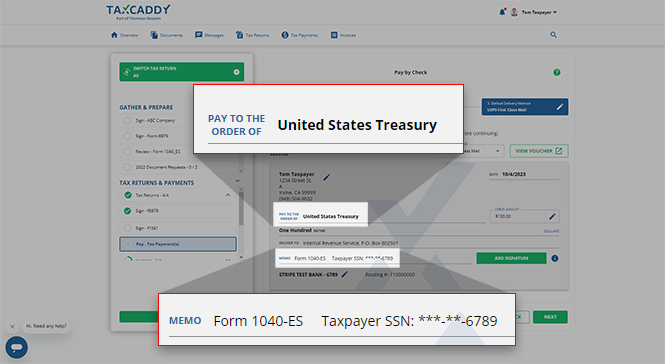
Pay To The Order Of
on your check will be auto-populated based on the taxing authority that will receive the check.
MEMO
will be auto-populated with your name, tax year, payment type, and social security number.
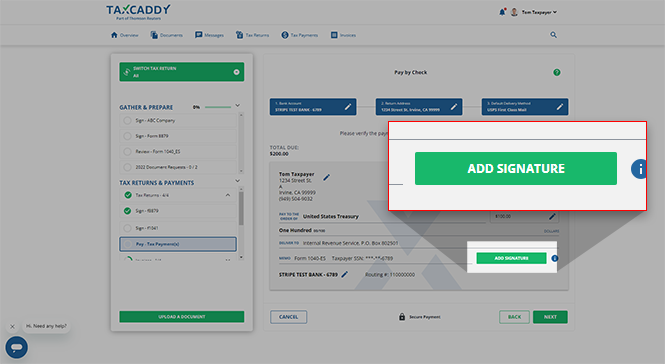
Before submitting your check, you'll first need to sign it. Select
ADD SIGNATURE
to add your signature to your check.
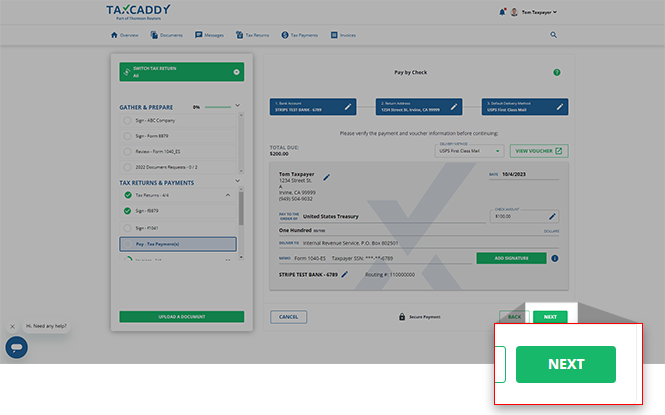
Once you've verified the information on the check, select
NEXT
.
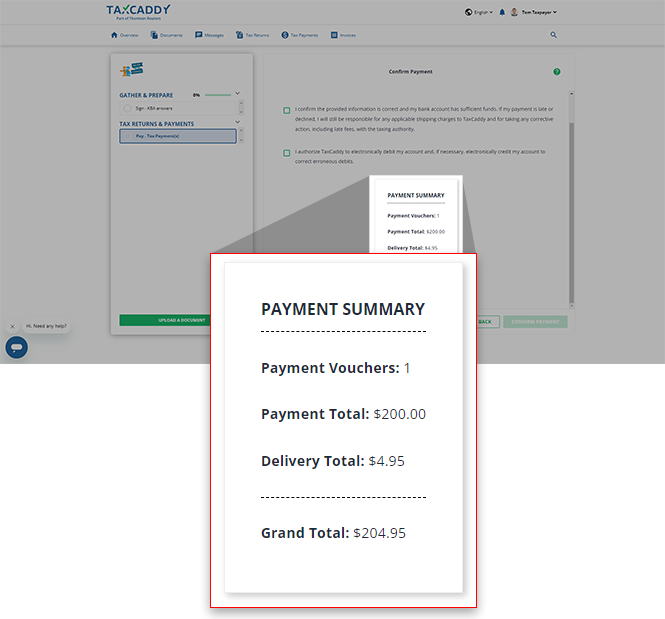
In the
Confirm Payment
screen, verify your
Grand Total
(including mailing cost).
After you've verified the
Grand Total
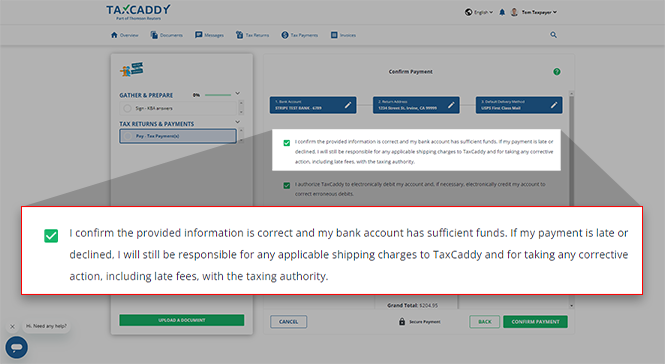
, select the checkbox to acknowledge the following agreement:
I confirm the provided information is correct and my bank account has sufficient funds. If my payment is late or declined, I will still be responsible for any applicable shipping charges to TaxCaddy and for taking any corrective action, including late fees, with the taxing authority.
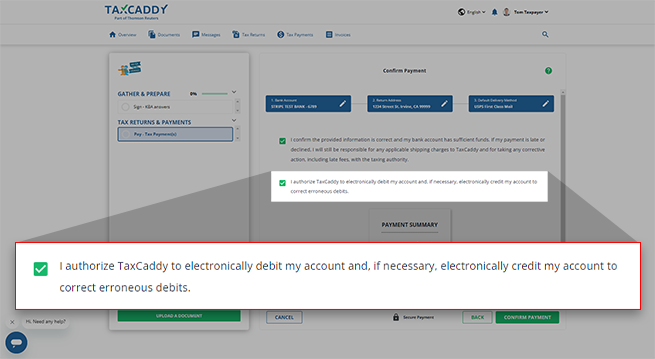
If you see the following agreement, select the checkbox to confirm that you agree before confirming your payment:
I authorize TaxCaddy to electronically debit my account and, if necessary, electronically credit my account to correct erroneous debits.
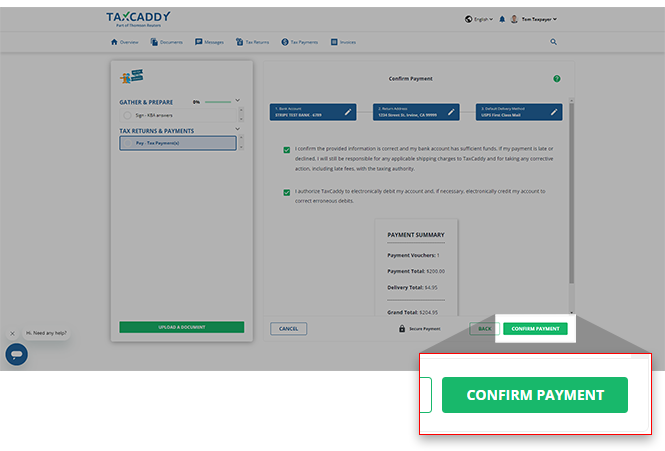
Select
CONFIRM PAYMENT
to finalize your tax payment.
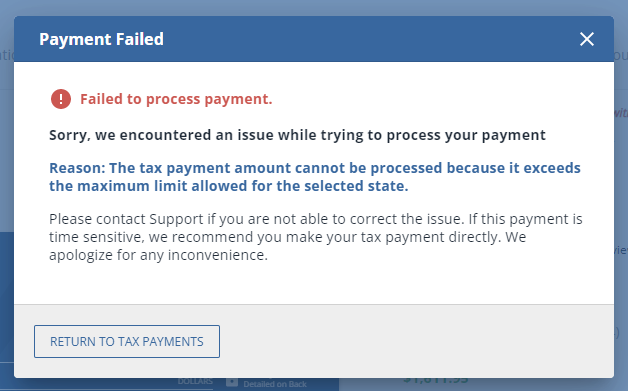
Attempting to send a check that exceeds the maximum limit for your selected state will result in the
Payment Failed
window. When this happens, select
RETURN TO TAX PAYMENTS
to return to your
Tax Payments
screen.
From here, you can write a check directly to your tax authority and then mark the tax payment as paid to fulfill the request in TaxCaddy.
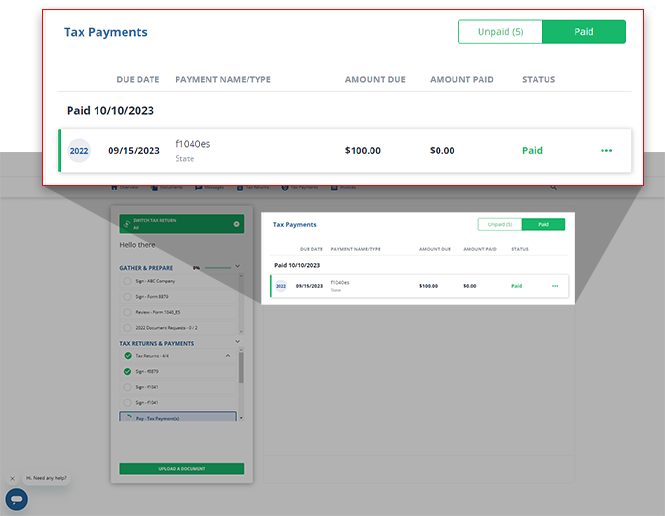
You will be redirected to an updated list of tax payments on the
Overview
screen. The tax payment that you've completed will be found in the
PAID
tab.
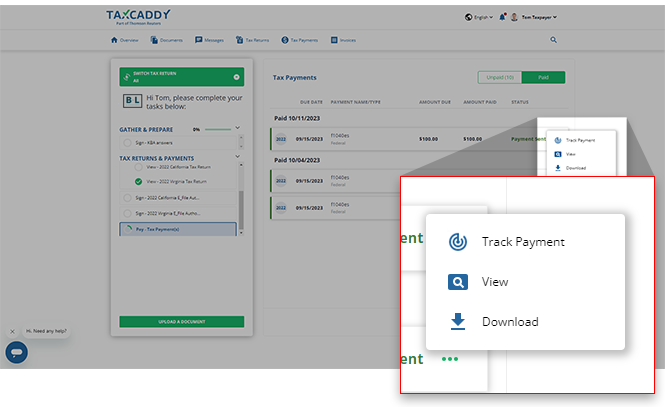
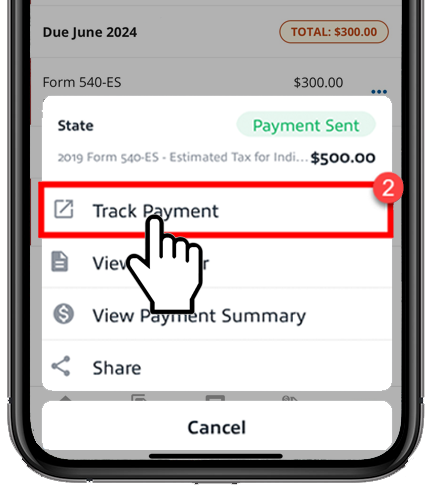
If you have selected USPS Certified Mail during the
Delivery Method
phase, you can go to the
Tax Payments
screen, select the
Menu
, then select
Track Payment
to check the delivery status.
Track Payment
will appear in 1 business day if you chose to mail your tax payments via USPS Certified Mail.
Follow these steps on your iOS mobile phone app:
Sign in to the TaxCaddy mobile app.
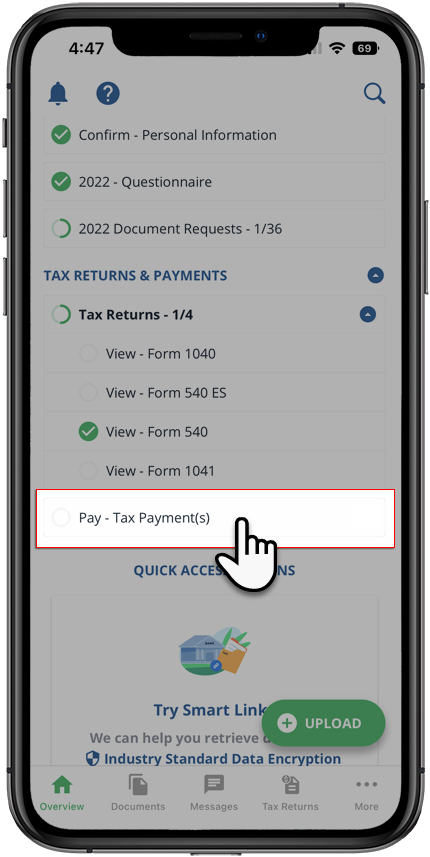
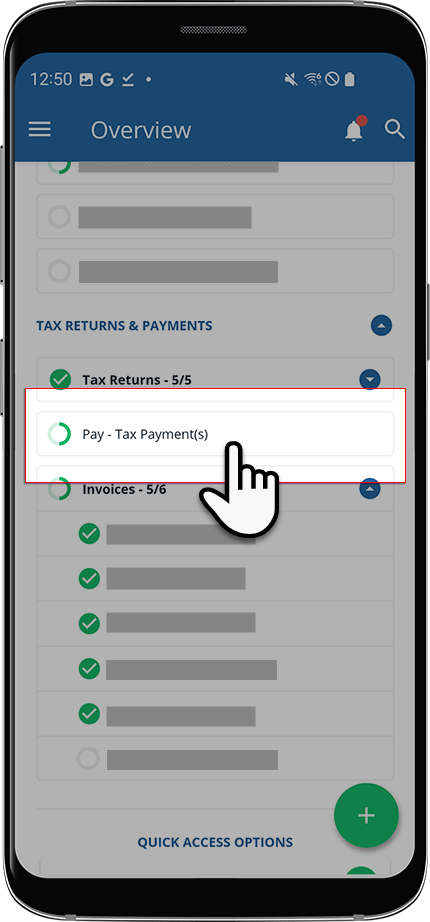
Tax payment vouchers that have been uploaded to your account will appear on the
Overview
screen. Select
Pay - Tax Payment(s)
to open your tax payments.
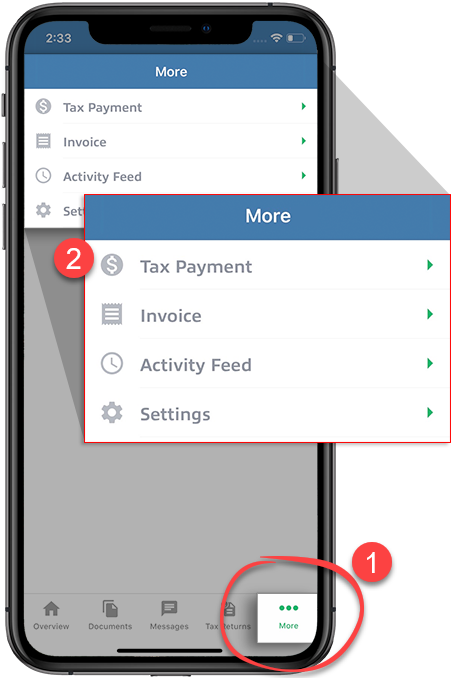
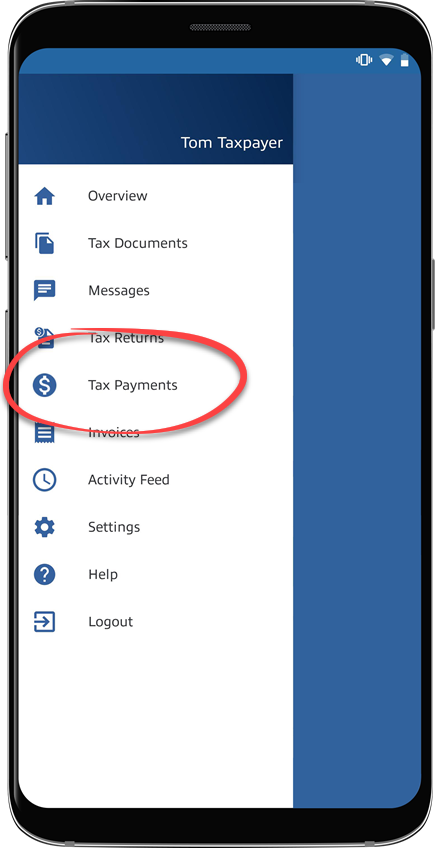
Alternatively, you can select
More
on the navigation tab, then select
Tax Payment
.
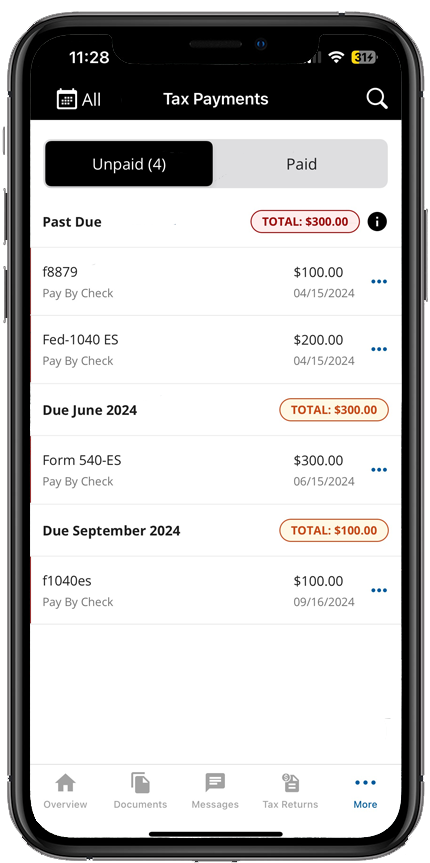
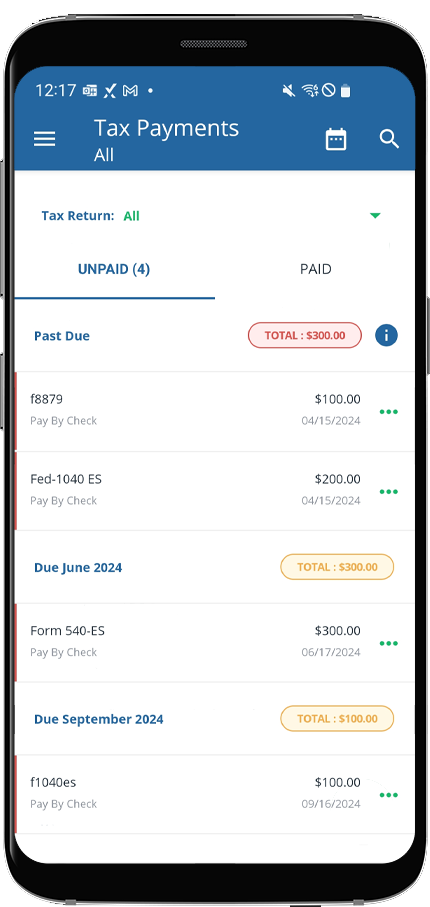
You will see tax payments spanning all tax years.
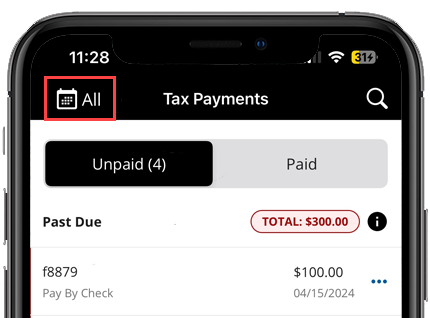
All
tax year option will be selected by default.
If you'd like to only see tax payments belonging to a specific tax year, select it from the
Tax year
menu.
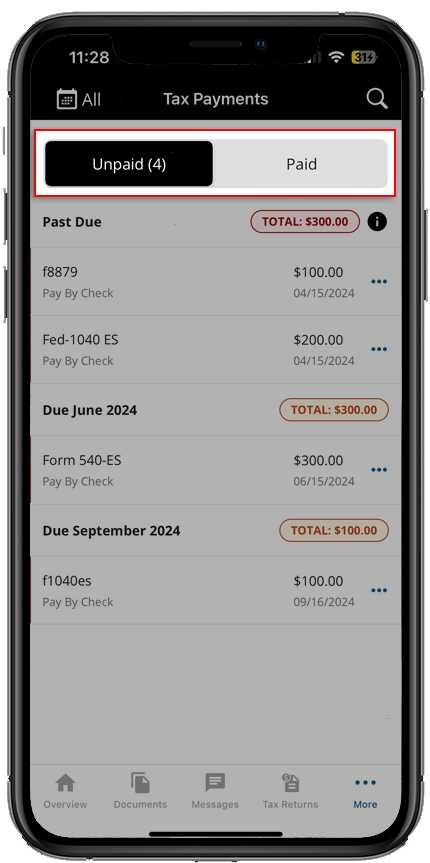
Select
UNPAID
to see tax payments that need to be paid (selected by default).
The option to pay by check is only visible under the following conditions:
Tax payment hasn’t been paid.
Your tax professional has set up the tax payment to be payable by check and has cleared the tax payment for official use with the taxing authority.
Tax payment is for
State
taxing authority.
Alternatively, you can select the tax payment voucher to view the document. After you review the document, you can select the floating
Menu
icon, then select
Pay by Check
.
Skip to the next step if you don’t see the
Electronic Payments
screen. For California and Virginia state tax payments, some taxpayers may not be eligible to send a check by mail. If you meet your state's criteria listed on top of the dialog box then you are required to make online payments only. If you don't fall under any of these conditions, select the checkbox then select
CONTINUE
.
If you have any questions or concerns, you can use TaxCaddy to message your tax professional.
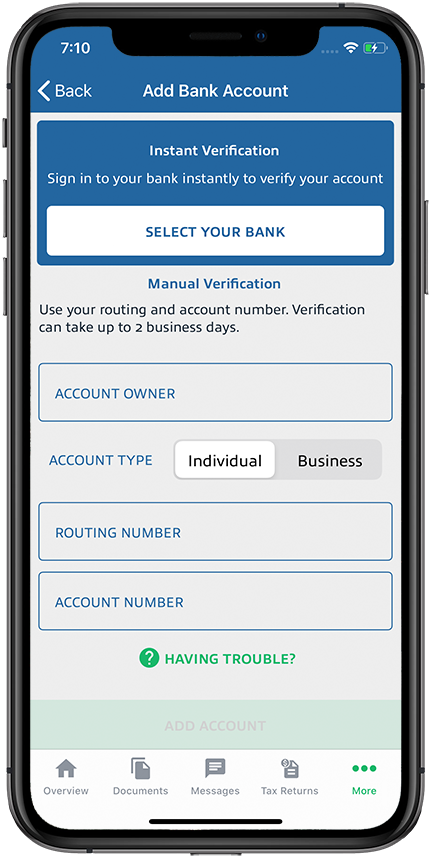
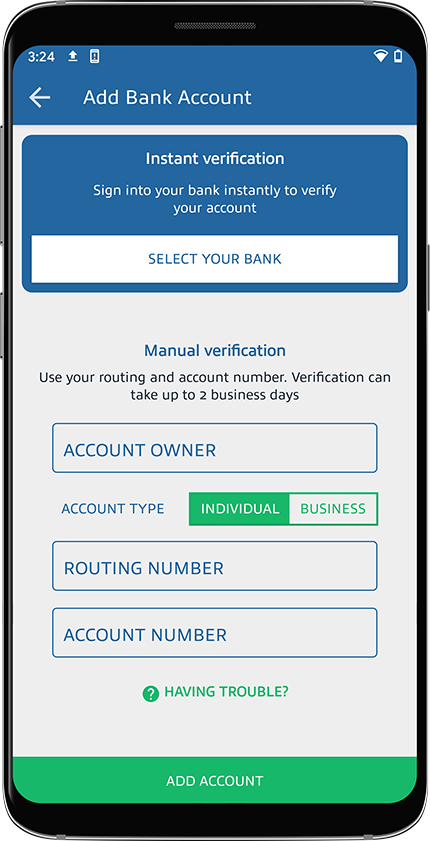
To make a tax payment, you need to first add your bank account to TaxCaddy if one is not already added. To add a bank account, select
Add A New Account
. If you already added a bank account, select to select the bank account then select
Next
.
If you selected to add a bank account, you'll need to verify your bank account information. You can select between
Instant Verification
or
Manual Verification
.
Instant Verification
- Requires you to sign in to your bank account to instantly verify your bank account.
Manual Verification
- Requires you to add your add
Routing Number
,
Account Number
,
Account Owner's Name
, and
Account Type
. Once the bank account has been added, you will receive micro-deposits in 2 business days. Enter the amounts to complete your account verification.
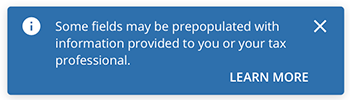
If you or your tax professional have previously provided your bank account information to TaxCaddy, we will automatically populate your records with the information we have on file. Please take a moment to review the information and make any corrections you see fit before continuing.
Select the bank account after it has been added and verified successfully.
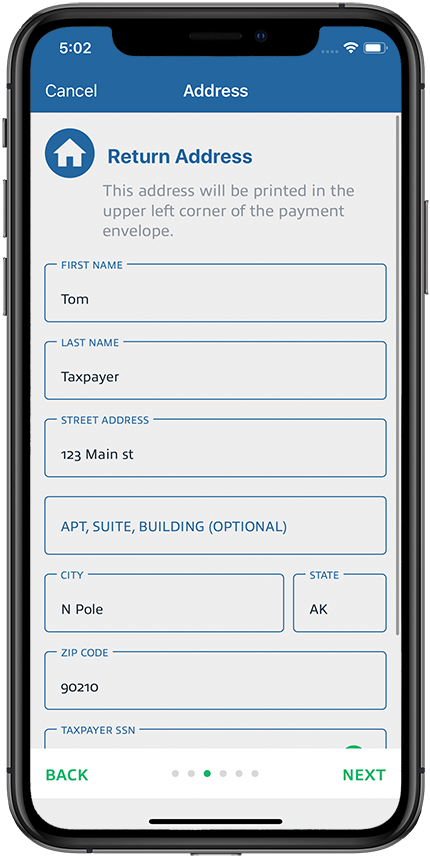
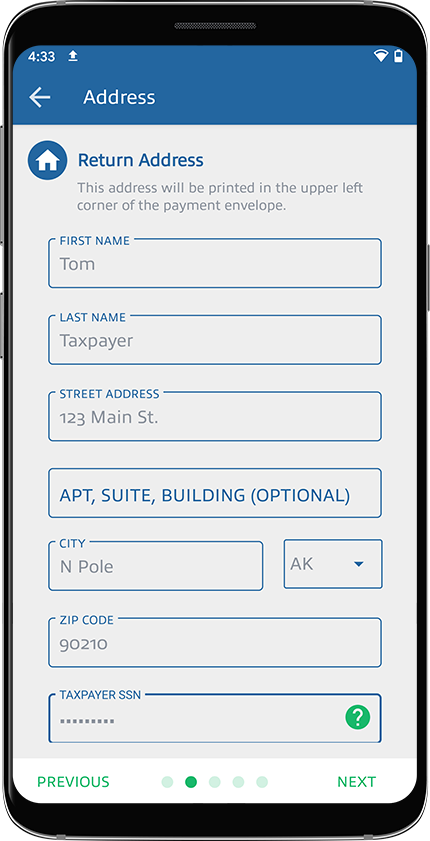
Enter or verify your name, return address, and SSN (Social Security Number). The
RETURN ADDRESS
information is where the check will be returned if it can't be delivered to its destination. Your SSN is required to populate the Memo field on your check.
The Taxpayer SSN field only accepts numbers. You can't enter hyphens/dashes or spaces.
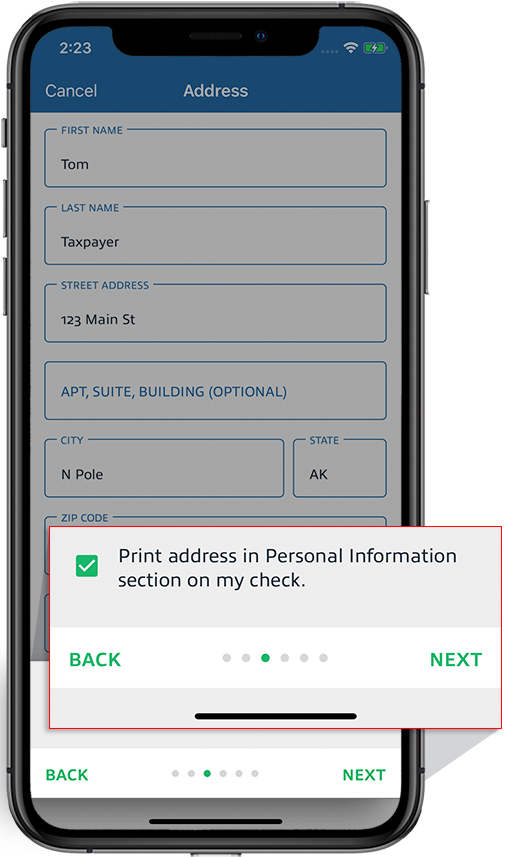
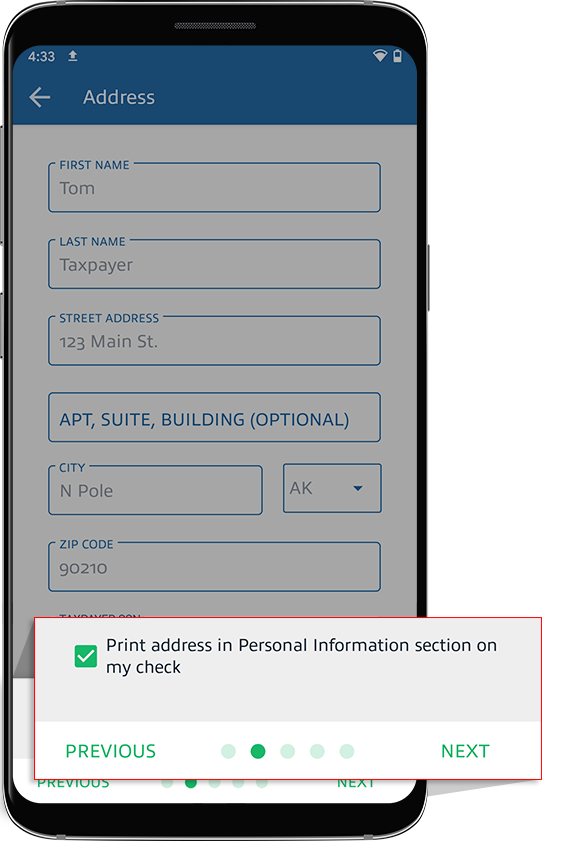
To add your name and address on your check, select the checkbox for
Print address in the Personal Information section of my check
(recommended). Clear the checkbox if you don’t want to include your personal information on the check.
Once all required fields are entered, select
NEXT
to go to the next step.
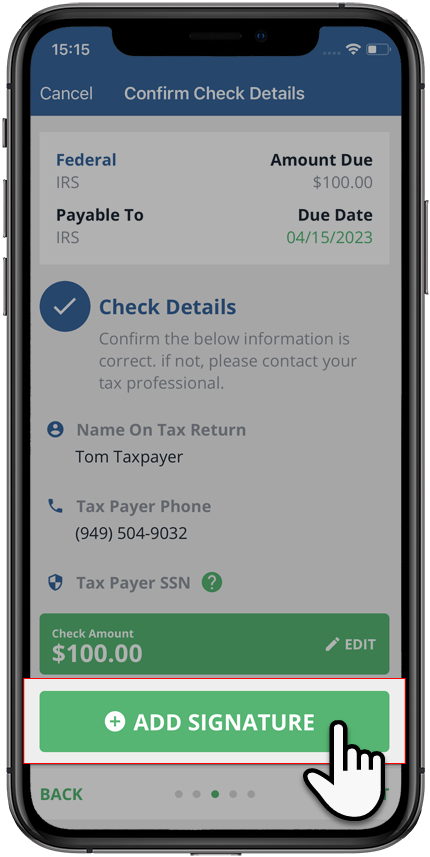
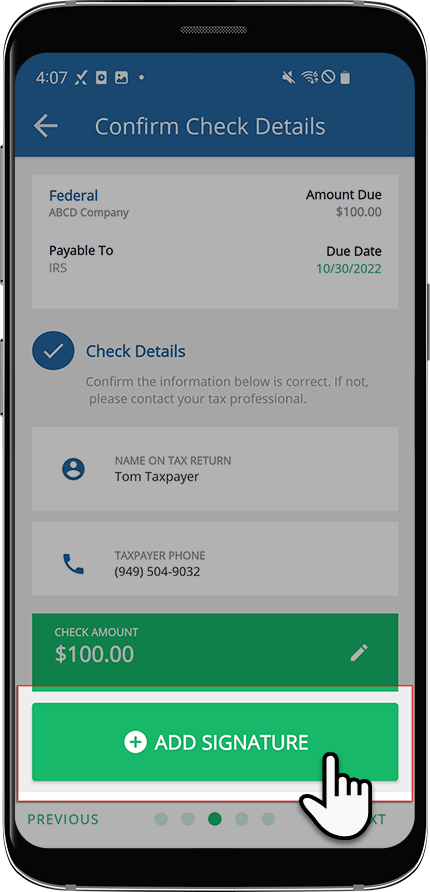
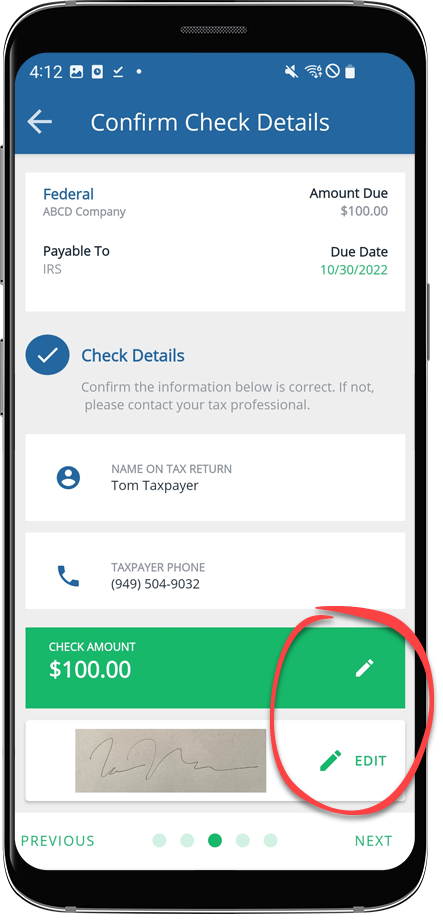
Before submitting your check, you'll first need to sign it. Select
ADD SIGNATURE
to add your signature to your check.
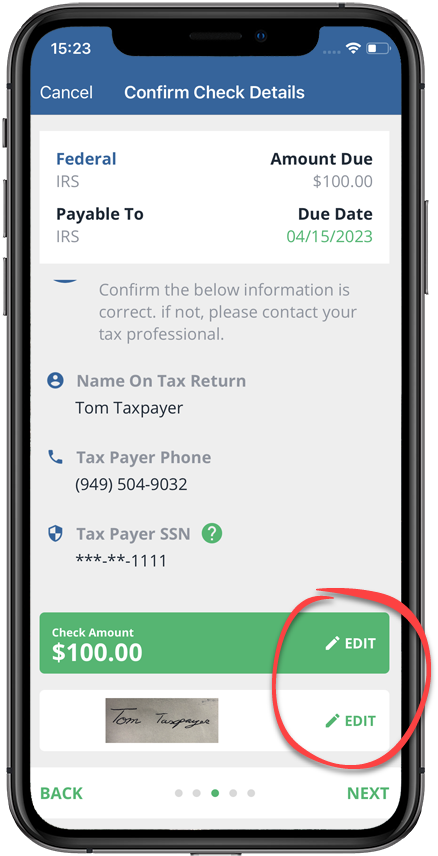
After adding your signature, verify the details that will go on the check. To modify your signature or the tax payment amount, select
Edit
.
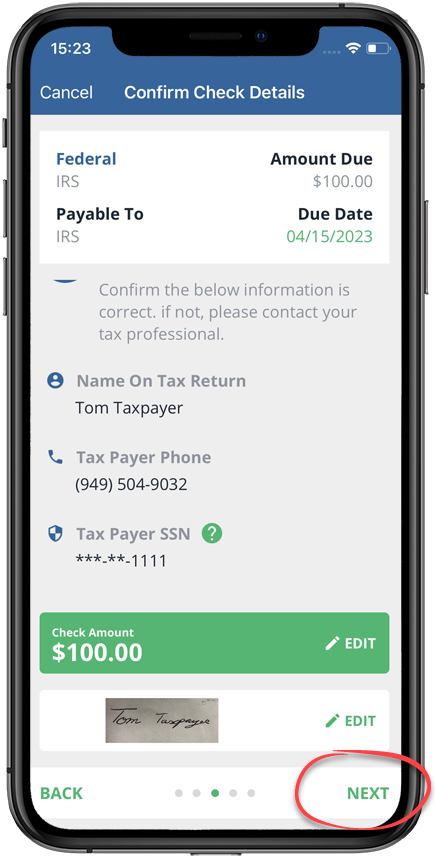
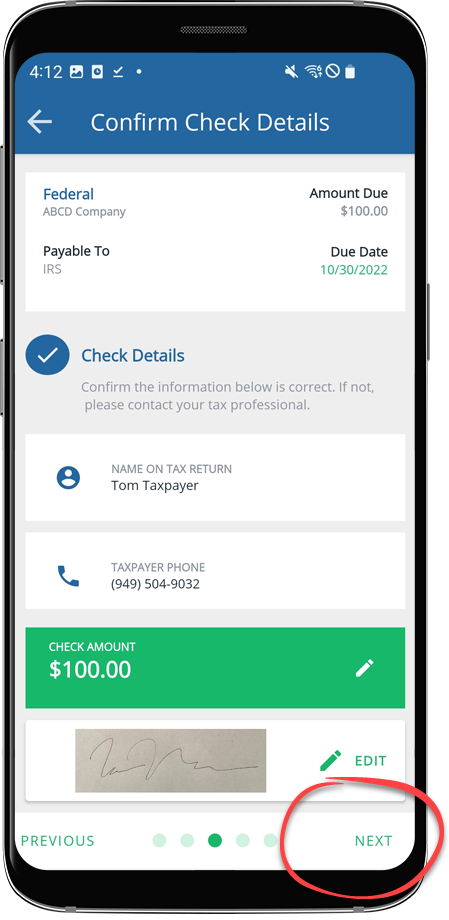
If your check details are correct, select
NEXT
to proceed to the next step.
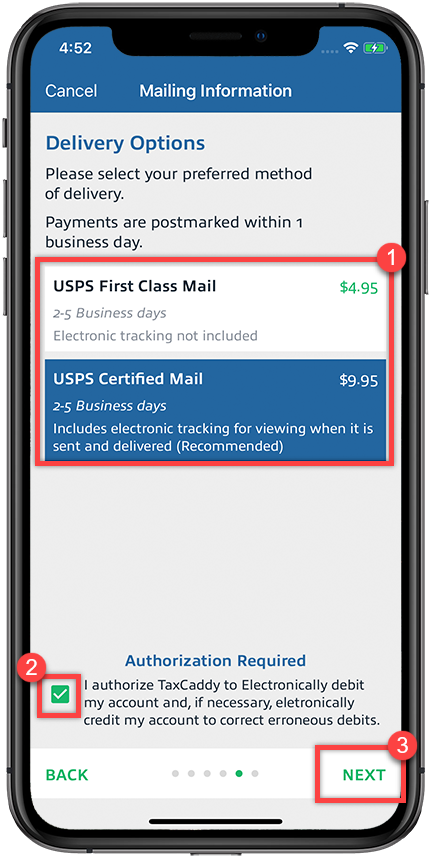
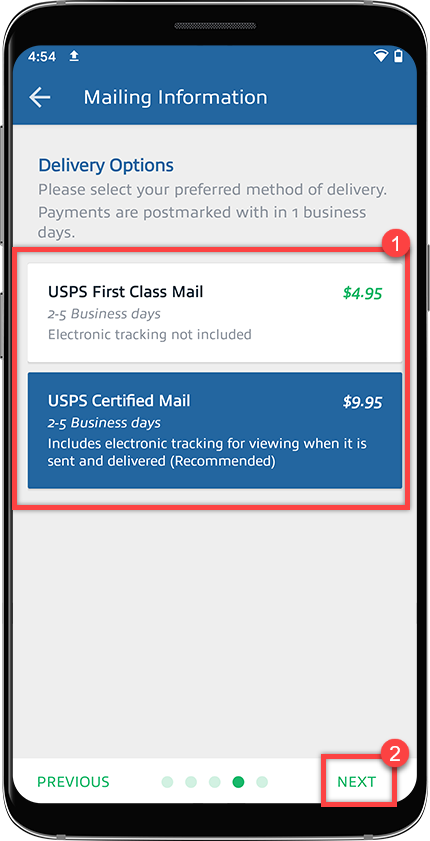
Select your preferred mailing option. Based on your selection, the mailing cost will be added to your payment total.
USPS First Class Mail
: Delivery between 2-5 business days. Doesn’t provide an electronic tracking number.
USPS Certified Mail
: Delivery between 2-5 business days. Provides an electronic tracking number to monitor mail delivery on the USPS website.
After you review the statement, select the checkbox then select
Next
to go to the next step.
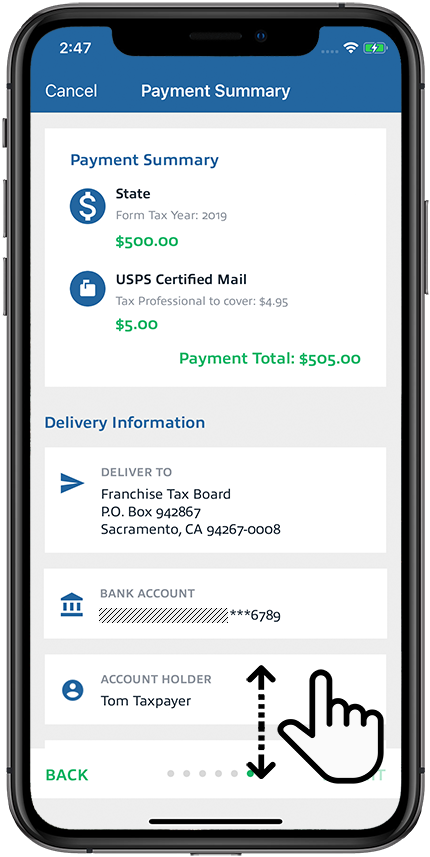
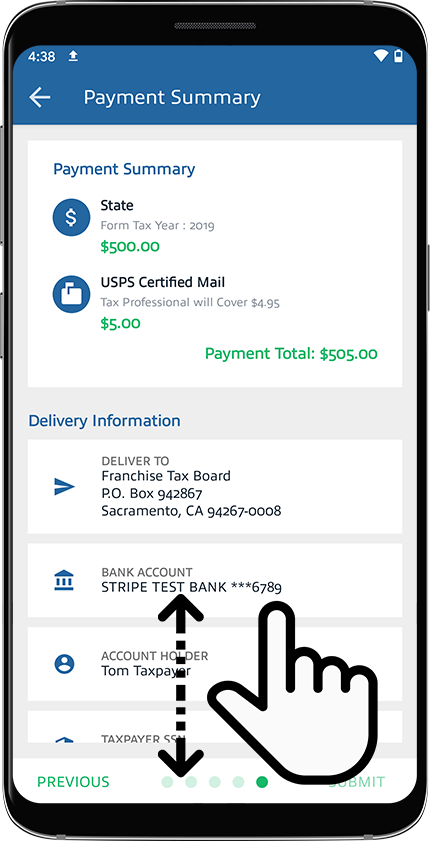
On the
Payment Summary
screen, verify your payment total (includes mailing cost) and delivery information.
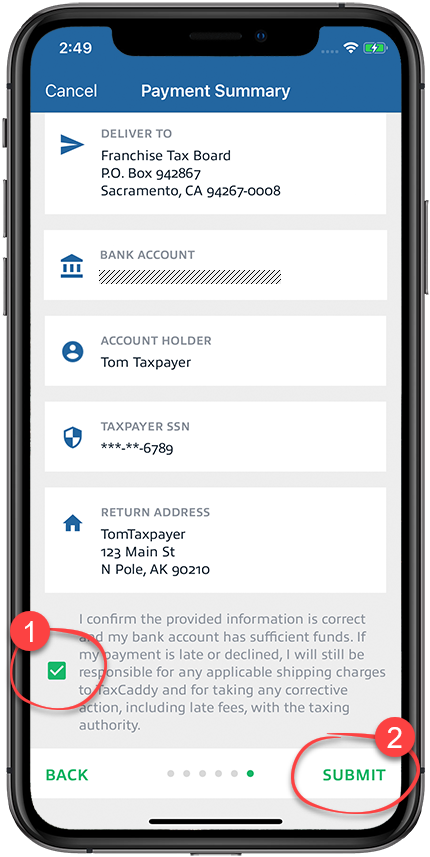
Select the checkbox to acknowledge the agreement, then select
Submit
to verify the payment.
Tax Payment voucher on the
Tax Payments
screen will now show
Payment Sent
. You will also receive a confirmation email. If you selected to mail your tax payments via Certified Mail, then you will see an option to copy the tracking number appear in 1 business day. The
Copy Tracking Numner
option lets you to use the tracking information to see the current status of your delivery.
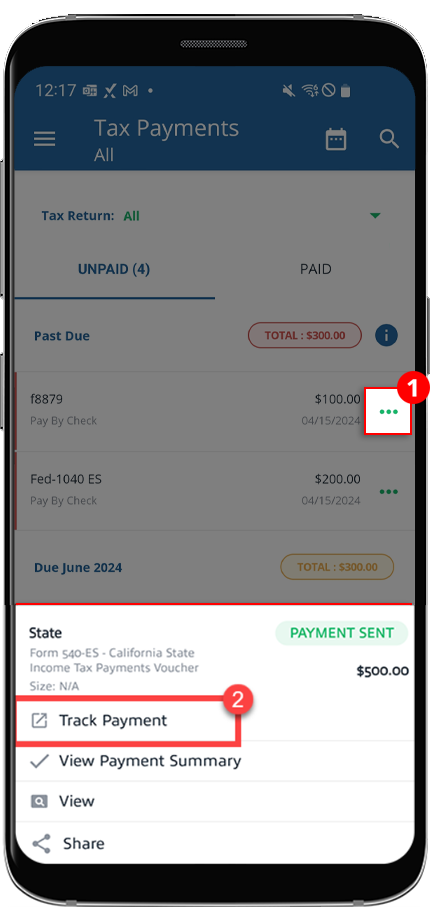
Follow these steps to access the tracking number on the
Tax Payments
screen:
Sign in to the TaxCaddy mobile app.
Tax payment vouchers that have been uploaded to your account will appear on the
Overview
screen. Select
Pay - Tax Payment(s)
to open your tax payments.
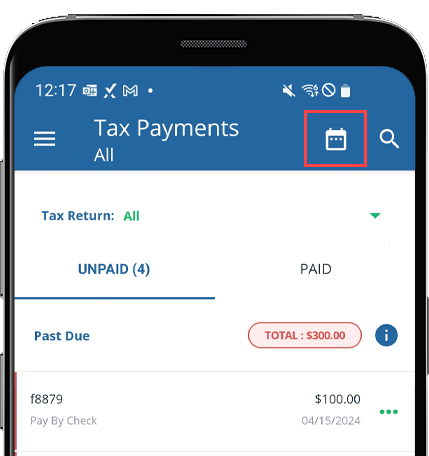
Alternatively, you can select
Menu
.
You will see tax payments grouped by the month that each is due.
The
All
tax year option will be selected by default. If you'd like to only see tax payments belonging to a specific tax year, select it from the
Tax year
menu.
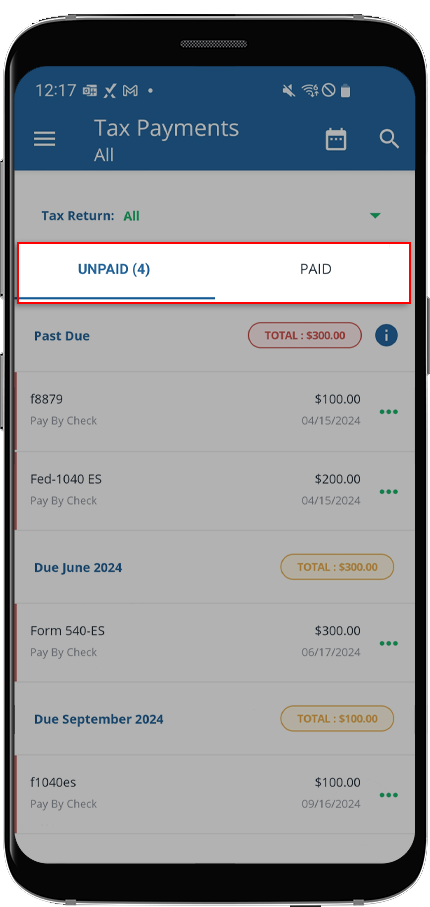
Select
UNPAID
to see tax payments that need to be paid (selected by default).
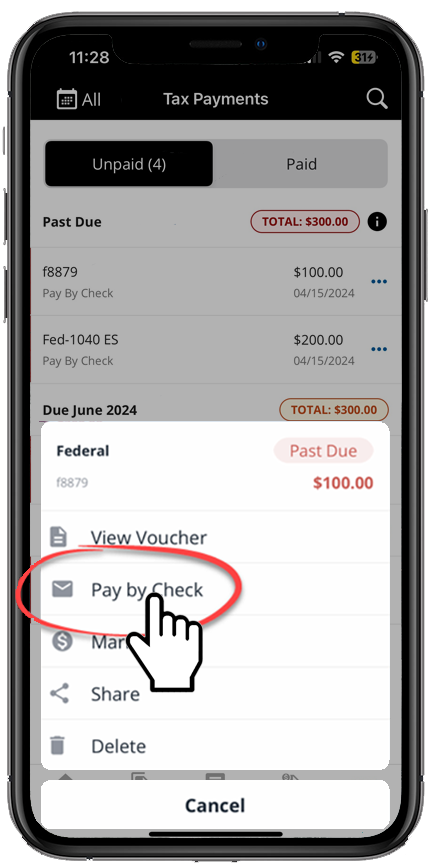
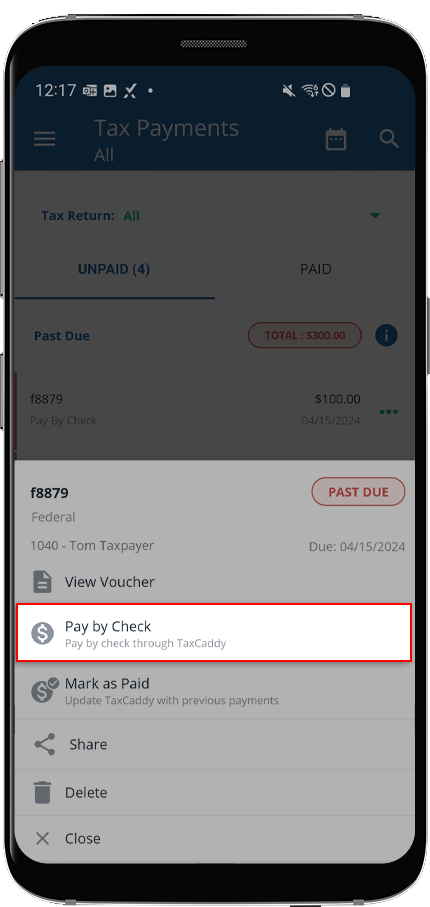
Select the
Menu
corresponding to the tax payment voucher you want to pay and select
Pay by Check
.
The option to pay by check is only visible under the following conditions:
Tax payment hasn’t been marked as paid.
Your tax professional has set up the tax payment to be payable by check and has cleared the tax payment for official use with the taxing authority.
Tax payment is for
State
taxing authority.
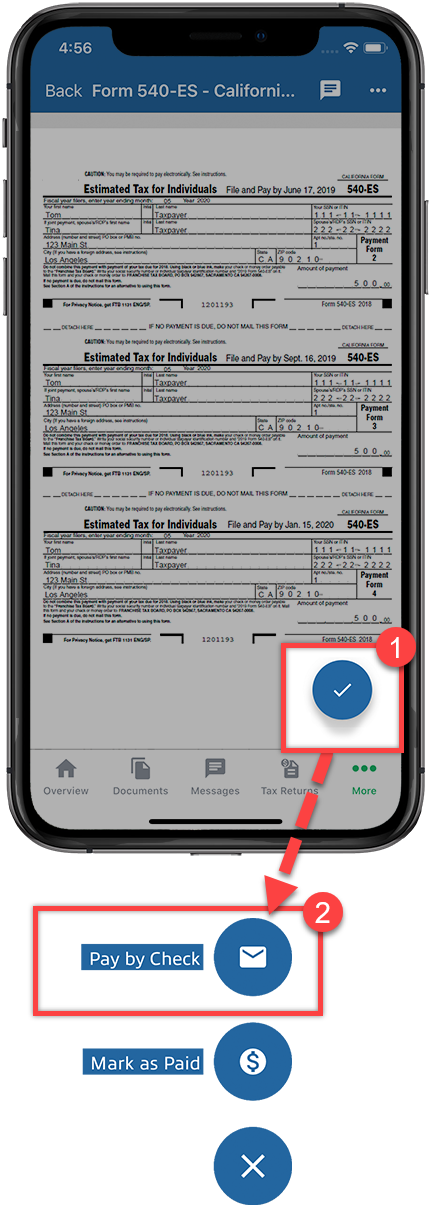
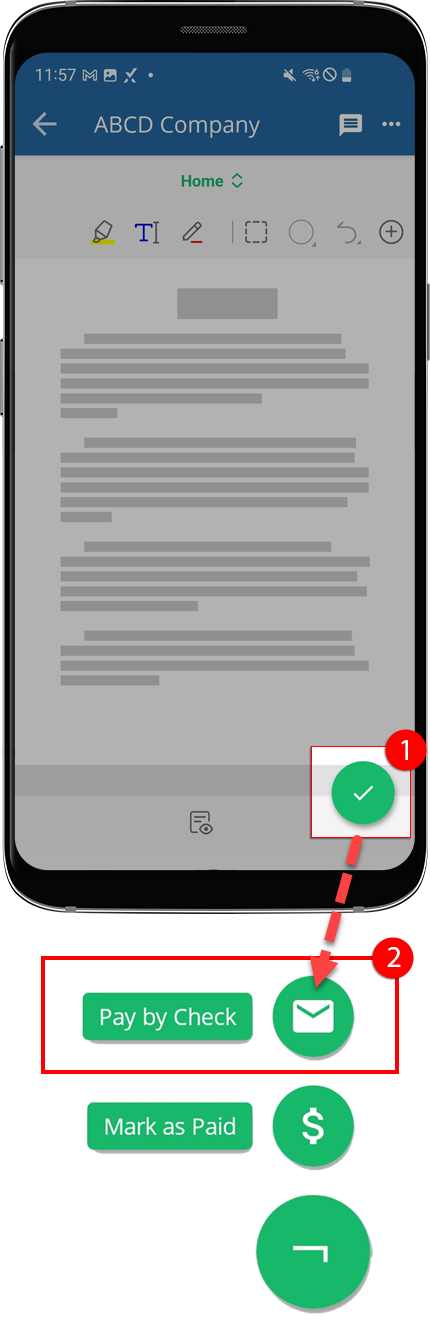
Alternatively, you can select the tax payment voucher to view the document. After you review the document, select the floating
Menu
, then select
Pay by Check
.
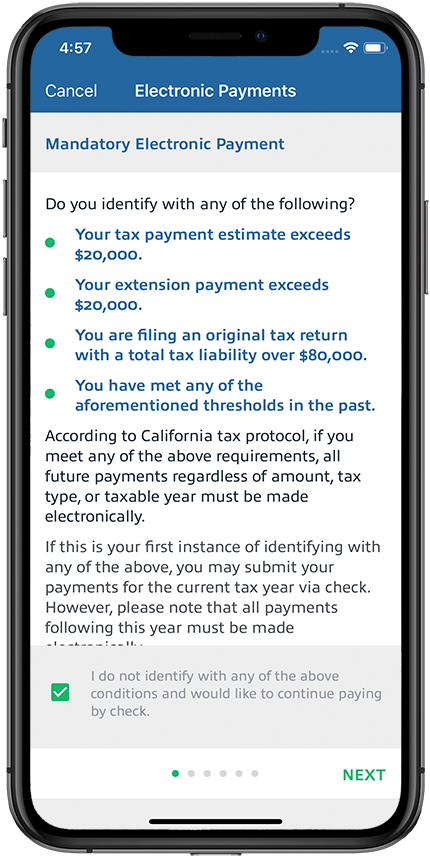
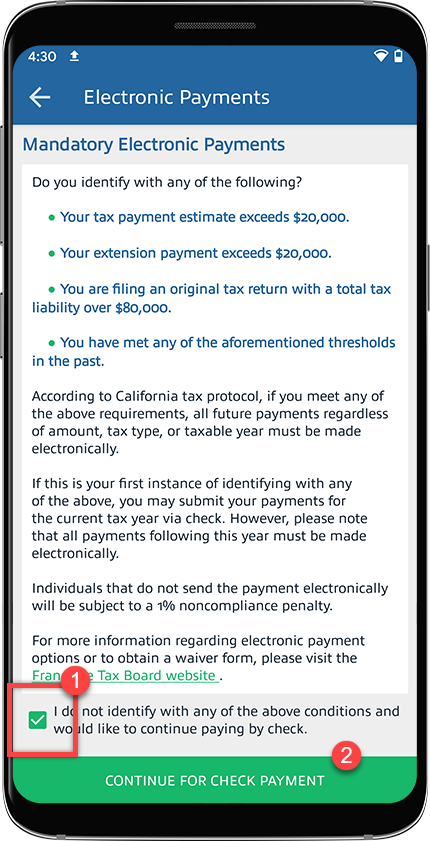
Skip to the next step if you don’t see the
Electronic Payments
screen. For California and Virginia state tax payments, some taxpayers may not be eligible to send a check by mail. If you meet your state's criteria listed on top of the window, then you are required to make online payments only. If you don't fall under any of these conditions, select the checkbox then select
CONTINUE FOR CHECK PAYMENT
.
Each state has different requirements. If you see
(State name) Mandatory Electronic Payments
window appear for your state then read the criteria before you decide to pay by check (via mail) instead of paying online as required.
For additional information regarding electronic pay, visit the applicable link:
If you have any questions or concerns, you can use TaxCaddy to message your tax professional.
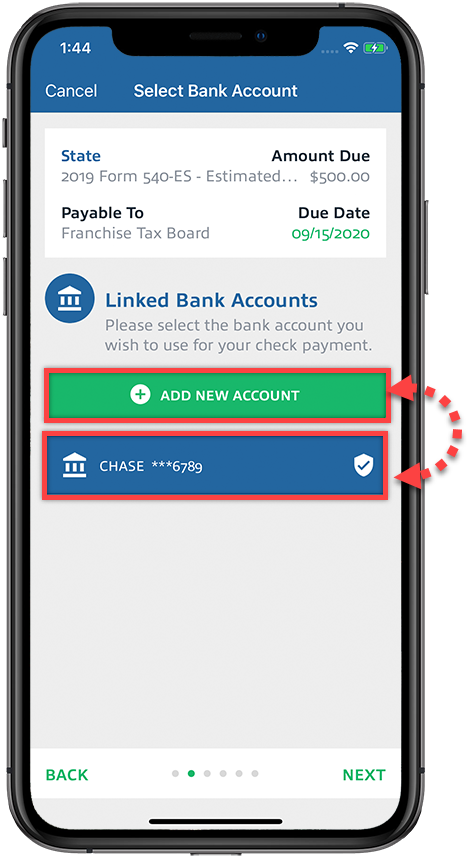
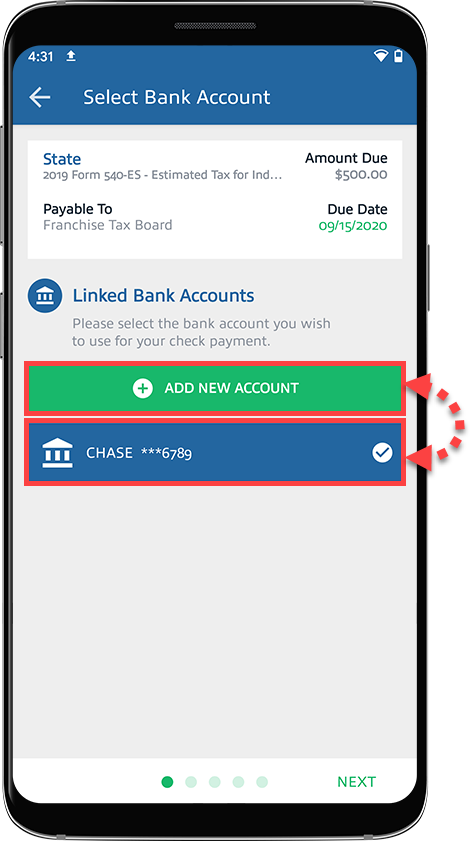
To make a tax payment, you need to first add your bank account to TaxCaddy if one is not already added. To add a bank account, select
Add A New Account
. If you already added a bank account, select to select the bank account then select
Next
.
If you selected to add a bank account, you'll need to verify your bank account information. You can select between
Instant Verification
or
Manual Verification
.
Instant Verification
- Requires you to sign in to your bank account to instantly verify your bank account.
Manual Verification
- Requires you to add your add
Routing Number
,
Account Number
,
Account Owner's Name
, and
Account Type
. Once the bank account has been added, you will receive micro-deposits in 2 business days. Enter the amounts to complete your account verification.
If you or your tax professional have previously provided your bank account information to TaxCaddy, we will automatically populate your records with the information we have on file. Take a moment to review the information and make any corrections you see fit before continuing.
Select the bank account after it has been added and verified successfully.
Enter your name, return address, and SSN (Social Security Number). The
RETURN ADDRESS
information is where the check will be returned if it can't be delivered to its destination. Your SSN is required to populate the Memo field on your check.
The Taxpayer SSN field only accepts numbers. You can't enter hyphens/dashes or spaces.
To add your name and address on your check, select the checkbox for
Print address in the Personal Information section of my check
. Clear the checkbox if you don’t want to include your personal information on the check.
Once all required fields are entered, select
NEXT
to go to the next step.
Before submitting your check, you must first sign it. Select
ADD SIGNATURE
to add your signature to your check.
After adding your signature, verify the details that will go on the check.
To modify the tax payment amount, select
Edit
.
If your check details are correct, select
NEXT
to proceed to the next step.
Select your preferred mailing option. Based on your selection, the mailing cost will be added to your payment total.
USPS First Class Mail
: Delivery between 2-5 business days. Doesn’t provide an electronic tracking number.
USPS Certified Mail
: Delivery between 2-5 business days. Provides an electronic tracking number to monitor mail delivery on the USPS website.
After you select the delivery option, select
NEXT
to go to the next step.
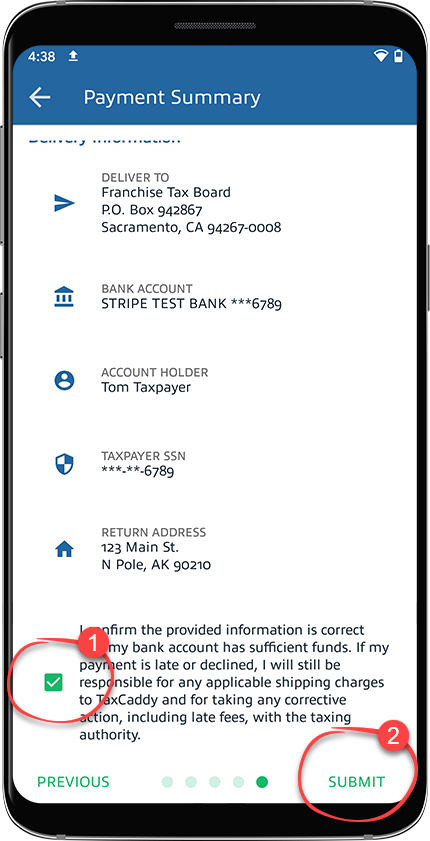
On the
Payment Summary
screen, verify your payment total (includes mailing cost) and delivery information.
Select the checkbox to acknowledge the agreement, then select
SUBMIT
to verify the payment.
Tax Payment voucher on the
Tax Payments
screen will now show
Payment Sent
. You will also receive a confirmation email. If you selected to mail your tax payments via Certified Mail, then you will see an option to copy the tracking number appear in 1 business day. The
Copy Tracking Numner
option lets you to use the tracking information to see the current status of your delivery.
Checking your tax payment status
We recommend paying tax payment checks via Certified Mail. You can then use the tracking number to track the progress of your mail delivery. The tracking number will be available in TaxCaddy within 1 business day.
Tax payments check is delivered within 2-5 business days. The IRS may take up to 3 weeks to process your check after it has been delivered. To check your tax payment status, either
create an account at IRS's website or call IRS e-file Payment Services at
1-888-353-4537
.
When will the funds be deducted from my account?
Delivery may take 2-5 business days. The IRS may take up to 3 weeks to process your check after it has been delivered.
Will my tax payments be marked as late if they are not deducted by the deadline?
The IRS considers the postmark date as the payment date rather than the date on which the tax payment is processed. TaxCaddy mails your paper check in 1 business day after you submit the payment details. If you submitted your tax payment details before the deadline, then you won’t be fined.
If you selected to mail your tax payment paper checks via Certified Mail, then you can view the tracking information from TaxCaddy.
When is the paper check mailed to the taxing authority?
TaxCaddy mails your paper check in 1 business day from the day you submitted it online.



 Article,
20 min read
Article,
20 min read