
Self-service Q&A powered by CoCounsel in HighQ
The
Self-service Q&A powered by CoCounsel Panel
is a self-service, AI-powered chat interface embedded within the HighQ platform. It allows external users, such as clients or stakeholders without direct CoCounsel access, to interact with a curated document database using natural language queries. This feature is designed to streamline access to legal or business-critical information by enabling users to ask questions and receive immediate, contextually relevant answers.This Panel is specifically built for
Custom Pages
, offering organisations a modern, intuitive experience that reduces the need for manual document review or direct support.User roles and access
Since external users do not have direct access to CoCounsel, a specific setup has been created to allow them to use the Q&A Panel. There are three types of users involved:
- Site Admin
- Proxy External User Search
- Site User
Each user type has defined roles and requirements. For detailed information on how each user interacts with the Self-service Q&A powered by CoCounsel Panel, see Custom User Provisioning for Self-service Q&A.
note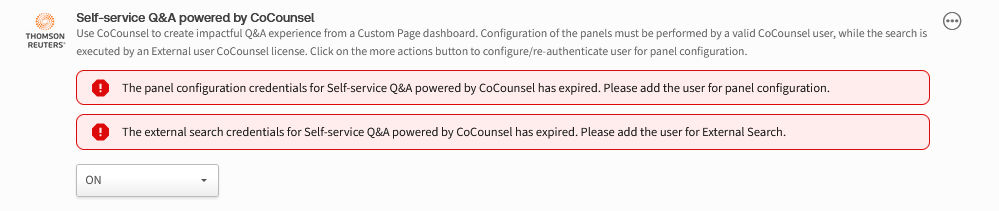
Site Admin and Proxy external users have different credential revalidation periods. Site Admin will need to revalidate their CoCounsel authentication credentials every 7 days, while Proxy external user credentials require revalidation every 45 days. However, if users log in daily using their credentials, revalidation is not required, as the authentication token remains active.
Access and configuration
To enable the CoCounsel proxy external users credentials, you will need to provide a non-human email address for each proxy user. These should be set up on purchase of the add-on; if you don’t have this information, please contact your client representative.
Set up One Pass profile for proxy external user
To set up a One Pass profile, log in to https://onepass.thomsonreuters.com/. Enter your email address and click
continue
.
The account setup page appears. Fill in the required fields:

- First Name/Last Name: For external proxy users, use the chosen non-human account name.
- Email/Confirm Email: Enter the non-human account’s email address.
- Additional emails: You may enter your own email address for reference, but this is optional.
Click
Continue
to proceed and Complete the Security
section.
click
Create
to finalise the profile setup. You have now successfully created a OnePass profile for a proxy user.
Add Registration Key
Next, you will be prompted to enter a registration key. If not redirected automatically, go to the main page and select
Add Registration Key
.
Fill in the required details:
- Product: SelectCoCounselfrom the dropdown (if not automatically populated).
- Registration Key: Enter the registration key.
- Custom Label: This acts as a unique identifier to help distinguish the key.
- Email: This will be the non-human email address.
Click
Continue
to complete the registration. You can now sign in to CoCounsel as an external proxy user. Once you have your own CoCounsel account access and the proxy external user One Pass access, you can then proceed to configure this experience in the AI Admin section of the site.
Set up Self-service Q&A powered by CoCounsel feature in System and Site Admin
Once you have your own CoCounsel account access and the proxy external user One Pass access, you can then proceed to configure this experience in the AI Admin section of the system and site.
Configure CoCounsel at the system level
To configure CoCounsel at the system level, navigate to
System admin
> CoCounsel & Generative AI Settings
and enable "Self-service Q&A powered by CoCounsel
".
Configure CoCounsel at the site level
Once the Super admin setting is added, within a Site, the Site Admin will then need to configure CoCounsel credentials. To configure, navigate to
Admin
> AI Hub
> Configure
> CoCounsel section
> Self-service Q&A powered by CoCounsel
.
note
Before configuring the settings at the site level, ensure that the CoCounsel option is enabled at the system level. If it is not enabled, the site‑level settings will not appear.
Users will need to add two sets of credentials in the CoCounsel configuration section:
- Admin credentials for the panel configuration– this is the user who creates the dashboard panel and has access to the CoCounsel database.
- User credentials for the search to use– this is the proxy user that allows external users without CoCounsel licenses to run queries against a knowledge base of documents.
The credentials can be added using the ellipsis on the right-hand side.

First, you need to configure the admin credentials to create the Self-service Q&A powered by CoCounsel panel (the admin user needs to have a CoCounsel license to configure the required details).

This will display a modal notification that your CoCounsel account will be used to manage the self-service Q&A feature for the entire site.

Once you click the ''
Confirm
'' button, a OnePass credentials pop-up will appear, prompting the admin user to enter their OnePass credentials for the external Q&A.
Once the administrator has entered their OnePass email address and password, select the ''
Sign In
'' button to proceed.Subsequently, the external user must be configured. Upon purchasing this add-on, you will receive an external search registration key. This key provides restricted access exclusively to the ''
Search a Database
'' skill and does not permit access to any other skills. The new registration key must be associated with a newly created OnePass profile.
note
This feature is a paid add-on. External registration keys will be provided during the sales process. If you're interested in purchasing it, please contact your account manager.

This will display a OnePass credentials pop-up to add the external users OnePass credentials for the users to proxy run queries in CoCounsel.

Once the external user (proxy user) has entered their OnePass email and password, click the ''
Sign In
'' button.After the credentials are submitted, the dropdown will automatically switch to ''ON'' indicating that the credentials have been successfully added. You can then proceed to configure this experience on a Custom Page.
note
Admin users and Search users have different credential revalidation periods. Admin users will need to revalidate their CoCounsel authentication credentials every 7 days, while Search user credentials require revalidation every 45 days.
The Admin user will only need to reauthenticate if editing the panel in between that time.
Set up Self-service Q&A powered by CoCounsel feature on your Custom Page Dashboard
The Self-service Q&A powered by CoCounsel panel enables users to receive answers to document related questions directly within the dashboard experience. It is configured through the Custom Page Dashboard, which represents a modernised evolution of site homepages, built on advanced technology for enhanced flexibility and performance. To enable client access to these dashboards, you can apply the same permission settings currently used for client homepages.
note
Our new Custom Pages are designed to provide maximum flexibility, allowing you to use both the existing Site Homepages and the new Custom Pages interchangeably across your sites, including setting as the default homepage. This approach enables a smooth transition, letting you adopt new features like the self-service Q&A experience at your own pace, while still retaining familiar layouts where needed.
To create a Custom Page, navigate to
Admin
> Custom Pages
> Add
.note
For more information on Custom Pages, please click here to visit our help and support page.
Once you have created your Custom Page, clicking on the “
Add
” button will open the panel selector.
Select ''
Self-service Q&A
'' and the ''Add panel - Self-service Q&A
'' screen opens:
More information on each of the input fields can be found here.
Once you have added all the relevant details, the new panel is displayed in your dashboard as shown below:

When a user clicks on the KPI-style card, it triggers a chat function linked to the CoCounsel database configured by the administrator. The user can then ask natural language questions about the data contained in that CoCounsel database. If the user asks a question that is not related to the database content, the chatbot will respond with ''no relevant information found''.
An example of what the chatbot can look like within the dashboard:

Additional Information
- Any user who has access to the dashboard will be able to interact with the documents in the connected database through the Q&A panel. If there are users who should not have access to this data, permissions must be applied at the dashboard level to restrict their access.
- While CoCounsel doesn't impose a hard limit on the number of documents, the recommended capacity for the "Search a Database" skill is approximately 100GB. Exceeding this may reduce reliability.
- When using HighQ folders, note that sub-folders are not included in the search. Only documents in the selected top-level folder are searchable.
- To avoid confusion, only one Q&A panel can be added to a dashboard. This ensures users aren’t interacting with multiple chat panels linked to different data sources.
- When a self-service Q&A panel is deleted, all associated user history cannot be accessed.
note
When a firm has full responsibility for its own legal privacy and terms and conditions through a special arrangement with TR, the privacy disclaimer text will be adjusted accordingly.
Related Content
-
Custom User Provisioning for Self-service Q&A powered by CoCounsel in HighQ
Format: Article
-
CoCounsel Reports
Format:
Article,
4 min read
-
CoCounsel integration - Introduction and Overview
Format:
Article
-
CoCounsel integration - Introduction and Overview
Format:
Article