
Template categories
Categories allows controlling the way users experience templates. You can organise templates into related groups - by business function (for example, Sales or Finance), or by region (for example, United States or Europe).
You can create nested categories - for example, business function within region. This aspect of categories is like the nested folder structures familiar to users of many other systems. One important difference is that a template can be associated with multiple categories, so you can add the same template into both the Unites States category and the Europe category.
Creating categories
To use categories, you need to enable them in
Admin > Features
, see Enabling categories for templates for details.To create a new category:
- Go toTemplates > Categories.
- ClickNew category.
- DefineNameandDescriptionfor the new category.
- Add templates to the category:
- SelectTemplate.
- SelectProfilethat will be applied to the template in this category. You also can define profile for all templates in bulk.noteYou can configure many aspects of a template's questionnaire or generated document behaviour using profiles.
- DefineNameof the template in this category.noteRenaming allows giving a specific name for a profiled template in category, for example "Software License" in the United States or "Software Licence" in Europe.
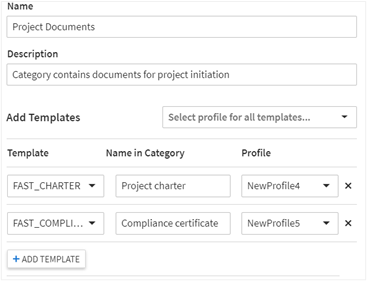
Template authors can directly browse the underlying templates, but business users will only access the renamed, profiled templates allocated to categories to which they have been granted access when they click on either
New document
, New invitation
or when adding a new workflow Item where using Matters.Once you have added a template to a category, you may remove the template from the
main Categories list
under the Categories tab
. This will not affect the copy of the template that has been added to the category/categories. Make sure that you do not delete the template from the main Templates list
(under the left-hand tab) since this will remove all copies of that template including those within categories.Getting links to categories and templates
You can provide users with a link to the profiled template in category. To get the link to the profiled template:
- Go toTemplates>Categories.
- Find the required template and clickLinksbutton in Link column.
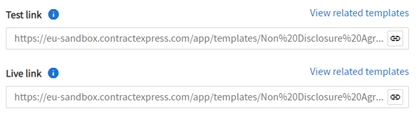
- Copy the link:
- Test link- the latest version of the main template (which can be either Unpublished/Published) + the assigned profile.
- Live link- the latest version of the main template that has been marked as Published only + the assigned profile.
This link will launch questionnaire for the specified template.
In addition, you can share the link to the category. This link is available by clicking the
Links
button in Link column. Using this link, users will go straight to the list of templates in the selected category to create a document.Editing templates in categories
To edit templates in a category:
- Go toTemplates > Categoriesand select the required category.
- Check the required templates and clickEdit templatesbutton.
- In the opened panel, you can modify the profile, template and name for selected templates.
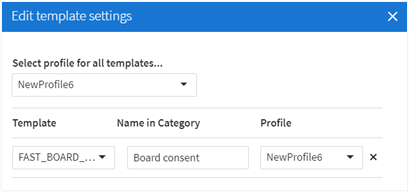
To remove templates from a category, select them in the category and click
Remove
. note
By removing template from a category, you will delete the underlying template from the Templates tab. See Deleting templates for information about deleting the underlying template.
Moving categories
You can move a category to a different location:
- Go toTemplates > Categoriesand select the required category.
- ClickMove.
- In the opened panel, select the destination for the category and clickMove.
If the destination already contains a category with the same name or contains templates with the same profile and name as templates in the category that is being moved, you will not be able to move the category.