
Error: Cannot edit Word or Excel documents with GoFileRoom Office Add-In
Scenario
You can use the GoFileRoom Office Add-In to add documents from Excel or Word, or to edit Excel or Word files that are stored in GoFileRoom. Occasionally, these functions are inactive or missing. You might get one of the following errors when you try to edit Word or Excel files from GoFileRoom.
Error message
Please make sure the GoFileRoom add-in is running properly in Microsoft Office
Error in try catch EditOfficeAddin
Please install the latest Office add-in.
Please install the latest Office add-in.
Automation server can't create object.
Causes
The WorkFlow Tools GoFileRoom Office add-in isn't installed, or it was unable to load properly. The following examples can cause this error to occur.
- If Microsoft Excel or Word crashes, or is closed via the Windows Task Manager while a GoFileRoom window is open, this error can occur the next time you try to save or edit an Microsoft Excel or Word document in GoFileRoom.
- The GoFileRoom Add-In isn't installed on this workstation.
All Engagement Manager documents are stored in GoFileRoom. When you open and edit Excel or Word documents in Engagement Manager, you use the GoFileRoom Office Add-in.
important
We recommend that:
- You should perform the following list of troubleshooting steps in order until you can edit Excel and Word documents again.
- If changes to Windows registry are required, you should make sure that these changes are made only by a qualified IT professional and that they back up the registry before making changes. Issues with the registry can cause serious problems with the operating system.
Solutions
Solution 1: Check the workstation has been configured for GoFileRoom
Check that the workstation is configured in accordance with the GoFileRoom setup checklist.
Solution 2: Check the version of Microsoft Office
Make sure that GoFileRoom supports the version of Microsoft Office installed on the workstation. Consult the GoFileRoom system requirements to find out which versions are supported.
If you have recently upgraded to, or installed a newer version of Microsoft Office on the workstation:
- Make sure that the Office applications open successfully outside of GoFileRoom and that you aren't prompted for license or registration information.
- It's possible that older or trial versions of Microsoft Office items are still in your computer's registry, which may cause these errors.
Solution 3: Re-install the GoFileRoom Add-In
Follow the steps in the to uninstall and reinstall the GoFileRoom Add-In.
Solution 4: Check the GoFileRoom Add-In is enabled
If the latest version of the GoFileRoom Add-In is installed but the GoFileRoom tab is missing from Excel and Word, follow the steps to turn on GoFileRoom add-ins for Microsoft Excel or Word.
Solution 5: Register GoFileRoom Office Add-In's dynamic link library files
- In the Windows Search bar, enterExcel.exeorWinword.exe.
- In the search results list, right-clickExcel.exeorWinword.exeand selectRun as Administrator.
- In Excel or Word, selectFile, thenOptions.
- SelectAdd-ins.
- In theManagefield, selectCOM Add-ins, thenGo.
- SelectThomson Reuters WorkFlow Tools, thenRemove.
- SelectOKto confirm, then close Excel or Word.
- Open Excel or Word as an administrator.
- SelectFile,OptionsthenAdd-ins.
- In theManagefield, selectCOM Add-ins, thenGo.
- SelectAdd.
- Select one of the following Dynamic Link Library files:
- adxloader.dllatC:\Program Files\GoFileRoom\GFROffice(for 32-bit Microsoft Office)
- adxloader64.dllatC:\Program Files (x86)\GoFileRoom\GFROffice(for 64-bit operating system)
- SelectOKand mark theThomson Reuters WorkFlow Toolscheckbox.
- SelectOKand close Excel or Word.
- Open Excel or Word normally (not as an administrator) and check if the GoFileRoom add-in is active.
Solution 6: Reinstall the GoFileRoom Add-In and run Microsoft Office repair
Follow steps 1 to 3 to uninstall and reinstall the GoFileRoom Add-In article. After restarting the workstation in step 3, follow the instructions on the Microsoft Support website to repair an Office application and use the Online Repair method.
note
We provide this information as a courtesy. If you still have questions or need help, you'll need to contact a qualified IT professional. Support is available to help with Thomson Reuters products within our scope of support.
Solution 7: Check the load behavior of the WorkFlow Tools Add-In
- Close all Microsoft Office applications.
- Use Windows Task Manager to make sure thatExcel.exeandWinword.exeare closed.
- EnterRunin the Windows Search bar, the select theRunapp.
- EnterRegedit, then selectOK.
- SelectYesif you are asked to allow the program to make changes to your computer.
- Set theValue dataof the WorkFlowTools Add-In module Registry key for Excel:
- Go toHKEY_LOCAL_MACHINE\SOFTWARE\Microsoft\Office\Excel\AddIns\
- Select either the_TR.WorkFlowTools.AddinModuleorTR.WorkFlowTools.AddinModuleRegistry key.
- Double-click theLoad Behaviouritem and check that theValue datais set to3.
- Go toKEY_CURRENT_USER\SOFTWARE\Microsoft\Office\Excel\AddIns\and repeat steps 6b to 6d above.
- Set the Value data of the WorkFlowTools Add-In module registry key for Word:
- Go toHKEY_LOCAL_MACHINE\SOFTWARE\Microsoft\Office\Word\AddIns\
- Select either the_TR.WorkFlowTools.AddinModuleorTR.WorkFlowTools.AddinModuleRegistry key
- Double-click theLoad Behaviouritem and check that theValue datais set to3.
- Go toKEY_CURRENT_USER\SOFTWARE\Microsoft\Office\Word\AddIns\and repeat steps 6b to 6d above.
note
Internal use only
Support: Do not manually add the LoadBehavior key if it does not exist.
Solution 8: Check Transport Layer Security is enabled
- EnterRunin the Windows Search bar, then select theRunapp.
- EnterRegedit, then selectOK.
- SelectYesif you are asked to allow the program to make changes to your computer.
- Go toHKEY_LOCAL_MACHINE\SOFTWARE\Microsoft\.NETFramework\v4.0.30319
- If theSchUseStrongCryptokey isn't listed:
- Right-click in the right pane and selectNew,thenDWORD (32-bit) Value.
- EnterSchUseStrongCryptoin theNamecolumn.tipIf you useEnteror select anywhere else before you enter the newName, you'll need to right-click the new item, selectRename, and enterSchUseStrongCryptoas theName.
- Double-clickSchUseStrongCryptoand enter1in theValue datafield.
- Go toHKEY_LOCAL_MACHINE\SOFTWARE\Wow6432Node\Microsoft\.NETFramework\v4.0.30319and repeat steps 4 and 5 above.
tip
The Windows Learn website has more information on Windows Registry information for advanced users.
Solution 9: Check that GoFileRoom Add-ons are enabled in Microsoft Edge
- EnterRunin the Windows Search bar, the select theRunapp.
- EnterRegedit, then selectOK.
- SelectYesif you are asked to allow the program to make changes to your computer.
- In Microsoft Edge, selectTools, thenInternet Options.
- Select theProgramstab.
- SelectManage Add-ons.
- SetShowtoAll Add-ons.
- Enable the following add-ons in the Thomson Reuters (Tax and Accounting) Inc section:
- gfrPDFModify.pdf
- GoFileRoom.CheckOut
- TR.FileRoom.Client.OfficeAddin
- GFRDownloadClient.Download
- For each add-on:
- Right-click and selectMore Information.
- SelectAllow on all sites, thenClose.
Section 10: Check that Microsoft registry items don't make the WorkFlow Tools Add-In inactive
If certain registry keys for disabled or startup items are active, they can stop the WorkFlow Tools Add-In from running. Your qualified IT professional can take the following steps to solve this problem.
- EnterRunin the Windows Search bar, then select theRunapp.
- EnterRegedit, then selectOK.
- SelectYesif you are asked to allow the program to make changes to your computer.
- Go to the following folder based on whether the problem is with Excel or Word.
- HKEY_CURRENT_USER\Software\Microsoft\Office\XX.X\Excel\Resiliency
- HKEY_CURRENT_USER\Software\Microsoft\Office\XX.X\Word\Resiliency
noteThe characters XX.X in the registry key folders indicate variable numbers that will be different for each version of Office. - Select theDisabledItemsfolder.
- For each item:
- Right-click and selectModify.
- If the columns on the right of the Value data section contain a reference to GoFileRoom, delete the item.
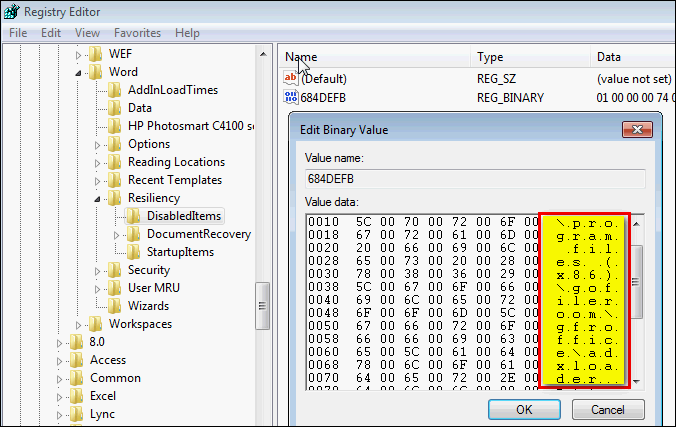
- Select theStartupItemsfolder
- Repeat step 6 for each item.
Section 11: Check for unnecessary registry keys after upgrade to 64-bit Office
- EnterRunin the Windows Search bar, then select theRunapp.
- EnterRegedit, then selectOK.
- SelectYesif you're asked to allow the program to make changes to your computer.
- If there are Win32 and Win64 folders at the following locations, delete the Win32 folder:
- HKEY_CLASSES_ROOT\TypeLib\{00020905-0000-0000-C000-000000000046}\XX.X\0\
- HKEY_CLASSES_ROOT\TypeLib\{00020813-0000-0000-C000-000000000046}\XX.X\0\
noteThe XX.X characters in the registry key folders represent the version of Office you have.

