
Import accounts to a chart of account
Import CSV files for
Source chart of accounts
or Summary chart of accounts
that was previously created, or create new templates that map the data.- Go to .
- Select a chart link on theSource chart of accountorSummary chart of accounttab.
- SelectImport.
- SelectAdd File, then selectNext.
- Begin to prepare your data on theImport accountsscreen.
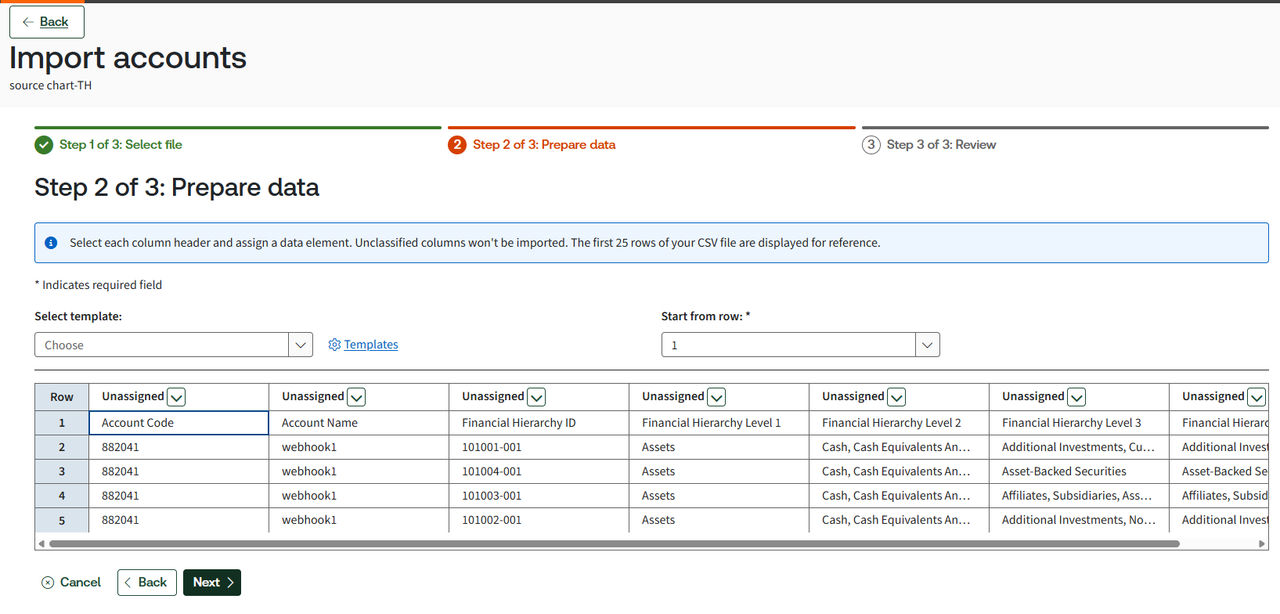
- To create a new template:
- Select each column header and map theAccount codeandAccount name.
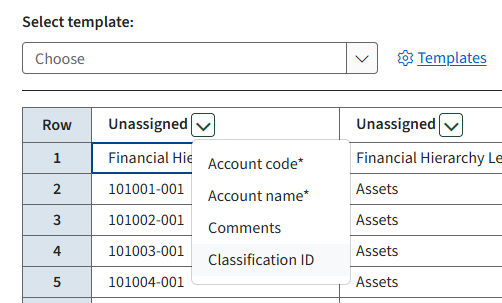
- SelectNext.
- Enter a template name, then selectSave & Continue.
- To use an existing template:
- Select a templateto use an existing one, or select the
 link to select another template.noteThetemplate,start row, androw columnsautomatically populate when you use an existing template.
 - SelectNext.
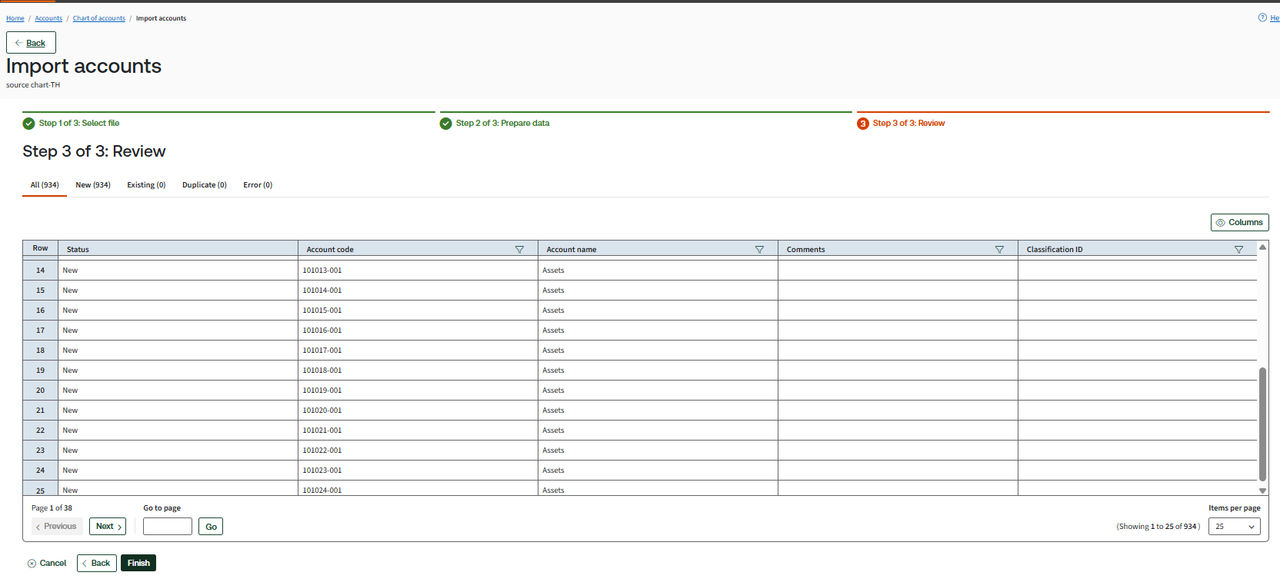
- Review your imported data.
- If you get an error on the import, selectDownload fileto fix them and import again.
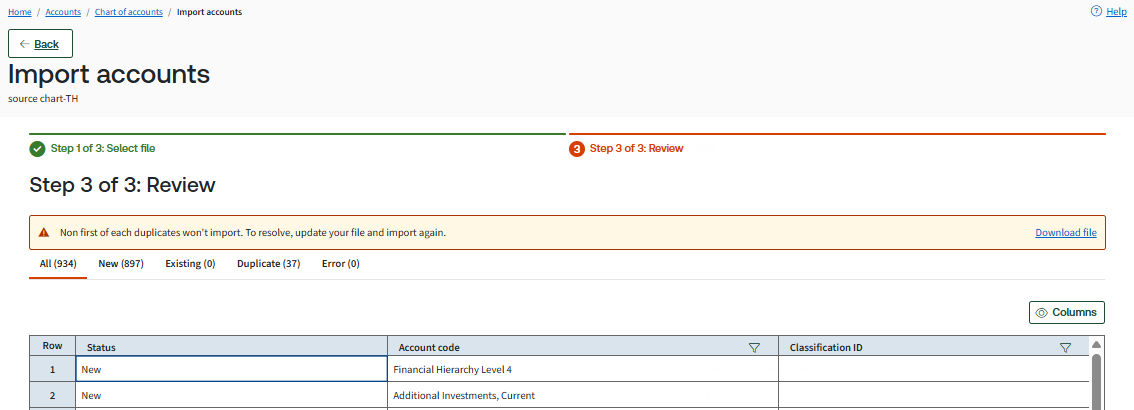
- SelectColumnsto add, remove, or reorder columns in your table, then selectApply.
- SelectFinishwhen you're done with the review.
- SelectConfirmto update the accounts.noteFor the Source chart of accounts, attach the Level 4 classification ID. Currently, attaching a classification ID to the Summary chart of accounts is not supported. To attach classifications, use on theAccountsscreen.
Related Content
-
Convert summary charts of accounts
Format: Article
-
Convert charts of accounts
Format:
Article