
How to configure and manage FTP/SFTP tasks in In Out?
File Transfer Protocol (FTP) and Secure File Transfer Protocol (SFTP)
are connection types that allow you to conveniently transmit files between servers and systems connected to the Internet. In this context, use the FTP/SFTP task
screen to parameterize these connections
, enabling the retrieval/sending of files from/to a remote server and the association of these tasks with the interfaces registered in In Out
.Adding an FTP/SFTP Task
- Access the menuInterface > Interface Structure > FTP/SFTP Tasks.
- On theFTP/SFTP Task Filterscreen, clickAdd
 .
. - According to the definitions, complete the fields on theCreate FTP/SFTP Task
 screen:* Required fields
- General Data
- Name:FTP or SFTP job name.
- Order*:Position of the task in the execution order, if there is more than one task associated with the interface.
- Connection:
- Protocol*:Connection Protocol: File Transfer Protocol (FTP) or Secure File Transfer Protocol (SFTP)
- Operation*:GET (input) or PUT (output), where:
- GET = moves defined extensions fromRemote FoldertoLocal Folder
- PUT = moves defined extensions fromLocal FoldertoRemote Folder
- Server*:In Out Path.Example: #INOUT#\TXTFiles
- Port*:Port number for connection (default: 22)
- User:User for connection.
- Password:Password for connection.
- Key Type*:Password or host key file.
- Key Value:Server/Protocol Information used for authentication.
- Registration Level*:Level of detail in the log file:
- -1=Reduced
- 0=Normal (default)
- 1=Debug 1
- 2=Debug 2
- Maximum file size* (in MB):Size limit of the files being transferred via the FTP/SFTP task. The value is expressed in megabytes (MB) and serves to ensure that transferred files do not compromise network performance or exceed the storage capacity of the target server. When exceeding the established limit, theSavebutton is disabled.
- Maximum file count*:Maximum number of files that can be transferred via the FTP/SFTP task. Restricting the amount of files helps manage the use of server resources and avoid system overload during transfer processing. When exceeding the established limit, theSavebutton is disabled.
- Use Proxy:When checked, this option indicates that proxy settings will be used
- Deletes Source files:When checked, this option indicates that the source files should be deleted on the transfer.
- Files:ClickAdd and enter:
- Local Folder:Local folder where transmitted files will be stored
- Remote Folder:Remote folder (FTP/SFTP server) where files can be retrieved.importantIn this case, the bar indicating the path to the folder should not be reversed, i.e., use "/".
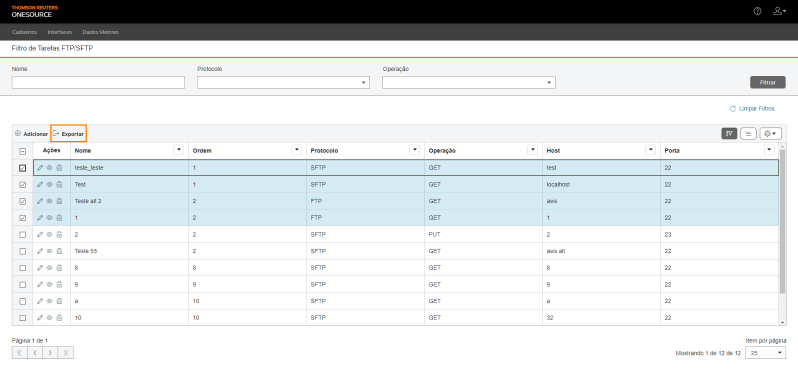
- File Mask:Using wildcards, represent the names of the files that should be transmitted by the task. Generally, wildcards used in masks are*and?, where * equals any number of characters and?symbolizes any character. For example, in the case of the*.txtmask, only text files (whose names may have any number of characters) will be sent or received.tipYou can export the table information to an Excel file. To do so, mark the desired files and click
 Export. To export data from all rows in the table, this marking is not required.
- ClickSaveIf this functionality is used to move files from an FTP/SFTP that does not belong to Thomson Reuters, the FTP/SFTP address must be public so that the connection data can be registered in the task.Table data can be organized using the buttons


 . To learn how to use them, see the Tablesarticle.
Editing an FTP/SFTP Task
- Access the menuInterfaces > Estruturas de Interfaces > Tarefas FTP/SFTP.
- In the table on theFTP/SFTP Task Filterscreen, click theEditbutton of the record whose information will be updated.
 To view or delete a record, click theView
 and Delete
 buttons, respectively.
 - On theEdit FTP/SFTP Taskscreen, change the requiredinformation.
- ClickSave.Table data can be organized using theHide Filters Show Grouperand
 Show/Hide Columns buttons.
Generating a SQL script from an FTP/SFTP task
- Access the menuInterfaces > Estruturas de Interfaces > Tarefas FTP/SFTP.
- On theFTP/SFTP Task Filterscreen, fill in the filter fields with the task data you want to generate a script and/or clickFilter.Table data can be organized using theHide Filters, Show Grouper, and Show/Hide Columnsbuttons.
- In the table, click theView button for the record whose script is generated.
- On theFTP/SFTP Task Detailsscreen, clickGenerate a SQL Script
 .
. - On theScriptsscreen, clickSave SQL Script.
A SQL file will be generated with the task script.
Exporting FTP/SFTP Tasks
- Access the menuInterfaces > Estruturas de Interfaces > Tarefas FTP/SFTP.
- On theFTP/SFTP Task Filterscreen, select the tasks you want to export.To export data from all rows in the table, this marking is not required.Table data can be organized using theHide Filters, Show Grouper, and Show/Hide Columnsbuttons.
- Click Export.
An Excel file will be generated with the task information, for example:
Related Content
-
How do I manage In Out input interface tables?
Format: Article
-
How to manage external files in In Out?
Format:
Article
-
How to manage macro replacements in In Out?
Format:
Article
-
How do I reprocess output interface history (LOG) in In Out?
Format:
Article
-
How do I upload an SFTP file to In Out?
Format:
Article