
How to manage external files in In Out?
This functionality must be accessed to register external files (accessories) used on output interfaces. This registration requires you to provide, for example, the
relative path
and the content
of the new file. In addition, you can generate SQL scripts
from the registers.Adding an external file
- Access the menuInterface > Interface Structure > External files.
- On theExternal Files used in Output Interfacesscreen, clickAdd
 .
. - According to the definitions, complete the fields on theCreate External Filesscreen
 :* Required fields
- File Name*: Name of the file that will be registered.
- Description: Descriptive text about the file.
- Relative Path: File access path.
- Content*:What parameters should be passed to In Out package programs?
- Importer_IN_OUT_New.exe %1 %2 %3 %4 %5
- reports_executed_imports_obs %1 "Text" %2 %3 %4 %5
- data_files.exe -> for directory FilesTXT or
- data_files.exe <path> -SU -> for specific directory
attentionIf there are parameters in the BAT call, the default parameters are shifted to the last 5, for example, if there are 2 parameters in the BAT, the ID_IMPORT becomes %3, the user becomes %4, and so on. So calls would be different, e.g.: "IMPORTER_IN_OUT_NEW %3 %4 %5 %6 %7".If it is a BAT file, try to use the importer parameters:- %1 - Import Id\n%2 - User\n%3 - Password\n%4 - TNS\n%5 - RemoteDBN
- Macro Replacement FROM/TO: Key (DE) and replacement value (STOP) of the file interface.
- Copy to Clipboard: Click to copy the macro to clipboard (Ctrl+C).
- ClickSave.
Editing an external file
- Access the menuInterface > Interface Structure > External files.
- In the table on theExternal Files Used in Output Interfacesscreen, click theEdit
 button of the record whose information will be updated.To view or delete a record, click theView
 and Delete
 buttons, respectively.
 - On theEdit External Filesscreen, change the required information.
- ClickSave.
Generating a SQL script from an external file
- Access the menuInterface > Interface Structure > External files.
- In the table on theExternal Files Used in Output Interfacesscreen, click theView button of the record to generate the script.Table data can be organized using theHide Filters
 Show Grouperand
 Show/Hide Columns
 buttons.
 - On theExternal Files Detailsscreen, clickGenerate a SQL Script
 .
. - On theScriptsscreen, clickSave SQL Script.
A SQL file will be generated with the file registry script.
Exporting external files
- Access the menuInterface > Interface Structure > External files.
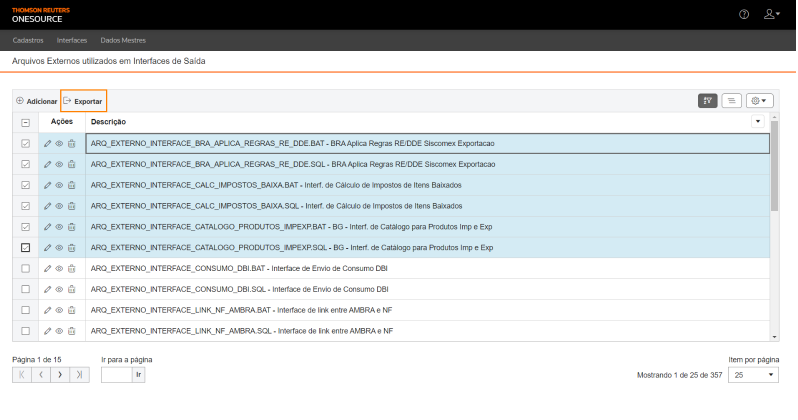
- On theExternal Files used in Output Interfacesscreen, mark the records of the files you want to export.To export data from all rows in the table, this marking is not required.Table data can be organized using theHide Filters Show GrouperandShow/Hide Columns buttons.
- ClickExport
 .
.
An Excel file will be generated with the information of the marked files, for example:
Related Content
-
How do I manage In Out input interface tables?
Format: Article
-
How to configure and manage FTP/SFTP tasks in In Out?
Format:
Article
-
How to manage macro replacements in In Out?
Format:
Article
-
How do I reprocess output interface history (LOG) in In Out?
Format:
Article
-
How do I upload an SFTP file to In Out?
Format:
Article