
Full Transmission (Message Function 47)
There are two ways to transmit a Supplementary Declaration:
Full Transmission
or Partial Transmission
. This section covers how to process a Full Transmission
.A
Full Transmission
has a value of 47
in the Message Function
field (in the Supplementary Header (Supplementary Grid) section).
This type of transmission requires the submission of all selected Simplified Declarations and associated goods items with the Supplementary Declaration
If a CUSREC (Customs Receipt) incoming message is received, additional changes to the Supplementary Declaration may need to be performed.
Multiple
Full Transmission
Supplementary Declarations can be submitted to Customs. However, multiple CUSTAX (Customs Tax Assessment) reports will be received for each Supplementary Declaration. In the end of the Supplementary Declaration procedure, one complete CUSTAX report will be received from Customs. In order to receive one complete CUSTAX report for the month, only one
Full Transmission
Supplementary Declaration must be submitted to Customs, containing all related goods items.Make any necessary changes to the fields and enter all required information. Fields with an asterisk (*) are required and cannot be omitted.
Once all information has been entered, click
Save and Validate
. The system will then perform a validation process to confirm that the entered data adheres to Customs rules and regulations. 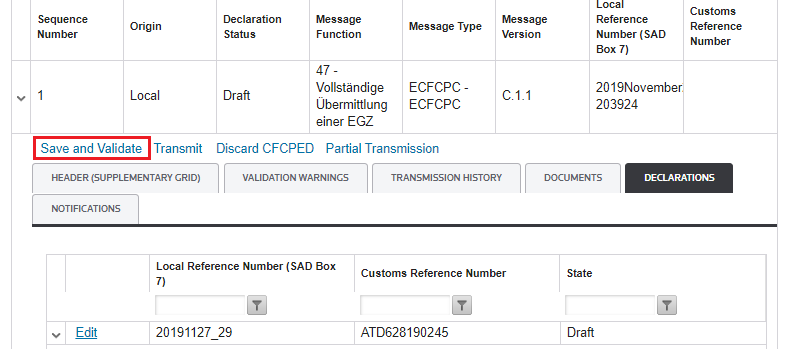
If the data contains errors and one or more fields do not adhere to Customs rules, a warning will appear in the
Validation Warnings
tab for each error. The Transmit
button will be disabled until these errors are resolved.Review the warnings to determine where the error exists. Navigate to the discrepant field(s) and resolve the error(s). Once all errors have been resolved, click
Save and Validate
again.After all validation warnings have been resolved, click
Save and Validate
again. If all errors have been resolved, the Transmit
button will become available.To transmit the Supplementary Declaration to Customs, click
Transmit
. Once
Transmit
is clicked, a notification message appears at the top of the screen to notify the user whether or not the message was successfully transmitted.To view the outgoing XML message, click
View file
.
If successful, the declaration status will change from
DRAFT
to TRANSMITTED
. Incoming messages from Customs will be received for the declaration.For more information, section Incoming Messages and States of Declarations of this User Guide explains in more detail what each incoming message means and how it impacts the state of the declaration.
Related Content
-
DE Atlas Import
Format: Article