
Partial Transmission Process (Message Functions 9, 2, 22)
There are two ways to transmit a Supplementary Declaration:
Full Transmission
or Partial Transmission
. This section covers how to process a Partial Transmission
.A Partial Transmission has a value of
9
in the Message Function
field. This is mandatory for the first Partial Transmissions.In this process, the Supplementary Declaration is transmitted to Customs in parts rather than in a one-time transmission containing all relevant data.
If a CUSREC (Customs Receipt) incoming message is received, additional changes to the Supplementary Declaration may need to be performed.
Multiple
Partial Transmission
Supplementary Declarations can be submitted to Customs. However, multiple CUSTAX (Customs Tax Assessment) reports will be received for each Supplementary Declaration. In the end of the Supplementary Declaration procedure, one complete CUSTAX report will be received from Customs.In order to receive one complete CUSTAX report for the month, only one
Partial Transmission
Supplementary Declaration must be submitted to Customs, containing all related goods items.The following diagram indicates the possible process flows of the
Partial Transmission
type:
The Partial Transmission process:
- Always starts with aPartial Transmissiondeclaration (Message Function value of 9),
- Can optionally have one or moreAdditional Transmissiondeclarations (Message Function value of 2). These are additional transmissions when more goods items (Simplified Declarations) can be added.
- Always ends with aFinalizedeclaration (Message Function value of 22).
The
Finalize
declaration informs Customs that this is the end of the transmission process and no more goods items can be transmitted for this Supplementary Declaration.The
Finalize
declaration cannot be sent “empty” to Customs to inform them of completion. It must contain at least one goods item. Please ensure that you have not submitted all your goods items in an Additional Transmission
declaration (Message Function value of 2) prior to submission of the Finalize 22.
The
Message Function
column allows you to see which (full or partial transmission) process was followed for the declaration. The example below shows the sequence of the Partial Transmission process of the Supplementary Declaration: 
The different steps of the partial transmission process are explained in the sections below.
Partial Transmission (Message Function 9)
To begin the partial transmission process, a Supplementary Declaration with a
Message Function
of 9 must be transmitted to Customs.Create a new Supplementary Declaration by clicking
New Declaration (ECFCPB)
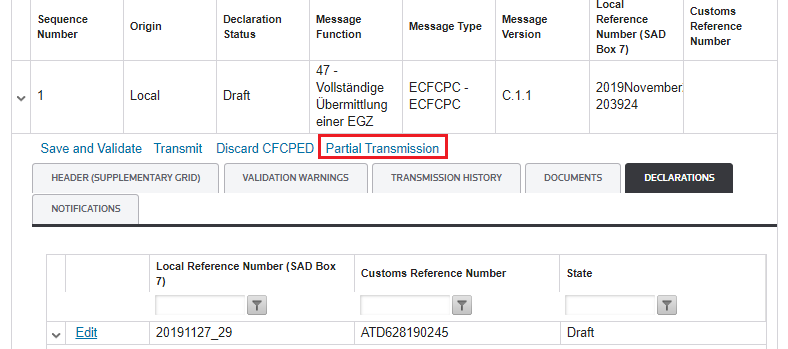
.The
Message Function
field will default to 4”, but will need to be changed to 9.To change the Message Function from 47 to 9, click
Partial Transmission
. 


The next step is to attach one or more Simplified Declarations to the Supplementary Declaration.
Click
Select Declaration
. This will open the Select Declaration
pop-up, where all available Simplified Declarations are listed. Choose which Simplified Declaration(s) to attach and close.This is described in more detail in section Selecting Simplified Declarations above.
Make any necessary changes to the fields and enter all required information. Fields with an asterisk (*) are required and cannot be omitted.
Once all information has been entered, click
Save and Validate
. The system will then perform a validation process to confirm that the entered data adheres to Customs rules and regulations. If the data contains errors and one or more fields do not adhere to Customs rules, a warning will appear in the
Validation Warnings
tab for each error. The Transmit
button will be disabled until these errors are resolved.Review the warnings to determine where the error exists. Navigate to the discrepant field(s) and resolve the error(s). Once all errors have been resolved, click
Save and Validate
again.After all validation warnings have been resolved, click
Save and Validate
again. If all errors have been resolved, the Transmit
button will become available.To transmit the Supplementary Declaration to Customs, click
Transmit
. Once
Transmit
is clicked, a notification message appears at the top of the screen to notify you whether or not the message was successfully transmitted.To view the outgoing XML message, click
View file
.If successful, the declaration status will change from
Draft
to Transmitted
. Incoming messages from Customs will be received for the declaration.For more information, section Incoming Messages and States of Declarations of this User Guide explains in more detail what each incoming message means and how it impacts the state of the declaration.
Additional Transmission (Message Function 2)
An
Additional Transmission
is used to attach additional Simplified Declarations to an accepted Partial Transmission Supplementary Declaration.The
Additional Transmission
button only appears when the following criteria have been met:- Customs accepted the Supplementary Declaration.
- The State isAccepted.
- The Message Function value is either 9 or 2.
To send an additional transmission message to Customs, click
Additional Transmission
.
Once this sequence has been generated, click the expansion arrow on the far left. The
Message Function
field will have a value of 2.
The next step is to attach one or more Simplified Declarations to the Supplementary Declaration.
Click
Select/Remove Declaration
. This will open the Select Declaration
pop-up, where all available Simplified Declarations are listed. Choose which Simplified Declaration(s) to attach and close.This is described in more detail in sectionPartial Transmission Process (Message Functions 9, 2, 22)Selecting Simplified Declarations above.
Make any necessary changes to the fields and enter all required information. Fields with an asterisk (*) are required and cannot be omitted.
Once all information has been entered, click
Save and Validate
. The system will then perform a validation process to confirm that the entered data adheres to Customs rules and regulations.If the data contains errors and one or more fields do not adhere to Customs rules, a warning will appear in the
Validation Warnings
tab for each error. The Transmit
button will be disabled until these errors are resolved.Review the warnings to determine where the error exists. Navigate to the discrepant field(s) and resolve the error(s). Once all errors have been resolved, click
Save and Validate
again.If all errors have been resolved, the
Transmit
button will become available.To transmit the Supplementary Declaration to Customs, click
Transmit
. Once
Transmit
is clicked, a notification message appears at the top of the screen to notify you whether or not the message was successfully transmitted.To view the outgoing XML message, click
View file
.If successful, the declaration status will change from
Draft
to Transmitted
. Incoming messages from Customs will be received for the declaration.For more information, section Incoming Messages and States of Declaration this User Guide explains in more detail what each incoming message means and how it impacts the state of the declaration.
Finalize (Message Function 22)
The last message for a
Partial Transmission
Supplementary Declaration is the Finalize
transmission. This transmission informs Customs that this is the last transmission for the specified Supplementary Declaration. Once a Supplementary Declaration has been finalized, no further Simplified Declarations can be attached to it.
A declaration can be changed at any time during the
Partial Transmission
process, provided it is prior to the Finalization step. For more information, please refer to section Change Functionality (Message Function 36) Change Functionality (Message Function 36) of this User Guide.If there are any errors on the declaration, they must be fixed using the Fix functionality. The
Finalize
button only appears when the following criteria have been met:- The Supplementary Declaration has been previously accepted by Customs.
- The State isAccepted.
- The Message Function is either9or2.
To send a
Finalize Transmission
message to Customs, click Finalize
.Clicking
Finalize
will create a new sequence for the Supplementary Declaration.
Once this sequence has been generated, click the expansion arrow on the far left. The
Message Function
field will have a value of 22.
The next step is to attach one or more Simplified Declarations to the Supplementary Declaration.
Click
Select/Remove Declaration
. This will open the Select Declaration
pop-up, where all available Simplified Declarations are listed. Choose which Simplified Declaration(s) to attach and close.This is described in more detail in section Selecting Simplified Declarations above.
Make any necessary changes to the fields and enter all required information. Fields with an asterisk (*) are required and cannot be omitted.
Once all information has been entered, click
Save and Validate
. The system will then perform a validation process to confirm that the entered data adheres to Customs rules and regulations.If the data contains errors and one or more fields do not adhere to Customs rules, a warning will appear in the
Validation Warnings
tab for each error. The Transmit
button will be disabled until these errors are resolved.Review the warnings to determine where the error exists. Navigate to the discrepant field(s) and resolve the error(s). Once all errors have been resolved, click
Save and Validate
again.If all errors have been resolved, the
Transmit
button will become available.To transmit the Supplementary Declaration to Customs, click
Transmit
. Once
Transmit
is clicked, a notification message appears at the top of the screen to notify you whether or not the message was successfully transmitted.To view the outgoing XML message, click
View file
.If successful, the declaration status will change from
Draft
to Transmitted
. Incoming messages from Customs will be received for the declaration.For more information, section Incoming Messages and States of Declarations of this User Guide explains in more detail what each incoming message means and how it impacts the state of the declaration.
Related Content
-
DE Atlas Import
Format: Article