
SurePrep PDF Barcodes
You can add SurePrep's PDF barcodes on documents that require special treatment by SurePrep. When a PDF is submitted, SurePrep's OCR scans the page for a barcode then separates it from other auto-verified pages and brings it to the verifier's attention. OCR automatically bookmarks certain documents or skips them entirely from verification based on the barcode type.
The barcode should be placed on the top of the page, in an empty white space, before documents are sent to SurePrep. If you receive a password-protected document, you will have to remove the security on the document before you can add a barcode stamp.
note
Notes to SurePrep
feature has now been replaced with the new barcode feature. Text Notes to SurePrep
will no longer be recognized, you must now place barcodes on pages that require special attention from SurePrep.If you have Acrobat Pro DC then you can use the image files provided below. However, if you are using a free version of Acrobat Reader then you must download the PDF files instead.
You don't need to download barcodes if you are using TaxCaddy to add barcodes to uploaded documents.
Barcodes
note
Acrobat Pro DC (Paid version): To save the barcode image, select the image then
Save image as...
If you are using the free version of Acrobat Reader then select the Download button on top to download barcodes in PDF format.PNG | Action taken by SurePrep | Example of Document/Situation |
|---|---|---|
 (select the image, then Save As ) | Bookmark Only OCR only captures identifier fields (e.g., Partnership Name, EIN, SSN) from the page. If SurePrep's OCR detects the Bookmark Only barcode on a page then the document will skip the Verification Wizard step and will appear in the next applicable step. Verifiers will not see the document during verification. | If this stamp is placed on the first page of a document that lists the name and account number, then it will be ignored by SurePrep for OCR and verification purposes. SurePrep will automatically place the document(s) under the appropriate bookmark in the INDEX TREE .Ex: If the taxpayer sends a consolidated 1099 for their dependents. SurePrep inputs this information into the tax return because it can match the name and SSN to the dependent listed in the tax return. Place this stamp on the first page that indicates the name and account number. Ex: This stamp can also be used on charitable letters and organizer pages in addition to government forms. Note : Do not place barcodes on non-standard documents that are not supported by SurePrep. Non-standard documents will not be verified by SurePrep and will appear in SPbinder's Thumbnail panel as a Not Indexed document. |
 (Select the image, then Save As ) | Include in Return The information from the page will be captured regardless of the standard policy(e.g. Incorrect SSN, Prior Tax Year, etc). Also useful for pages that do not appear in the Verification Wizard when they are auto-verified or set to be bookmarked only due to domain verification rules. Includes the page in Step 2 Verification. Overrides the default and captures pages with:
The verification is performed by the verifier when it comes to their attention. | If this stamp is placed on the first page of a document that lists the name and account number, then regardless of whether the document is in the Taxpayers/Spouse's name or SSN, the information will be entered into the return. If a (Include in Return) barcode is placed on a document(s) from a different tax year, the data will be captured as if it is for the tax year of the binder. Similarly, pages with an incorrect SSN will be captured as a taxpayer's SSN (i.e., the first SSN available on the list). Ex: The taxpayer sends a consolidated 1099 for an entity with a name and an EIN that do not match the Taxpayer or Spouse. Place this stamp on the first page of the consolidated 1099 that indicates the name and account number. Note 1: OCR associates Include barcode with the first account number. However, a Consolidated Statement may have multiple account numbers joined together in a single multipage document. To avoid erroneously getting pages with a different account number marked as IncorrectSSN or Prior Year, the user will need to place a barcode on the first page of every account in a multicount Consolidated Statement. Note 2 : Do not place barcodes on non-standard documents that are not supported by SurePrep. Non-standard documents will not be verified by SurePrep and will appear in SPbinder's Thumbnail panel as a Not Indexed document. |
 (Select the image, then Save As ) | Delete Data All data from the page will be deleted and the document will automatically land in the thumbnail section of SPbinder without going through the verifier. | Place this stamp if the document should not be verified or indexed in the (SPbinder) INDEX TREE .SurePrep will automatically skip the document from all verification steps in the Review Wizard. In SPbinder, the document(s) will appear in the Not Indexed filter of the THUMBNAIL section. Ex: Taxpayer sends a receipt. Place this stamp on the document to send the document to Not Indexed filter of the Thumbnail section. |
Placing barcodes on documents
TaxCaddy
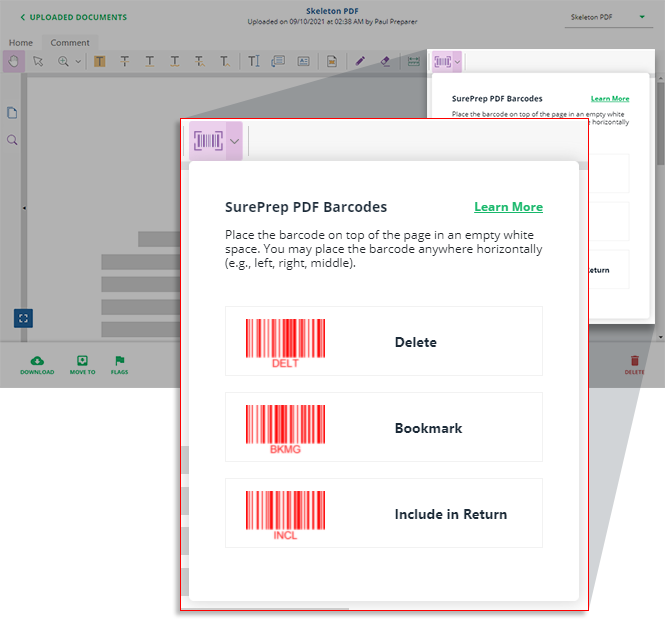
Firms using TaxCaddy can add barcodes to documents directly from TaxCaddy's Document Viewer. You do not need to download the barcodes if you are using TaxCaddy.
Skip verification with barcodes
Skip Verification with the "Bookmark Only" barcode
If the "
Bookmark Only
" barcode is identified on a page, SurePrep's OCR will automatically skip the document from the (Step 2) Verification Wizard. Verifiers will not see the document appear during verification. Document(s) with the Bookmark Only
barcode may appear in the next Review Wizard step, if applicable (e.g., Child Form Association, New Form Review, etc).
Skip Verification with the "Delete" barcode
If the "
Delete
" barcode is identified on a page, SurePrep's OCR will automatically skip the document from all steps in the Review Wizard and send it directly to SPbinder. Verifiers will not see the document appear during any step of the verification. 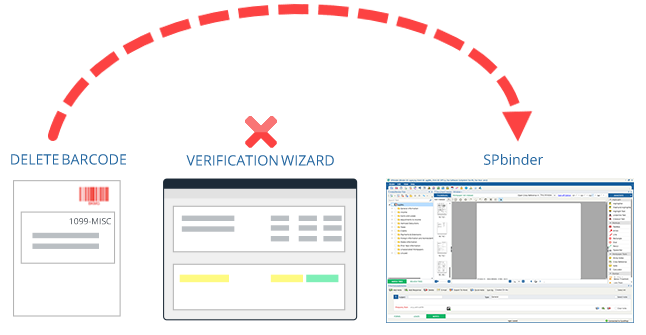
Placing barcode on a multi-page document
For certain multi-page documents (e.g., Consolidated Statements, Schedule K-1, etc.), you only need to place the barcode once on any one of the pages from the set.

Example:- Placing a
Bookmark Only
barcode on Page 2 of 4 will bookmark and skip verification for the whole document set. However, for K-1s, placing the barcode only on a State K-1 will bookmark and skip only that State K-1 and its supplemental pages.Source Document type | Barcode applies to: |
|---|---|
Consolidated Statements | All Pages - Barcode action applies to all pages in the set, irrespective of the page the barcode is placed on. |
Federal K-1 | Federal K-1 + K-3 + All State K-1 + All Supplemental pages - If a barcode is identified on a Federal K-1, then the action associated with that barcode will apply to the entire K-1 set (i.e. Federal K-1, its supplemental pages, following State K-1s and their supplemental pages. |
State K-1 | State K-1 + State Supplemental pages - If a barcode is identified only on a State K-1 then the action associated with that barcode will only apply to that particular State K-1(s) and its supplemental pages and not the entire K-1 set. |
Some Consolidated Statements may have more than one account number in a single consolidated statement. When placing a barcode, you will need to place a barcode for each account number that is different.
Example: 1000 pages Consolidated Statement for Goldman Sachs may have pages 1-500 with 'ABC' account number and pages 500-1000 may have 'EFG' as the account number. In this scenario, despite it being a single 1000-page Consolidated Statement, you will need to place 2 barcodes - one for 'ABC' and the other for 'EFG'.
Exclude cover letter pages
Certain multi-page documents include a cover letter with little to no information connecting it to the rest of the multi-page document set. We recommend excluding Cover Letter pages for Schedule K-1s and the consolidated statement intro pages.


Barcodes comparison
Title | Bookmark Only | Include | Delete |
|---|---|---|---|
Skips verification | YES Skips Step 2 verification only (i.e. Verification Wizard) | NO Captures all data irrespective of standard policy | YES Skips all verification steps |
OCR Captures data | OCR only captures identifier fields from the page (e.g., Partnership Name, EIN, SSN) | YES | NO |
- Incorrect SSN | Skip verification - Mark as incorrect SSN | - Captures the taxpayer's SSN (i.e., the first available SSN/EIN on the menu) |
|
- Prior Year / Subsequent Year | Skip verification - Mark as prior/subsequent year | - Capture as current year. |
|
- Not Indexed filter of the Thumbnail section | Skips verification - OCR only captures identifier fields from the page (e.g., Partnership Name, EIN, SSN). | Auto-verified page will appear in the Auto-Verified section in the verification step of the Review Wizard (Auto-verified documents will not be captured by SurePrep). |
|
- Organizers – NONE option selected at Submission/Admin level | Skips verification - Bookmark the organizer pages and do not want to capture any data from them. | Overrides rule - Captures all data |
|
Verification rules (e.g. Bookmark, Incorrect SSN, Delete) | Skips verification - Verification rules don't apply. | Overrides rule - Captures all data | Yes |
Single barcode automatically applies to all pages in the set of multi-page document (e.g., 1099 Consolidated Statment). | YES | YES | Yes |
Barcode on Federal K-1 applies to: Federal K-1 + K-3 + All State K-1 + All Supplemental pages | YES | YES | Yes |
Barcode on State K-1 applies to: State K-1 + State's Supplemental pages. | YES | YES | Yes |
SPbinder | Standard documents appear in their designated folders in the INDEX TREE tab. | Standard documents appear in their designated folders in the INDEX TREE tab. | All documents appear in the THUMBNAIL section as ' Not Indexed ' |
FAQ
How do I save the barcode image?
elect the image in the above table, then
Save image as
.
If you are using the free version of Adobe Acrobat Reader DC, then you can only use barcodes available as PDF files.
Can I place more than one stamp on a page?
No, OCR will only read one barcode per page.
Can I place the barcode anywhere on the document?
Barcodes should only be placed on top of the pages in an empty white space. You may place the barcode anywhere horizontally (e.g., left, right, middle).
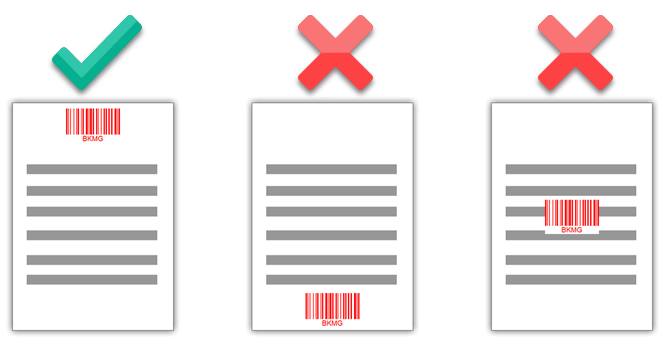
How far up should the barcode be?
You can place the barcode in the top 20% of the page.

If you are using Adobe Acrobat DC Pro (paid version) then you can press
Ctrl
+ R
to view the rulers on the side. The barcode should be in the top 1.65 inches.
Can I place a barcode over text?
Barcodes should not be placed in over text or any other existing content. Place the barcode in an empty white space on the top of the document. Placing a barcode over existing text may cause OCR to incorrectly read the page.
Can I resize the Barcode image on the document?
SurePrep is distributing the smallest barcode size that can be captured by OCR. Making the barcodes smaller may prevent them from being captured by OCR.
Can I add a barcode to a native PDF for auto-verification?
Yes, you can add a barcode to a native PDF and still retain the ability to auto-verify the document.
Note
: Auto-verified (Native PDF) pages will not be reviewed by SurePrep during verification unless it appears for review. You can add SurePrep barcodes on pages that require special attention from SurePrep. Do I need to place a barcode on each page of a multi-page document?
No, for multi-page documents like Consolidated Statements or Schedule K-1s, you can place the stamp on any page and every page that links to it will also inherit the barcode rule. However, for State K-1s you can place a barcode on any one page and it will apply to the full set (e.g. Placing a barcode on any California State K-1 page will apply the barcode action to California State K-1 and its supplemental pages only).
Can I still place text notes to SurePrep?
No, you can only use barcodes to mark pages that require special attention from SurePrep. Text
Notes to SurePrep
will not be recognized during verification. Does the 'Include' barcode apply to next year's form?
No, the "
Include"
barcode will only apply to the binder's current tax year and prior tax year documents.Can I only apply the barcode to K-3 document?
Yes, you can place a barcode on a K-3 document to only affect that document. For example, placing a '
Bookmark
" barcode on a K-3 will bookmark all pages associated with that K-3 only. However, placing a barcode on a Federal K-1 will affect Federal K-1, K-3, all state, and all supplemental pages.Requirements
You can use SurePrep barcodes for the following:
Binder type |
|
Service Type |
* For In-house verification, your verifiers will need to manually take actions based on the barcode. Auto-verified (Native PDF) with barcodes will appear In Verification by default. |
Leadsheets |
|
Related Content
-
Source document coverage
Format: Article
-
2024 1040SCANverify Policy - 1040 Return
Format:
Article
-
2023 1040SCANverify policy - 1040 return
Format:
Article
-
2024 1040SCANverify Policy - 1041 Return
Format:
Article
-
2023 1040SCANverify policy - 1041 return
Format:
Article
-
1040SCANverify FAQ
Format:
Article
-
Create verification rules to bookmark documents
Format:
Article
-
Navigating the Index Tree
Format:
Article
-
Add SurePrep barcode from TaxCaddy
Format:
Article
-
Auto-verification
Format:
Article
-
Organizer pages
Format:
Article
-
Filter thumbnails
Format:
Article

