Integrating GoSystem accounts with SurePrep

Tax File Activation lets you integrate GoSystem Tax RS account(s) with SurePrep and enter the GoSystem user login(s) to be used by SurePrep on Outsource binders. Once that's completed, you can transfer proforma files and export files from and to GoSystem Tax RS.

Step 1: Add GoSystem Tax RS account to SurePrep

Follow these steps to integrate GoSystem Tax RS account:
Go to
FileRoom
,
Admin
,
Account Setup
, then
Tax File Activation
.
Open the PBFX file once it completes downloading.
note
- The download window might look different based on your browser.
- In Chrome and Edge, you can select '
Always open files of this type
' to automatically open the PBFX file the next time you need to create a binder or update your
Tax File Activation
settings.
When the
Tax File Activation
window appears, select the
GoSystem Tax RS
tab if it's not already selected.
Select the GoSystem Tax RS tab
Select
Add New Account
, then enter the GoSystem Tax RS Account ID in the
GoSystem Account
field. The Account ID must consist of 4 characters.
Select Add New Account, then enter the GoSystem Account number
The Account ID entered here must be the same as that created in GoSystem Tax RS.
Enter the Account ID
The newly added Account ID appears with the
Pending Activation
status.
Pending Activation status
note
It will take up to 3 business days to enable SurePrep FileRoom integration for the selected GoSystem Account ID.
Once GoSystem is enabled, an instructional email notification outlining the steps to setup in GoSystem Tax RS will be sent to your Firm System Administrator. You can also return back to this article and continue to the next step. The email will be sent to the email address of the Firm System Administrator entered under
FileRoom
,
Admin
,
Users
, then
User Management
.

Step 2: Setting up SurePrep Integration with GoSystem Tax RS

After adding GoSystem Account ID to
FileRoom
,
Admin
,
Account Setup
,
Tax File Activation
, then
GoSystem
, you'll receive a confirmation email with instructions on how to setup FileRoom integration (approximately 3 business days). Once that's completed, you can transfer proforma files and export files from and to GoSystem Tax RS. You'll first need to have access to all of the returns in GoSystem that will be prepared using SPbinder.
Follow these steps to setup FileRoom integration in GoSystem Tax RS:
  1. Log into GoSystem Tax RS, go to
    Admin
    ,
    Access Control
    , then
    Users Administration
    .
  2. Select a user with admin rights then select
    Edit
    .
    Select an Admin user in GoSystem then select Edit
  3. Select the
    SurePrep
    tab.
    Select the SurePrep tab
    note
    The
    SurePrep
    tab appears after adding a GoSystem accounts with SurePrep. It may take up to 3 business days for SurePrep integration to activate.
  4. For this particular user, you will have to enter the following information on the new
    SurePrep
    tab:
    SurePrep Domain
    – Enter your SurePrep Firm ID (for example, BL-01, ABC-01)
    SurePrep Login
    – Enter
    SurePrepConnect
    .
    note
    For GoSystem Tax RS integration, the user must have administrator rights.
    Type SurePrep domain and login details
  5. Once the SurePrep Domain and SurePrep Login information are entered, select
    Update
    . You are now ready to use SurePrep with GoSystem Tax RS.
  6. Go to
    FileRoom
    ,
    Admin
    ,
    Account Setup
    ,
    Tax File Activation
    , then
    GoSystem
    .
  7. Select
    Activate
    to activate that Account ID in FileRoom.
    Select Activate
    note
    The
    Activate
    button is enabled ONLY for Account ID(s) that are
    Pending Activation
    .
  8. On the
    GoSystem Tax RS Locator Number
    window, enter a valid unlocked locator number for the current year (1040 return type only), then select
    OK
    .
    Enter the unlocked locator number then select OK
    note
    When the activation window appears, you must pass GoSystem Tax RS Locator Number for the current tax year. The locator number for the previous year won't be valid.
  9. Once the necessary steps are completed, the account will get activated and the status will change to
    Activated
    .
    Activated status

Step 3: Tax File Activation Web

Tax File Activation (on Web) allows SurePrep to communicate with your tax software using your tax software's API.

GoSystem User Logins (For Outsource only)

Under this tab, you can add user logins for the GoSystem Account if the return is to be submitted to SurePrep for full preparation.
Enter the GoSystem Account (this is the same account ID that you use to login to GoSystem Tax RS).
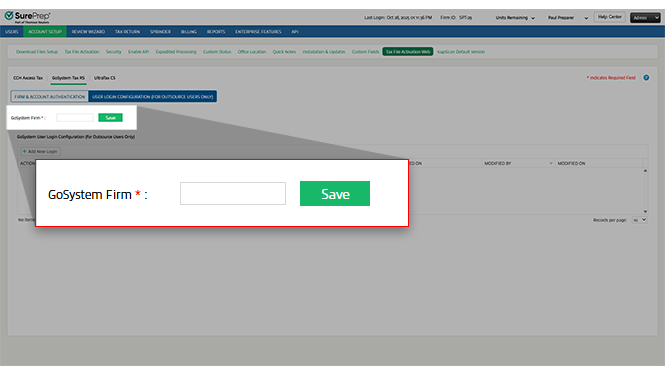
Enter the GoSsutem Account number
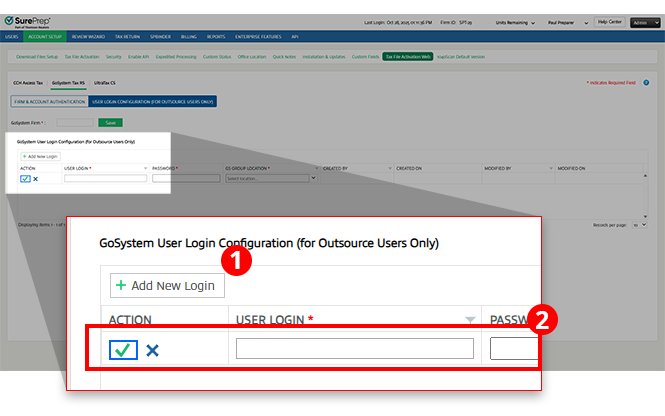
Select
Add New Login
. A new row will be added wherein you can enter the following:
User Login:
Enter your user login.
Password:
The password must be 8 characters to 40 characters in length and contain an uppercase letter, a lowercase letter, and a number.
GS Group Location:
Type in the location through which you have set-up the login with GoSystem Tax RS.
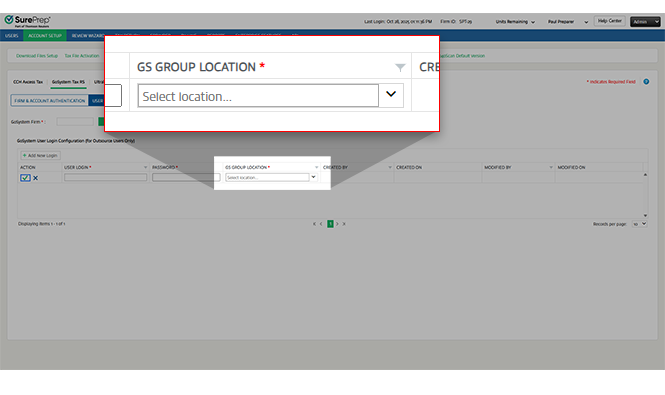
Enter the location in the GS Group Location
Select the
Save
Save icon icon to save the settings.
Select the
Cancel
Cancel icon icon to discard changes.
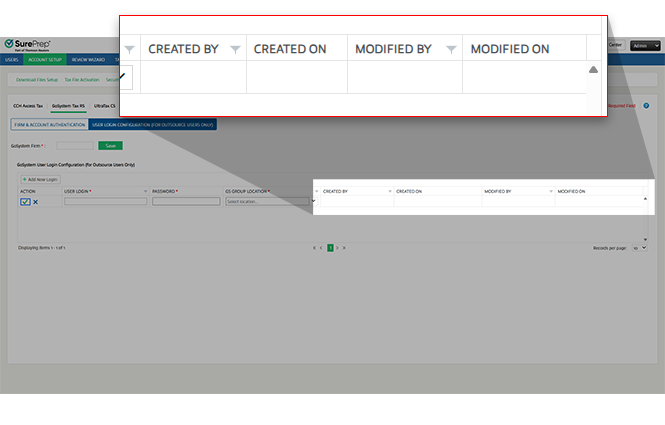
Created By
,
Created On
,
Modified By
, and
Modified On
fields will be auto populated.
Select the Edit or Delete icon as necessary
Select the
Help
Help icon icon to see the help section for GoSystem tax file activation.

Related Content

error-icon

Triva isn't available right now.

Check out the support page for our phone number and hours

error-close