
Stamps
Stamps
visible under Annotate
have been selected in the Select Stamps
 option in the SPbinder toolbar.
note
On the option, the
Select Stamps
option, the Select Additional Stamps
window only shows stamps that have been selected in the Admin
section.To add a stamp to a particular location select the stamp and select the location.

To delete the stamp, right-click the stamp then select
Delete
on the shortcut menu. You can also select to select the stamp then press Delete
on the keyboard.
Edit lets you edit/enter text on the stamp. To edit the stamp, right-click the stamp then select
Edit
on the shortcut menu. 
The
Edit
window displays the name of the stamp and the name of the creator along with the date and time of creation on the title bar. Minimize the Edit
window when you are done adding the text.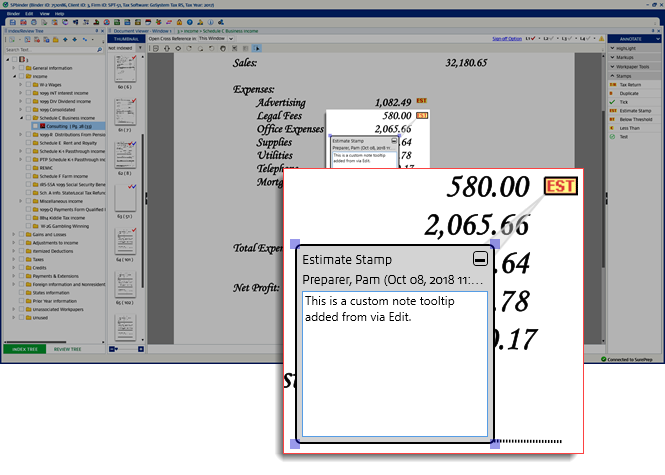
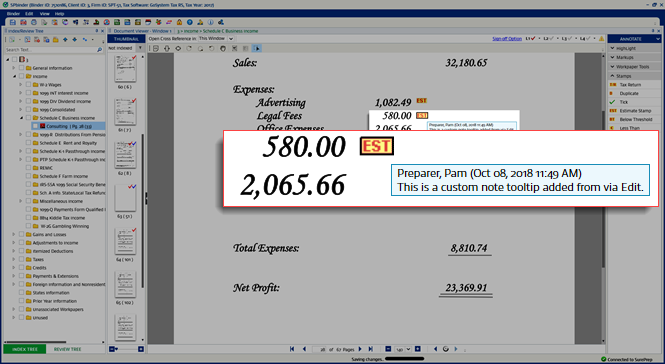
Point to the stamp to see the user details, updated time, and any edited text that was added.
Related Content
-
Annotations overview
Format: Article
-
Select stamps
Format:
Article
-
Stamps placed by OCR
Format:
Article
-
Custom Stamps
Format:
Article
-
Create Custom Stamps
Format:
Article
-
Remove Superseded stamp in SPbinder
Format:
Article

