
Fix or update Smart Links (document retrieval accounts)
Smart Links with document retrieval accounts create a link between TaxCaddy and your client's financial institution, allowing TaxCaddy to retrieve documents (for example, W-2, 1098, 1099) directly from your client's financial institution the moment they're added (and once every 24 hrs after that) to save you and your clients from uploading your documents yourself.
note
Refer to our Smart Links Security page for information on the privacy and safety of your documents.
Follow these steps to update or fix a Smart Links connection:
- On thescreen, select a client tile to view the client profile. You can also search for a client, then select the client tile from the result.Overview
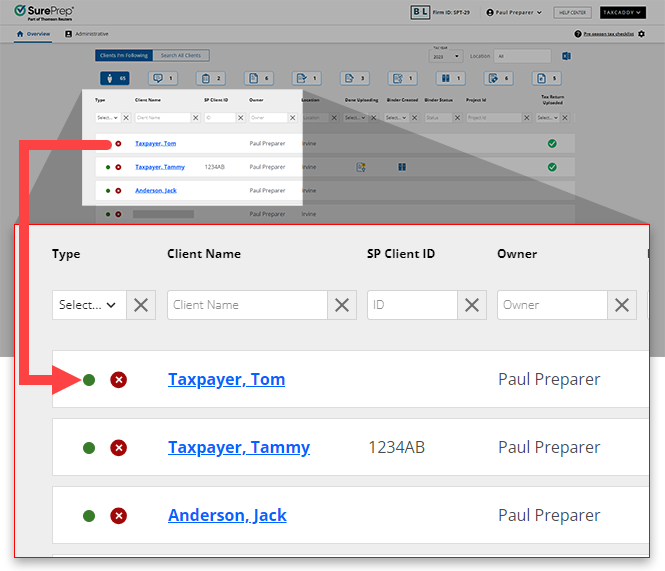
- On the Summary Panel, a brokenSmart Linksicon
 will show if a Smart Link isn't properly connected.
 noteThe number displayed on the left indicates how many Smart Links are broken out of the total. For example, 1 of 4 indicates 1 Smart Link is broken and the other 3 are successfully connected.
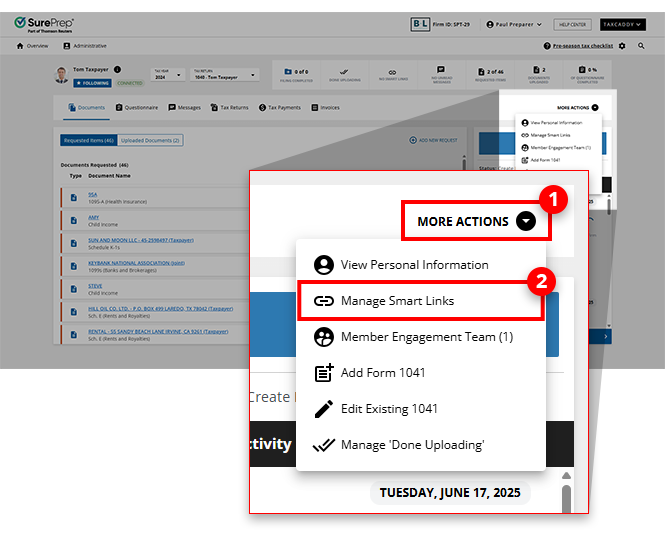
 - SelectMORE ACTIONSon the navigation bar then selectManage Smart Links.
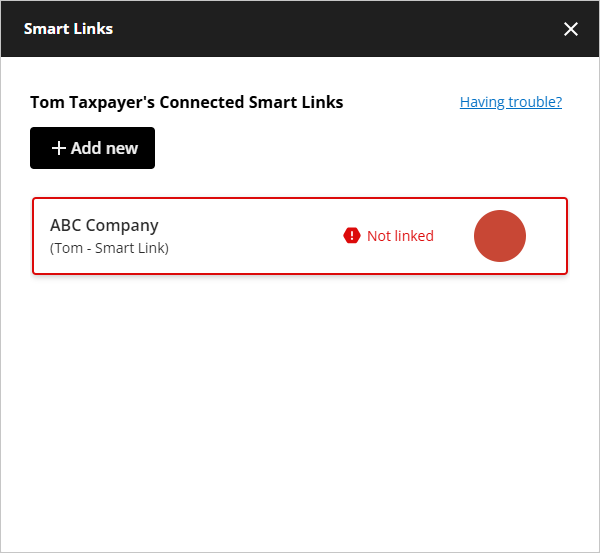
- On thewindow, select the Smart Link you want to fix or update. A broken Smart Link will be highlighted in red and will displaySmart LinksNot linked. Select the Smart Link to see details.
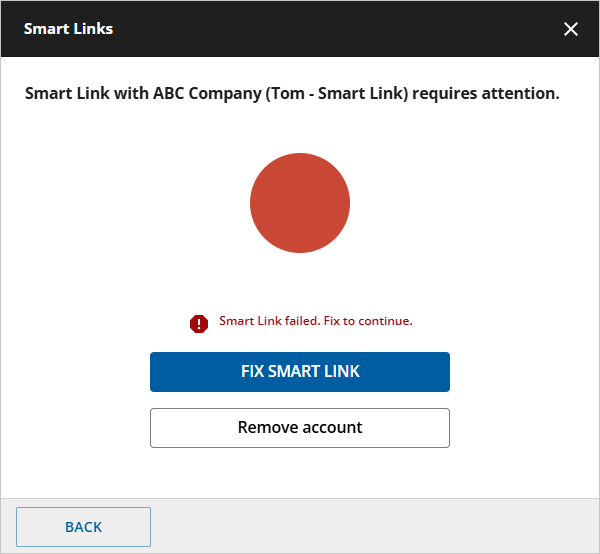
- SelectFIX SMART LINKto proceed with fixing this Smart Link, or selectRemove accountto remove this Smart Link from this client's account.
- Enter your credentials, then selectCONNECT.
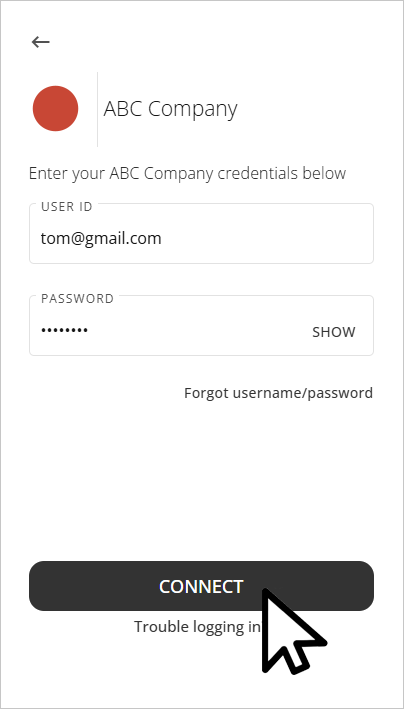 noteYou may need the client to provide their PIN or answer some security questions to authenticate the client's sign-in credentials.
 - If you're locked out, request the client to directly sign in to the financial institution to unlock the account. After the client has successfully logged in, retry logging into the Smart Link in TaxCaddy.
Related Content
-
Automatically retrieving documents from financial institutions (add Smart Links)
Format: Article
-
Add Smart Links (document retrieval accounts)
Format:
Article
-
Remove Smart Links (document retrieval accounts)
Format:
Article

