
Send a Document Request List (DRL) to clients
Sending a Document Request List (DRL) lets you automate the task of requesting documents from your clients based on client's previous tax return information (for example, proforma information) in the tax software. Instead of requesting documents individually from clients' profiles, when you send a DRL, a list of document requests will be populated in the client's profile based on each client's proforma information.
Before You Start
- Verify you have some proforma information in the tax software. For example, proforma information could be from names rolled over from the prior year to the current year.
- You must first generate/create Custom DRLs for clients before you can send them DRLs. You can create and send DRL for Standard(online) and Offline Clients. Click here to learn more about creating custom DRL
Send DRL to clients
Follow these steps to send Document Request Lists to your clients.
- Sign in to TaxCaddy.
- Go toAdministrative>Client Management.

- Select theMANAGE CLIENTSmenu.
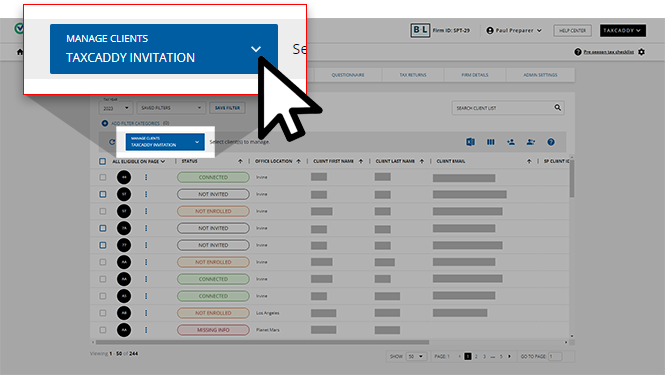
- Under theDOCUMENT REQUEST LISTcategory, selectSend DRL.

- TheSTATUScolumn shows which clients are eligible for sending DRL.
 You can only select/send DRL to clients if they have the following status:
- Not Sent
noteA client will have theNot Eligiblestatus and theBlank Tax Client ID(No Data Found)text in theDatecolumn if no prior information is saved to the tax software. When this happens, please confirm the correct tax client ID is saved to the client's record.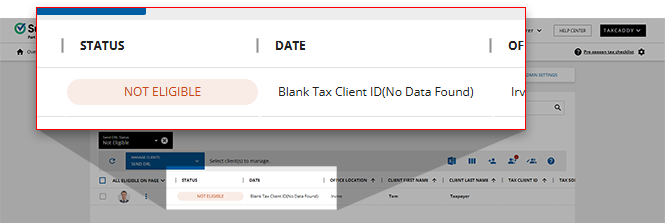
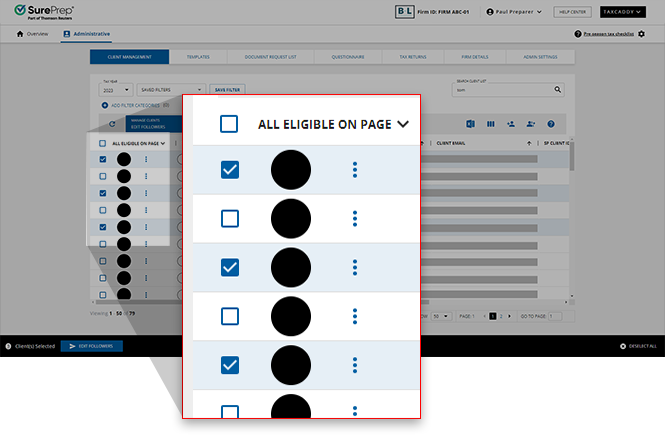
- To send the DRL in bulk, you need to first select the clients.Option 1:Select the checkbox next to each client to only choose those clients.
 Option 2:To bulk select clients, select the first column header then select from the following options:All Eligible- Selects all eligible clients in your firm from all pages. However, if you are currently using filters and/or search thenAll Eligible(clients) will only apply to clients who are currently filtered/searched. If you need to perform the same action separately for a different set of clients then you need to wait for the first bulk operation to complete before initiating the same action for the second set of clients. RequiresManage Bulk Actionspermission.All Eligible on Page- Selects all eligible clients on the current page.
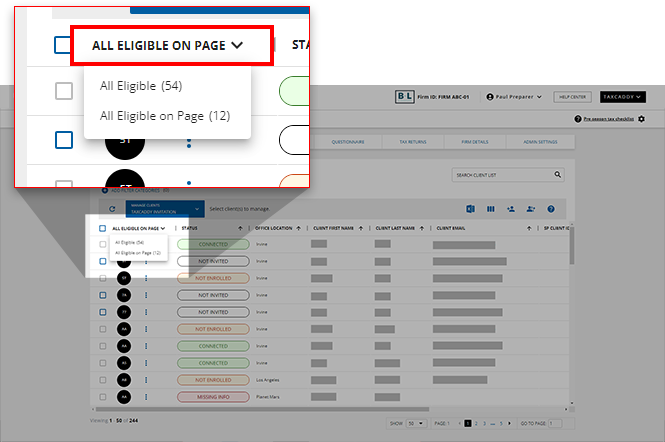 Only customers withManage Bulk Actionspermission can useAll Eligibleto select all eligible clients in the firm. Customers without permission will see an error notification when attempting to bulk send to all.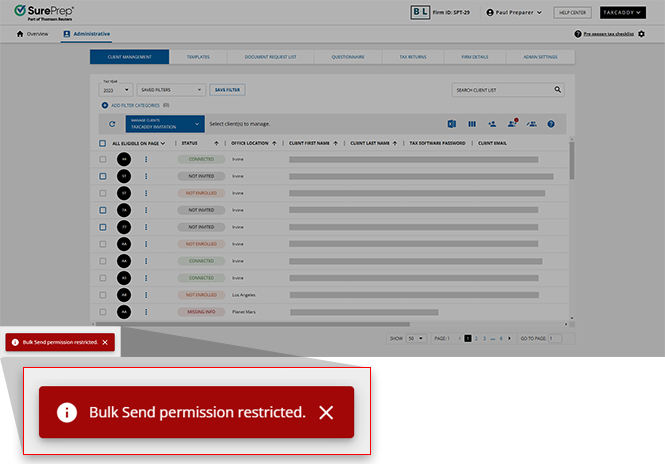
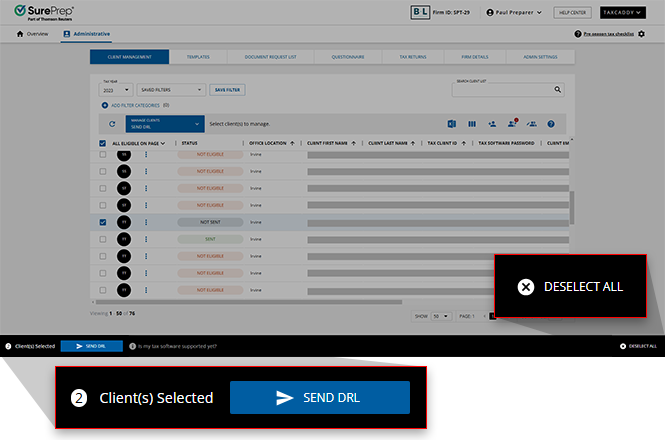
- After you select one or more clients, a (blue) selection bar slides up from the bottom of the page. SelectSEND DRLto bulk send the letter to all selected clients.SelectDESELECT ALLto cancel and clear all selected clients.
Send DRL status
Custom DRL status determines whether you can import proforma data to create a custom DRL for the client.
Send DRL Status | What Can I do? | Description |
|---|---|---|
 | Provide missing tax info to proceed | You can't send a DRL to clients with this status because their client record is missing info required to invite the client to use TaxCaddy. |
 | Create DRL first | Clients are not eligible for Send DRL if:
|
 | Send DRL | TaxCaddy is ready to send a DRL. |
 | Wait for the client to provide the requested items | A DRL has been sent to the client. |
Related Content
-
View Document Request List
Format: Article
-
Edit Document Request List (DRL)
Format:
Article
-
Reset DRL
Format:
Article
-
Troubleshooting: DRL Stuck in queue for local tax application
Format:
Article
-
Troubleshooting: DRL Stuck in queue for local tax application
Format:
Article

