
Edit individual client records (update missing information)
With the
Edit Client
feature, you can easily update a client's tax software information, change their office location, update their mobile phone number, or transfer them to a different owner, all depending on their status in Client Management
. If a client has the status
Missing Tax Info
, it means we can't create a custom DRL for them because their record lacks the necessary information to find them in the Tax Software. Once you update all the required tax software fields with valid information, the client's status will change to Eligible For Import
. After the status updates, you'll be able to create a custom DRL for the client.Users have the ability to edit a single client's records directly in TaxCaddy's
Client Management
screen. If a user has multiple clients to edit, they can download an edit template to perform multiple edits in bulk via Excel.Edit client records individually
- SelectAdministrative, thenClient Management.

- To update a client record, select theMenuicon thenEdit Client.

- On theEdit Clientwindow, edit client details or enter the missing information. You can change the client's email as long as the client's invite status isCONNECTED,NOT ENROLLED,NOT INVITED, orMISSING INFO.note- Required fields areCLIENT FIRST NAME,CLIENT LAST NAME,OFFICE LOCATION, andOWNER.-CLIENT EMAILare only required if you intend to send this client a TaxCaddy invite.
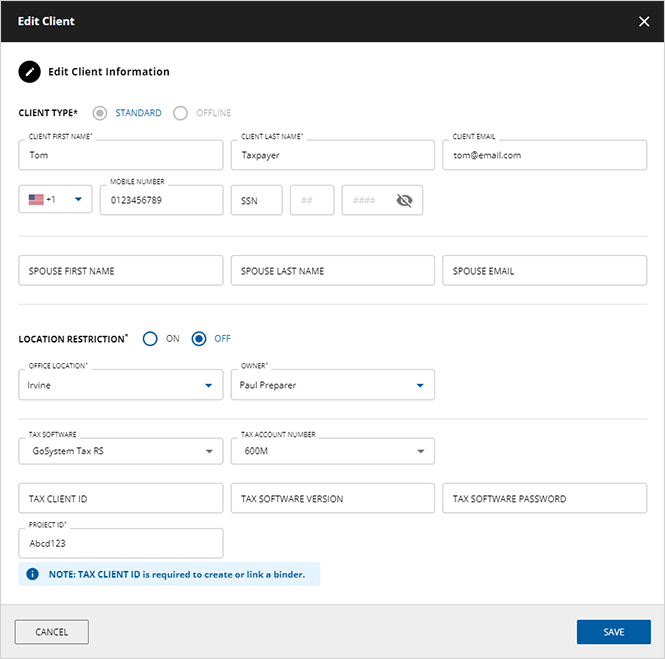
- Users can make their necessary updates to the selected client records then selectSAVEto save these changes and close the window. SelectCANCELif you don't want to save any changes.
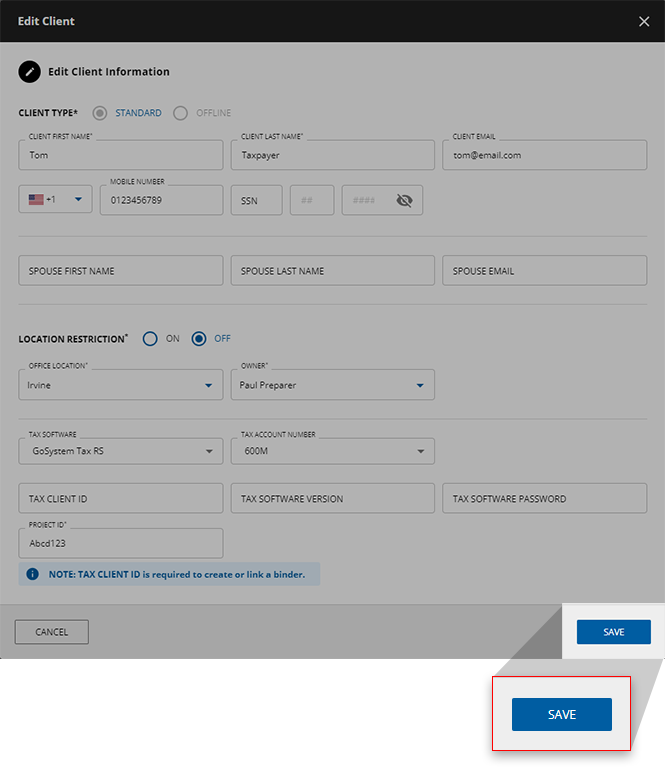 noteOffice location restrictions may prevent you from saving any updates to the selected client's records.
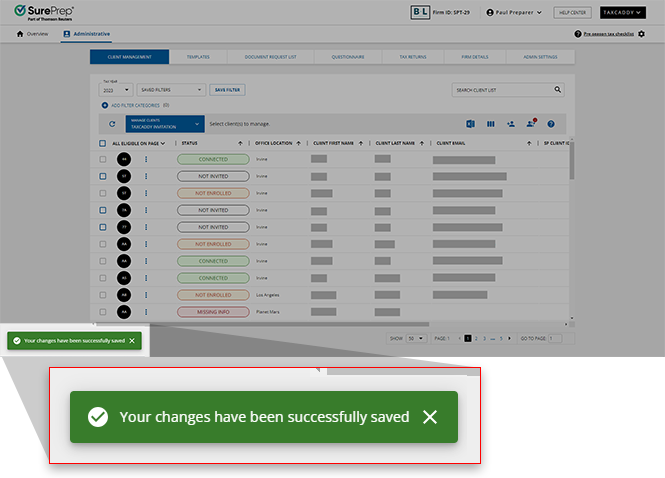
 - A message will appear on your screen indicating that your updates to the client record have been saved.
Guidelines for editing client records
Due to some potential firm-wide settings configured in your domain, updating a client's records may impact available features or access restrictions to a client's account.
If a newly added client's records are inaccurate, they won’t be able to log into their TaxCaddy account and connect with your firm.
Changing contact information
When updating a
CONNECTED
client's contact information (such as MOBILE NUMBER
or EMAIL
) records, saving erroneous records to their profile can prevent them from accessing their account (unable to receive a dynamic password login link or 2FA code). Make sure that these records are accurate before saving any updates.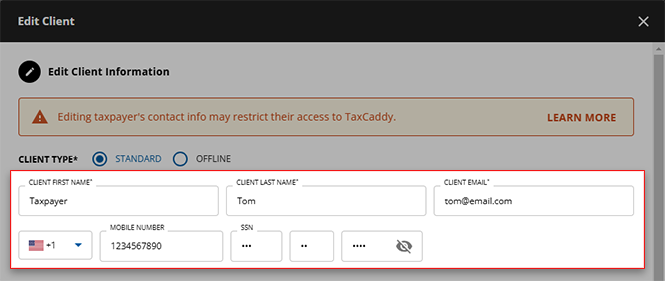
Offline Clients
For Offline clients, you can't edit first name, last name, and email address.

Editability based on status
Some fields may not be editable based on status (such as a client's first and last name can only be edited if they are in the
NOT INVITED
status.).
Changing Owner
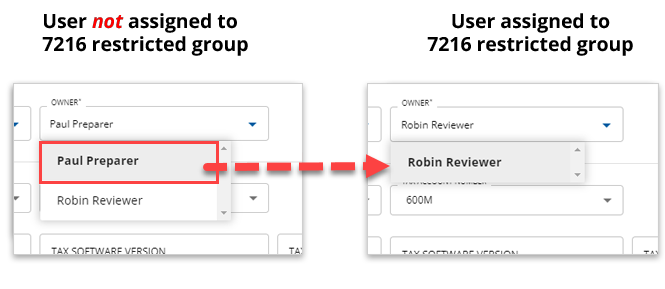
When changing a client's owner, you won’t see Owners (users) with 7216 consent restrictions in the dropdown if 7216 Restriction is enabled. This prevents you from accidentally selecting a user with 7216 consent .
Office Location restrictions
Office Restrictions can be enabled globally at the firm level for all clients or locally per client. Firm-level restrictions apply across the whole firm and override local client-level restriction settings.
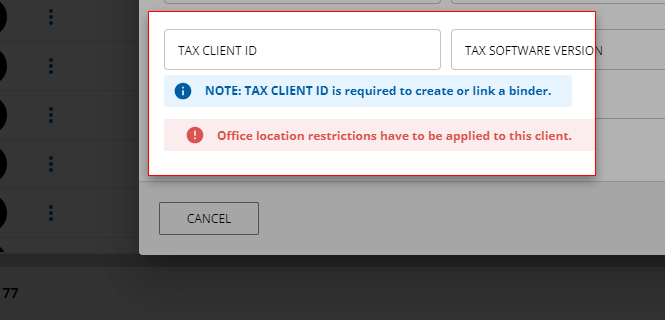
When editing a client record, you will see the following error notification if your firm enabled the
Office Locations
restriction at the firm level after the client was already created:
Office location restrictions have to be applied to this client.
note
If the firm has office location restriction enabled and a user doesn't have access to the client, they won’t be permitted to update the
Office Location
field.When this happens, select
ON
for the LOCATION RESTRICTION
within this client's records, then SAVE
your changes. You can't switch the LOCATION RESTRICTION
feature back to OFF
until the firm-wide location restriction is disabled.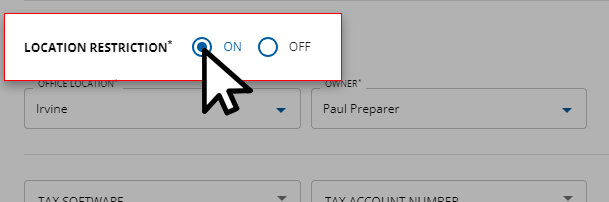
note
When not editing a client's records, users without the necessary permissions to bypass firm-wide location restrictions will be unable to view restricted client profiles in
Overview
. Changing Tax Client ID
TaxCaddy uses the
TAX CLIENT ID
when creating a DRL (Document Request List) for the client or a binder. TAX CLIENT ID
links the client profile with their associated binder in FileRoom. If you plan to update the TAX CLIENT ID
field of a client with an existing binder (in TaxCaddy), altering a client's TAX CLIENT ID
won’t sync the updated TAX CLIENT ID
with the binder in FileRoom and you won’t be able to access the binder through TaxCaddy.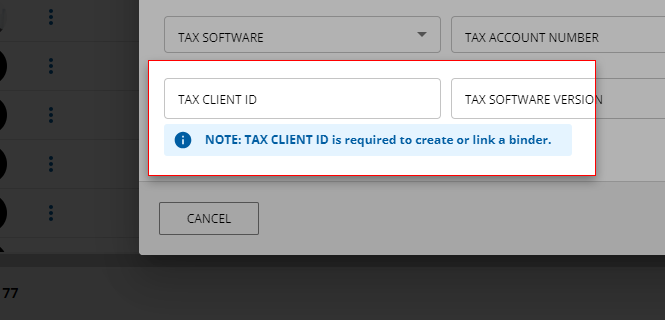
Related Content
-
Add a new client
Format: Article
-
Update a client owner
Format:
Article
-
Add a new client
Format:
Article
-
Editability based on status
Format:
Article

