
Add a new client
To create a client's profile, you'll need to add a new client to TaxCaddy. You can add clients individually using the TaxCaddy user interface or use the import clients feature to import multiple clients at once. Once you've created the new client profile, you can send them an invite to join TaxCaddy.
Adding a new client
note
If a client changes their name or email address, the change will be reflected in
CLIENT MANAGEMENT
.- Login to TaxCaddy.
- Go toAdministrative, thenCLIENT MANAGEMENT.

- Select theAdd Client
 icon. The Add Clientwindow appears.
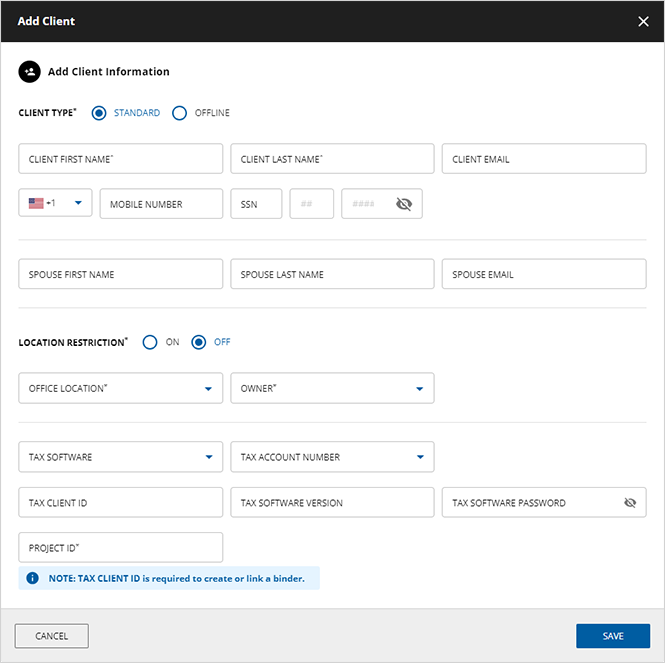
- You can add a new client by entering clients' personal information.
 TheCLIENT TYPEoption only appears if your firm enables the Offline Client feature. If you don’t see the option, then you're adding a standard online client.SelectSTANDARD, to make a regular online client.SelectOFFLINEto make an offline client. This is useful for clients that don’t want to sign up for TaxCaddy.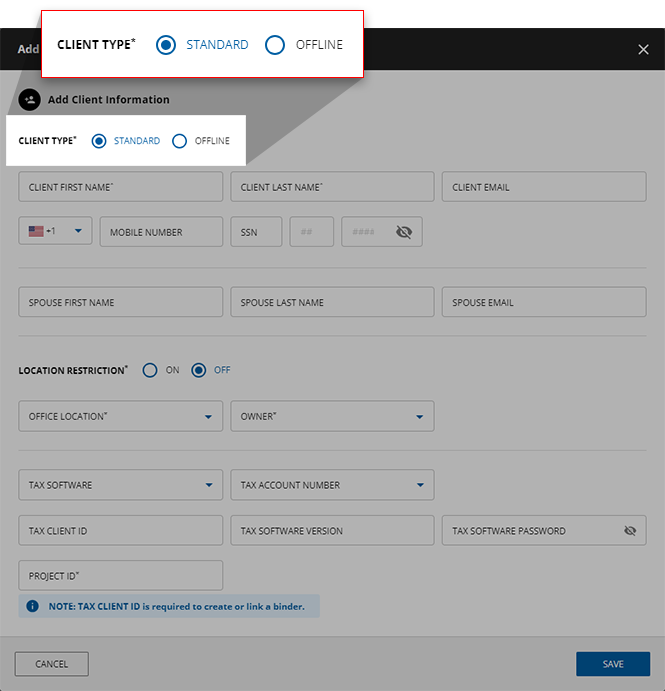
- Enter the new client’s information. Required fields are marked with an*(asterisk) next to the field name. You need to enter all the required fields to save the new client.
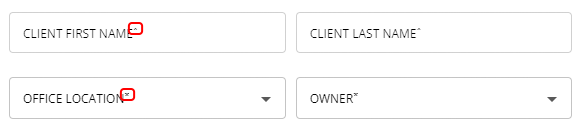
- Required fields areCLIENT FIRST NAME,CLIENT LAST NAME,OFFICE LOCATION, andOWNER. TheCLIENT EMAILfield is only required if you intend to send this client a TaxCaddy invite. After you add a client, you will have instant access to the clients' profiles on the Overview screen. If you are then, enter your client's mobile phone number. Not the landline number.noteWhileMOBILE NUMBERandSSNare optional fields, we highly recommend you enter at least one of these fields to improve your client's TaxCaddy login experience. Clients that successfully log in by verifying theMOBILE NUMBER(via SMS) orSSNwill instantly get access to all the requested items you sent them. If a mobile number is missing inClient Management, TaxCaddy will get the mobile number from the tax software when you useCreate Custom DRL. Client's with missing mobile phone number or SSN will be able to log into TaxCaddy, however, your firm users will need to make sure their identity before you and your clients can see each other's documents, requests, and activities.
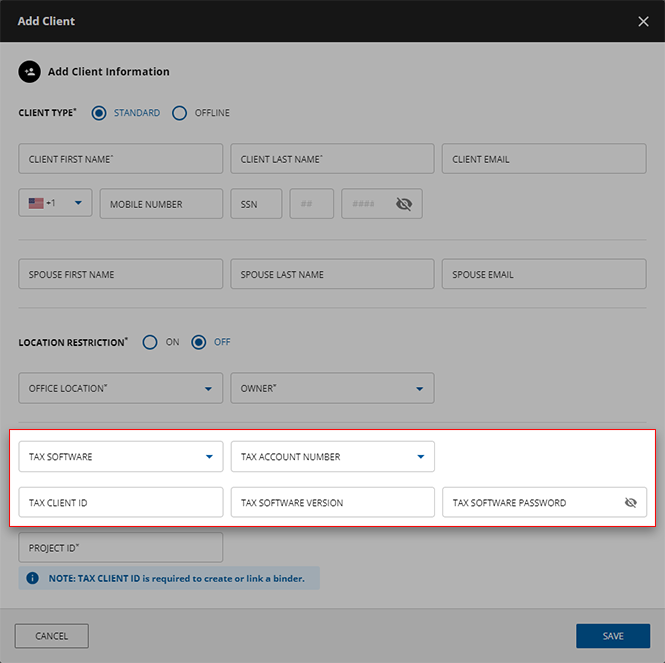
- If you want to create a custom DRL after you save the client, then you'll need to include all the required fields based on your tax software.
 If your firm currently has a custom field created and enabled in FileRoom, the custom field (such as Project ID, Firm ID, and so on.) will appear as a mandatory field in theAdd Clientwindow checkbox.
 - SelectSAVEto save the new client record.You will see
 Missing required fieldtext (in red) appear if you are missing a field required to save the client. Enter the required client information then try again.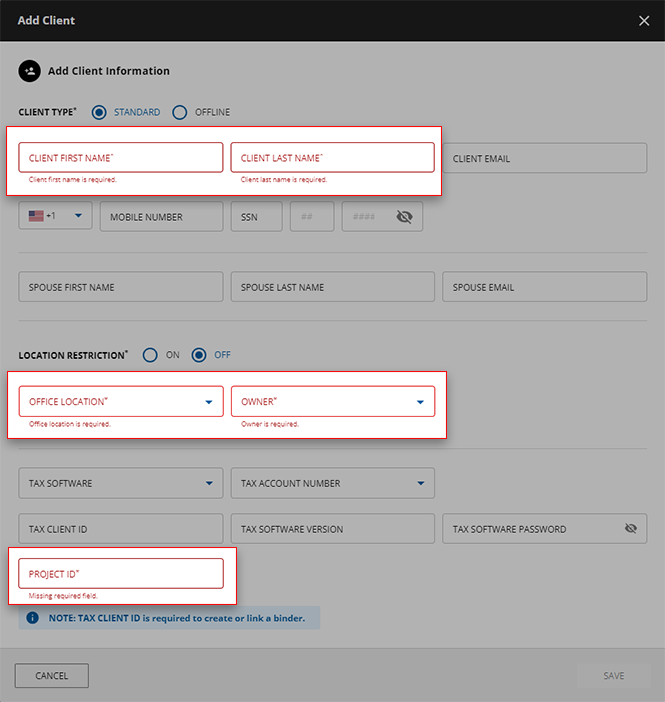
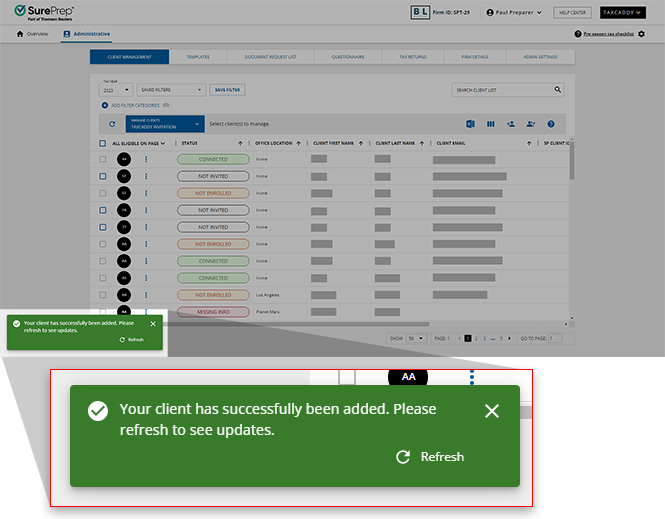
- A confirmation notification message will appear.
Notes
Masked Tax Software Password
The
TAX SOFTWARE PASSWORD
will be masked with asterisks. This field will be empty if no password was entered. 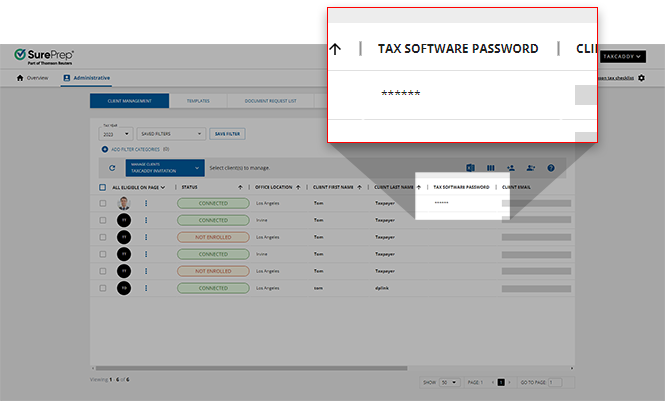
Guidelines for adding a client
note
All required fields are marked with an asterisk (*). You will be unable to add or edit a user if required fields are missing. Fields required under certain circumstances are marked with a dagger (
†
).Fields required to create and send custom DRLs are marked with a double-dagger (‡‡
).- Select theStandardclient (online) orOfflineas the CLIENT enter.
- Enter the*Office locationthat the client is assigned.
- Location Restriction restricts access to a clients' binder to users from the sameOffice Locationas the client.The following users can also access the client's profile irrespective of the Office Location they belong to: Owners, Assigned Members, Users from the same office location.If the user is not an assigned member when assigned members restriction is enabled. A Firm System Administrator can also enable location restrictions at the domain level for all clients. Go to .Unless the user is not an assigned member when If you clear the checkbox, theLocation Restrictionwon’t be mandatory and clients can be accessed by users from other office locations. This won’t remove location restriction for clients whose office restriction was toggledONmanually from TaxCaddy.
- Enter the client's *first name, *last name, and email address.noteThe email address field is optional when adding a client, however, it is required to send invites or send Deliverables using Dynamic Password.
- Enter the mobile number information, country, numeric digits (no special characters). You can add this manually later. We recommend providing a mobile phone number so your clients will be able to receive their two-factor authentication codes when signing in. Landline numbers are not viable for receiving 2FA codes.
- Enter the client's social security number.
- Select your‡‡ Tax Softwarefrom the dropdown.
- Enter the‡‡ Tax Client IDfrom the tax software. This is required to create or link a binder. It's also required to create DRL and send DRL.
- Enter theTax Client IDbefore you can select‡‡ Tax Software Account #.
- Enter the‡‡Tax Software Passwordif it exists on the client’s tax file.
- The‡‡ Tax Versionfield only applies to CCH Axcess Tax version numbers.
- Select an*ownerfrom the dropdown.
- Enter their spouse'sFIRST NAME,LAST NAME, andEMAIL.noteSpouses will not receive a TaxCaddy invitation when the client is invited. Any spousal information added is for the client's reference when adding a spouse to their account.
- The*Custom fieldonly appears when your firm's custom field is enabled in FileRoom. If your firm currently has a custom field created and enabled in FileRoom, the custom field will appear as a mandatory field.noteStandard clients created without an email address or mobile number can still be used as an Offline account.
Tax Software specific requirements
To successfully create a custom DRL, you'll need to include all the required fields based on their tax software.
Select the tax software to see the additional fields required for each tax software:
CCH Axcess Tax
- Tax Client ID: This field is called Client ID in CCH Axcess
- Tax Software Account number: Required*
- Tax Software Password: This is only required if the Tax Client ID requires a password to access the client's tax return from last year.
- Tax Software Version: Use V1, V2, etc.
GoSystem Tax RS
- Tax Client ID: This is calledLocatorNumberin GoSystem Tax RS
- Tax Software Account #: Required*
- Tax Software Password: This is only required if the Tax Client ID requires a password to access the client's tax return from last year.
- Tax Software Version: Leave blank.
Lacerte
- Tax Client ID: This field is called Client Number in Lacerte
- Tax Software Account #: Leave blank
- Tax Software Password: Leave blank
- Tax Software Version: Leave blank
UltraTax
- Tax Client ID: This field is called Client ID in UltraTax
- Tax Software Account #: Leave blank
- Tax Software Password: Leave blank
- Tax Software Version: Leave blank
note
You need to also include all fields marked with an asterisk (*), and a dagger (
†
) if applicable. Scroll up to see the Guidelines for adding a client.Related Content
-
Create TaxCaddy clients from UltraTax CS
Format: Article
-
Edit individual client records (update missing information)
Format:
Article
-
Edit client records in bulk (provide missing information)
Format:
Article
-
Editability based on status
Format:
Article
-
Add additional users to a client account
Format:
Article
-
Disconnect from clients
Format:
Article
-
Delete clients
Format:
Article
-
Edit individual client records (update missing information)
Format:
Article
-
Import new clients (standard & offline)
Format:
Article
-
Send the invite and reminder templates to clients
Format:
Article

