
Export clients I'm following (Overview screen)
The
Export to Excel
feature in the Overview
screen lets you export clients you are following on the Overview
screen to an Excel file. Unlike exporting a client list from the
Administrative
screen, the exported client list will only show client activities you can view in the Overview
screen. You can export columns that track your clients' TaxCaddy account activities like binder status, questionnaire status, done uploading status, and more.Follow these steps to export your client list from the
Overview
screen:- SelectExport to Excel
 on the Overviewscreen.noteExported client lists will only include records of the clients currently displayed on your screen. You can modify the clients displayed using filters (tax year, location, client name) before you export.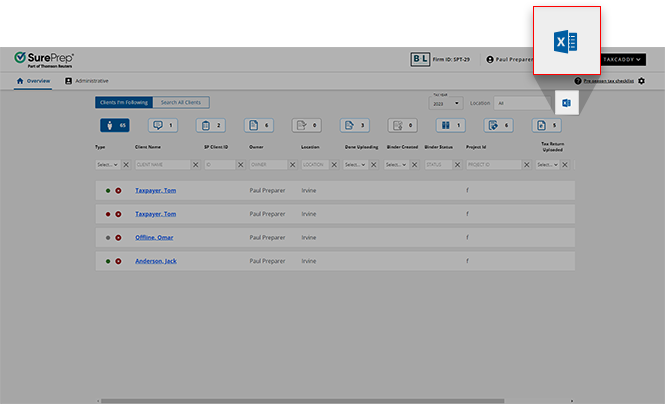
- TheExport Client Reports to Excelwindow will appear.

- Under theREPORT TYPEmenu, select the export option that best suits your needs:Client InformationDescriptionAll ColumnsExport an Excel file of all clients currently displayed on the screen. It will include all columns associated with every View inOverview- even if they are not actively visible on screen.Active Columns OnlyExport an Excel file of all clients currently displayed on the screen, only including the columns also currently displayed on the screen.
- SelectGENERATE REPORT.
- TheExport Clientswindow will begin generating your Excel file. You canCLOSEthe windowExport Client Reports To Exceland resume your work in TaxCaddy, or sign out and return at another time.noteTo receive an email reminder, make sure you enableAll Notificationswhen configuring your email settings.
- When your file is done generating, you will notice a red badge next to theExport to Excelicon. You'll also receive a notification on your screen indicating that your file is ready for download. Additionally, TaxCaddy will send you an email notifying you that your Excel file is ready for download.
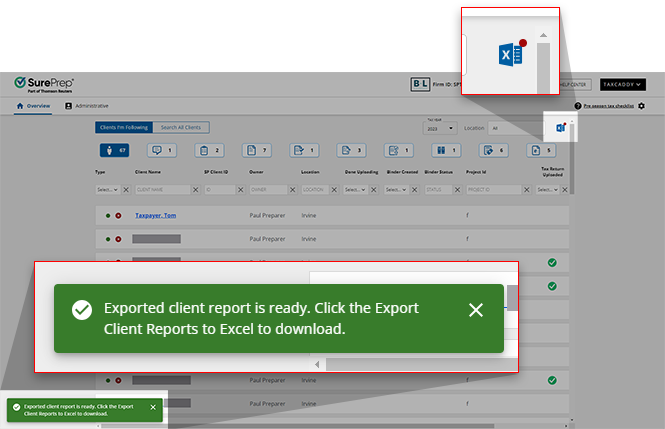
- Reopen theExport Client Reports To Excelwindow and selectDOWNLOAD FILEto begin downloading your client list.
Related Content
-
Search clients (Overview screen only)
Format: Article
-
Troubleshoot: Saving Leading/Trailing 0 in a CSV file (Export to Excel)
Format:
Article
-
Search clients (Overview screen only)
Format:
Article

