
Troubleshoot: Saving Leading/Trailing 0 in a CSV file (Export to Excel)
Once a CSV file format is saved, it doesn’t show fields with leading zeros or trailing zeros that appear after the decimal point.
Client ID (In TaxCaddy) | Client ID (CSV file) |
|---|---|
00123 | 123 (Leading zeros are missing) |
123.00 | 123 (Trailing zeros are missing after the decimal) |
However, clients exported to a CSV file do contain 0 values that are not visible. Follow these steps to save the document with 0 values:
- Export clients to Excelfrom theClient Managementscreen.
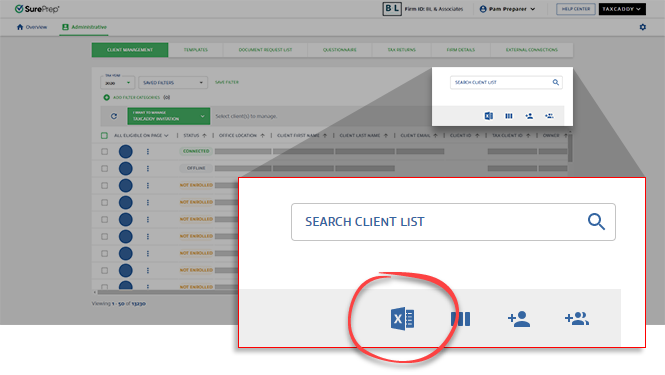
- Open the downloaded CSV file.
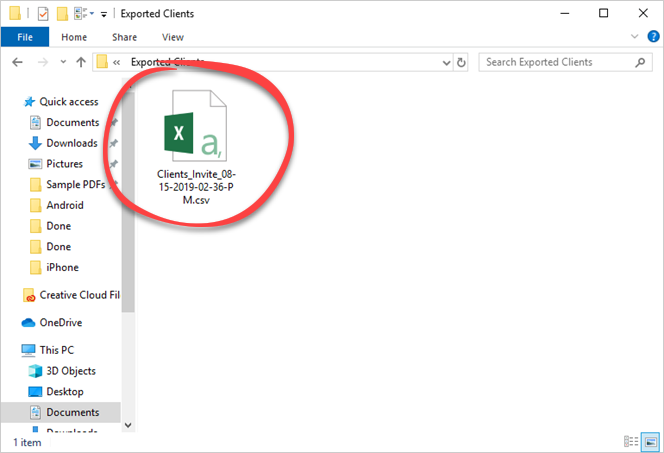 Notice the fields with leading or trailing zeros (after the decimal point) don’t appear in the document. Don't alter or save over the document at any point. Close the CSV file without saving any changes.
- Create a new Excel document.

- SelectData.

- Select .
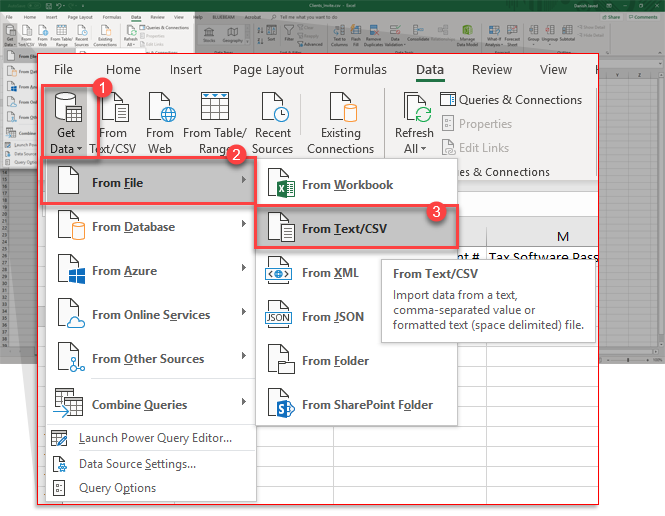
- On theDelimiterfield, selectComma. SelectTransform Data.
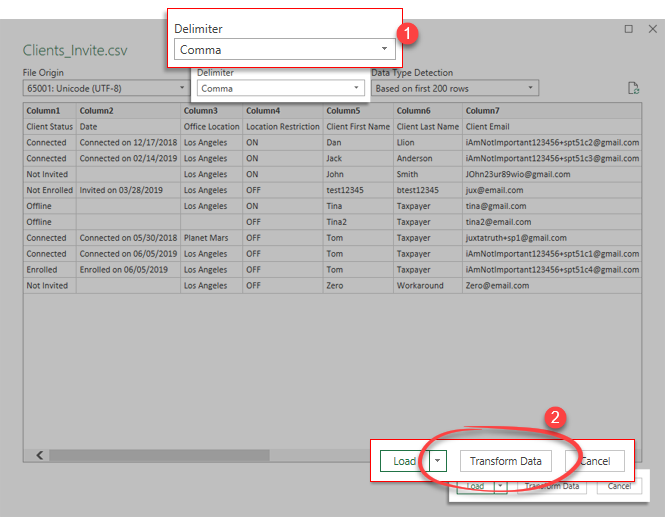
- On theHometab, selectUse First Row as Headersto assign the 1st row as the table header.

- Ensure theData Typeis selected asText, then selectClose & Load.

- A table will be created with your client data.

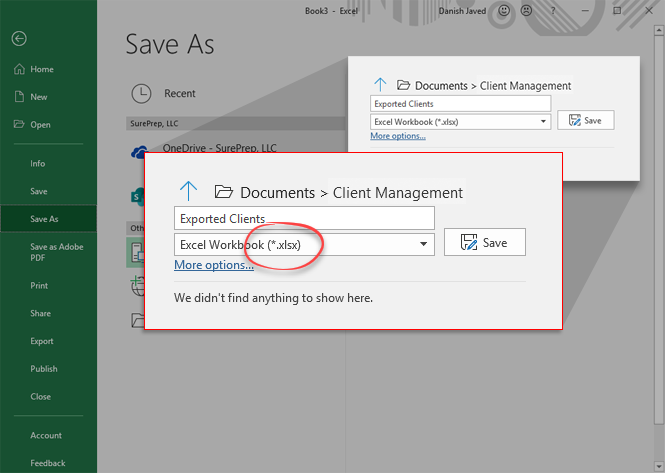
- Save the document as an Excel file.

Related Content
-
Export clients I'm following (Overview screen)
Format: Article

