
Download documents from client profiles
TaxCaddy lets you read your client's
Uploaded Documents
within TaxCaddy, so long as your device is connected to the internet. However, there may be times you need to review or store a client's tax documents offline. To save the document locally, you can download your clients' documents to your device, letting you review client information on the go.
Follow these steps to download a client's tax document:
- Sign in to TaxCaddy.
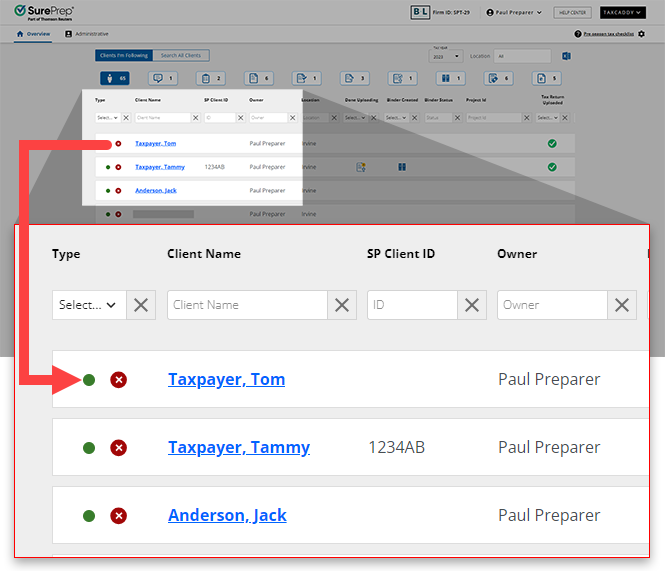
- Select a client tile to view that client's profile.
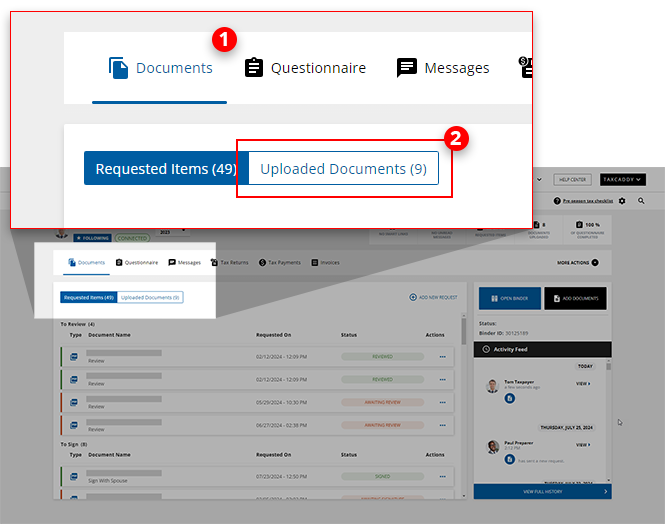
- SelectDocuments, then select theUploaded Documentstab.
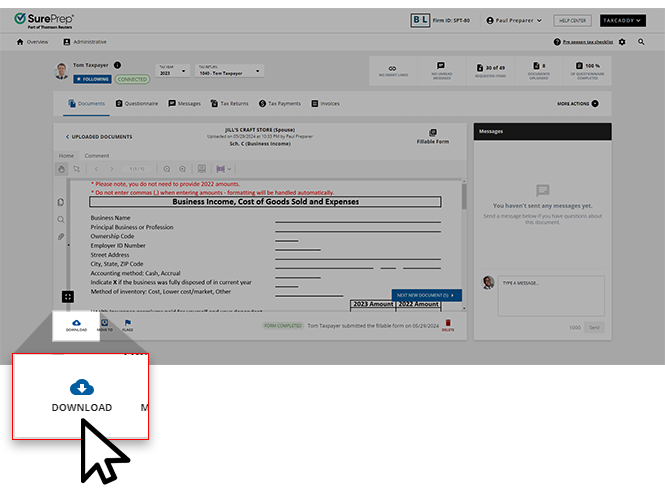
- You can . From here, you can selectDOWNLOADin the bottom-left corner to download the document.
 Alternatively, you can select theMenu
 icon from Uploaded Documents, then selectDownload.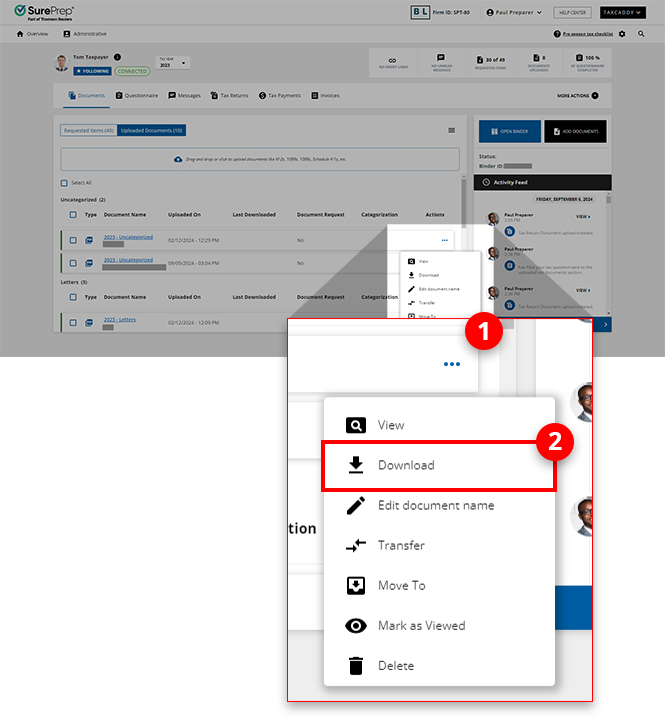
Download documents with annotations
Some documents in the
Uploaded Documents
tab of a client's TaxCaddy account contain annotations that can make reading the content of the document much easier. When downloading documents individually, you can choose between downloading the document either with or without these annotations.Follow these steps to download annotations along with a client's documents:
- Go to theUploaded Documentstab of a client profile.
- Select theMenu icon, then select Download.Alternatively, you can select the checkbox of 1 document tile and selectDownloadfrom the menu on theUploaded Documentspanel. You won’t be able to download documents without annotations if you select more than 1 document.

- TheDownloading Documentwindow will appear, informing you that the document's annotations, if any exist, are being loaded before your download commences.noteBecause annotations are only available for 1040 documents, you won’t see this appear when downloading documents belonging to a 1041 tax return profile.
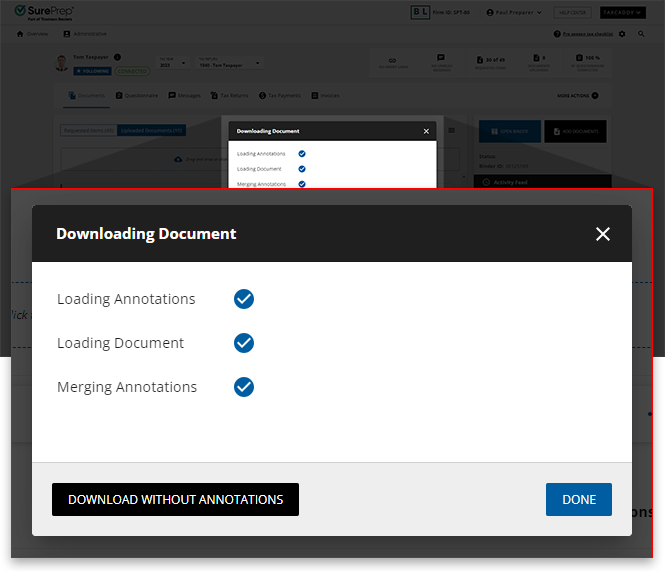
- The annotated copy of the document will begin downloading, however, you will have the option to download a copy without annotations. If you want to download the annotation-less version as well, selectDOWNLOAD WITHOUT ANNOTATIONS, otherwise selectDONEto close the window.

Related Content
-
Download multiple documents at once
Format: Article
-
Download multiple documents at once
Format:
Article
-
Viewing clients' tax documents
Format:
Article

