
Viewing clients' tax documents
Documents your client uploads are organized in clients' profiles under the
Documents
page. Documents you upload as requests for your client to review or sign are also filed to a client's Documents
, then Uploaded Documents
page after a client signs or reviews the item.TaxCaddy lets you view documents uploaded by you and your clients. By viewing documents you can review newly uploaded documents, check if they were digitally signed or reviewed by a client, and if the documents should be included/excluded in the binder.
Follow these steps to view a clients'
Uploaded Documents
:- Sign in to TaxCaddy.
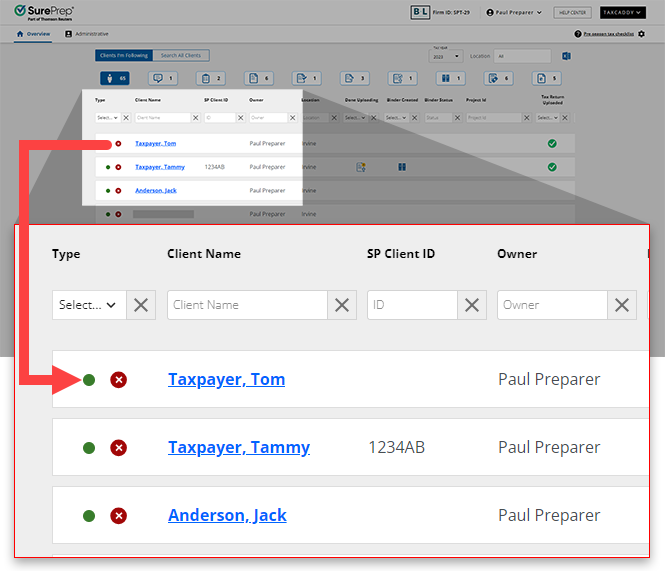
- Select a client tile to view that client's profile.
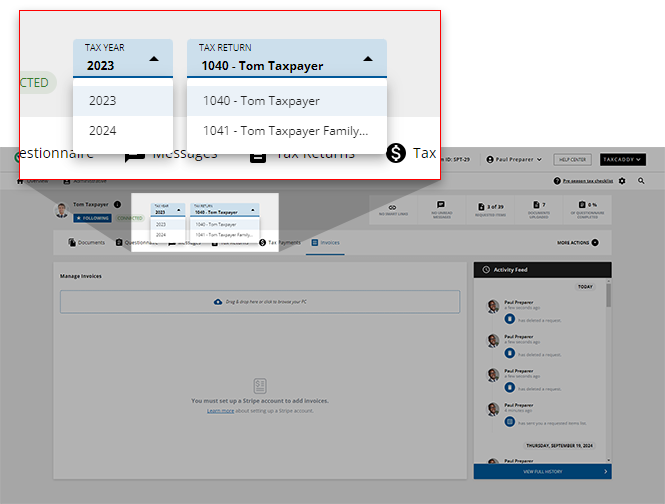
- Select theTAX YEARandTAX RETURNdropdown menus to select the relevant tax year and tax return profile, if necessary.
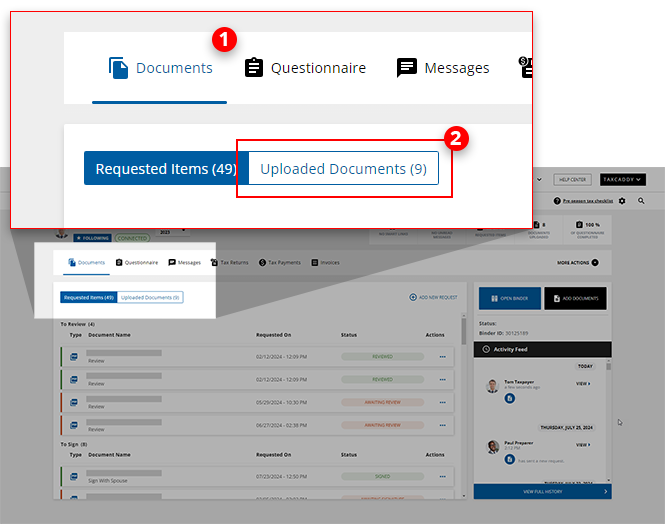
- SelectDocuments, then select theUploaded Documentstab.
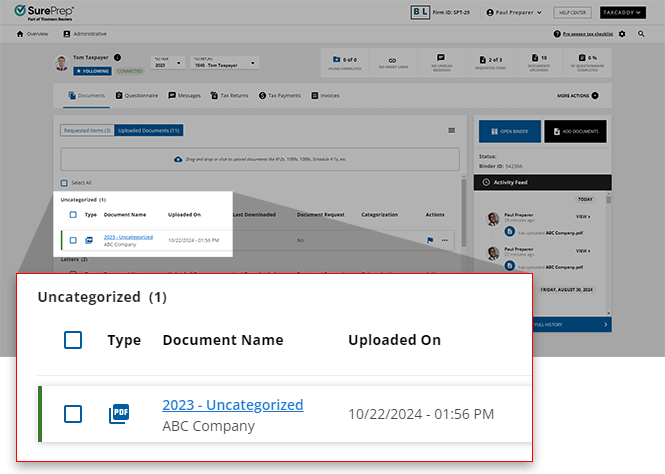
- The client's tax documents are organized by category. Select a document to open it in the Document Viewer panel.
 noteYou will see aUnviewed
 icon on a document tile when the taxpayer has uploaded a document that you've not yet viewed. Users can review the size of an uploaded document using the checkbox next to the document tile. Select a document's checkbox and its size inMBorKBwill appear.
- Information about the uploaded document and the date/time at which it was uploaded will be displayed in the header.
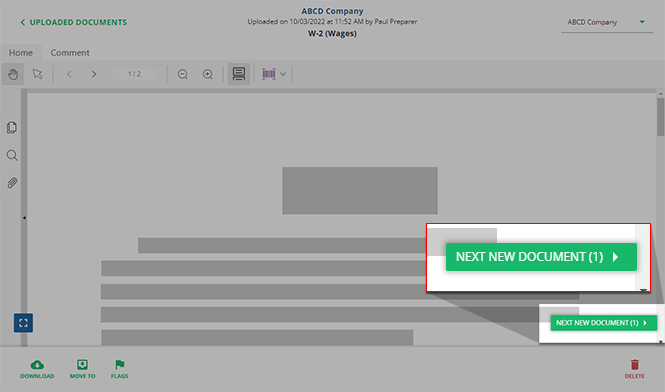
 You can selectNEXT NEW DOCUMENTto skip to the next new/unviewed document. The number in parentheses indicates the number of new documents.
 The dropdown menu lets you switch between different documents. The red badge
 indicates new documents that haven’t been viewed.
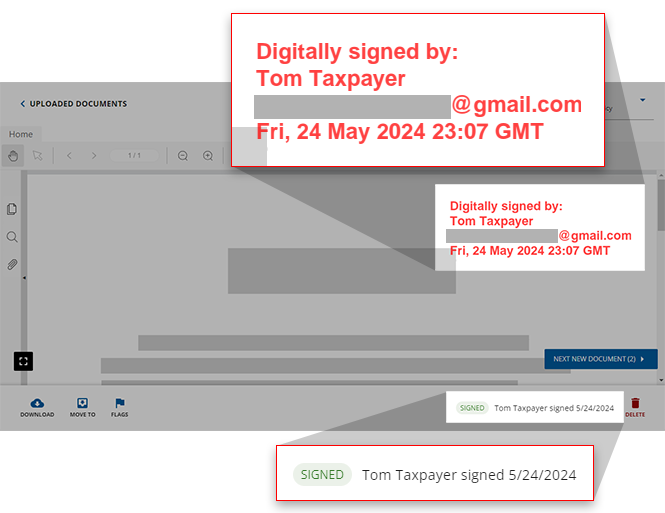
- Requested items that have been signed or reviewed by the client are filed to theUploaded Documentstab under theLetterscategory. Select a document row to view the Document Viewer panel.

- Signature and review status will be displayed at the bottom of the Document Viewer panel.Documents that were digitally signed or reviewed by a client are stamped on each page of the document. The stamp is visible to all users.
- You can also selectDOWNLOAD
 to download the document.

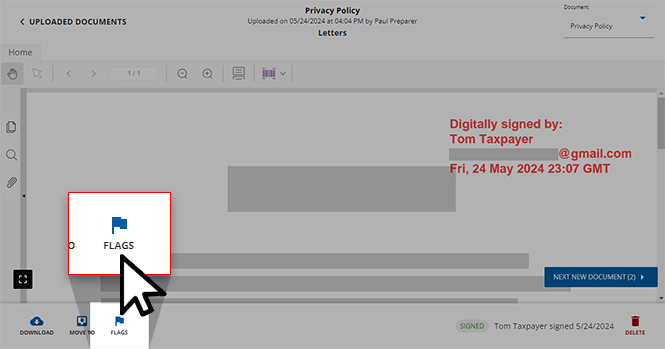
- Select theDocument Flag
 icon if you want to track which documents should be included or excluded from the binder.
Related Content
-
Textbox annotations
Format: Article
-
Text annotations
Format:
Article
-
Shapes annotations
Format:
Article
-
Change annotation style
Format:
Article
-
Upload files to client's Uploaded Documents
Format:
Article
-
Download documents from client profiles
Format:
Article

