
Move documents to another category or tax year
To keep documents organized, you can move and organize uploaded documents under your preferred category and/or tax year. This can be useful if you or the client erroneously uploaded documents under the wrong tax year or category. Moving the document to the proper category/tax year can also help address any pending DRL items.
Move documents from the document menu
Follow these steps to move a document to another category, subcategory, or tax year on a client profile.
note
To Sign
and To Review
requested items are automatically filed under the Letters
category after the client reviews or signs the document. - Sign in to TaxCaddy.
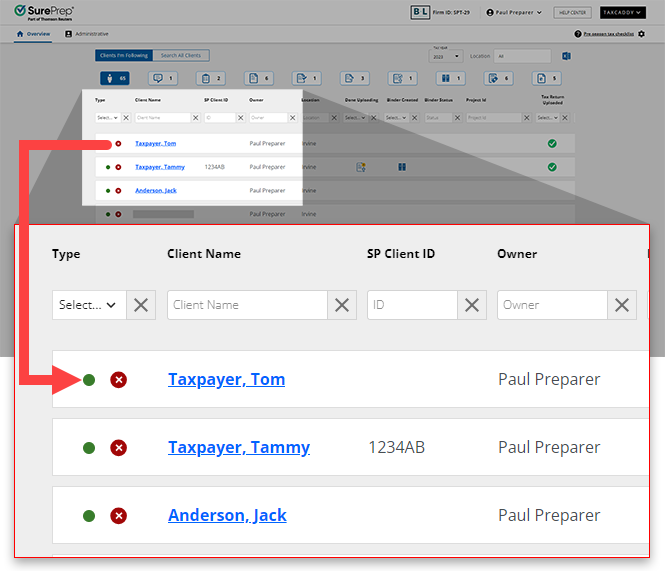
- Select on a client tile to view that client's profile.
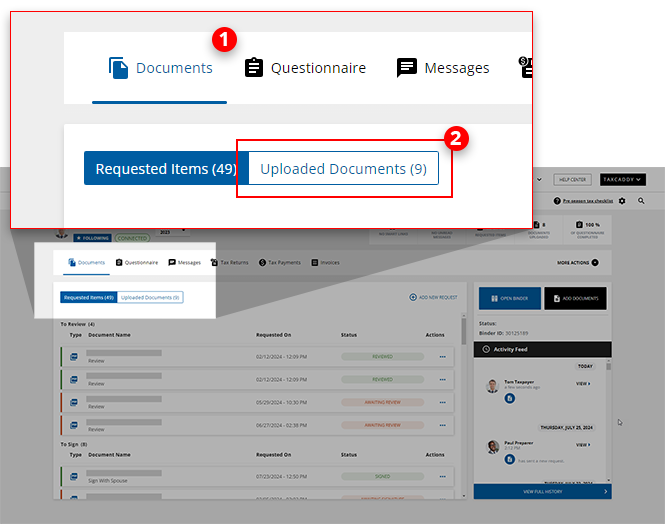
- SelectDocuments, then select theUploaded Documentstab.
- On the document tile, select theMenu
 icon, then select Move To.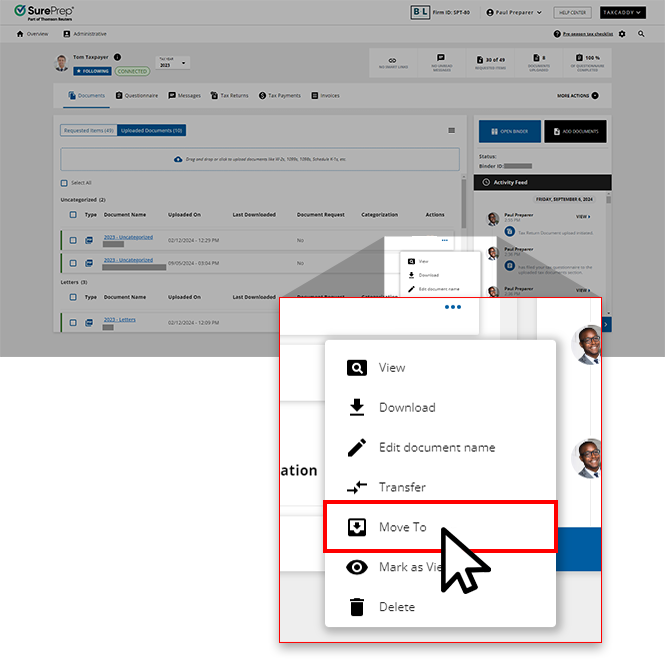
- On theMove Documentwindow, select theTAX YEARandCategorythat you'd like to move the selected document to.noteYou can selectShow Allto view all categories. You can also search for a category using the search input field.
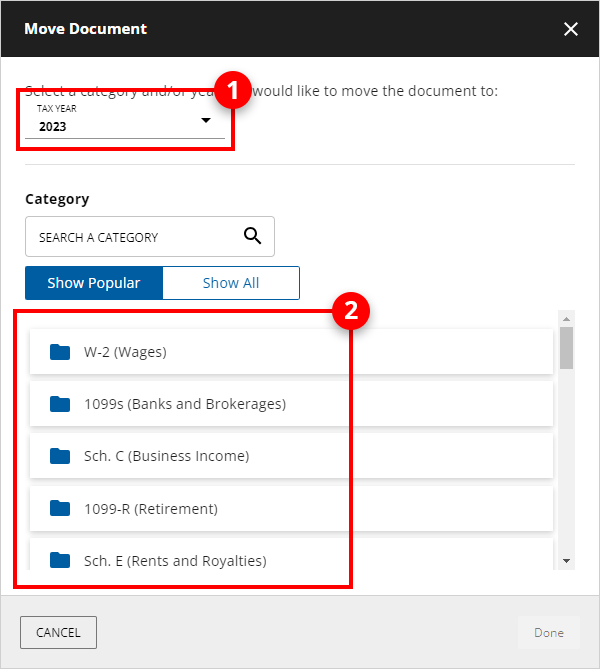 If you have enabled 1041 tax return profiles on this account, select the correctTax Returnin addition to theTax Yearbefore selecting theCategory.
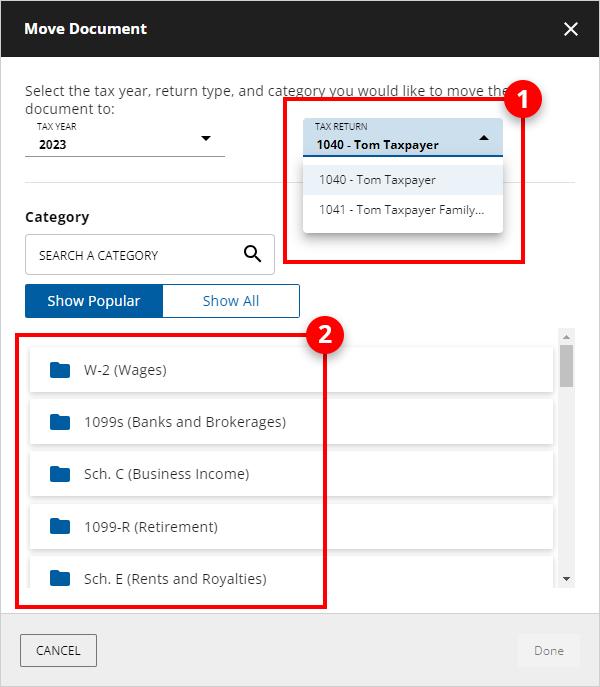 noteSome categories only apply to 1040 tax return types and won’t appear when moving a 1041 specific document and vice versa.
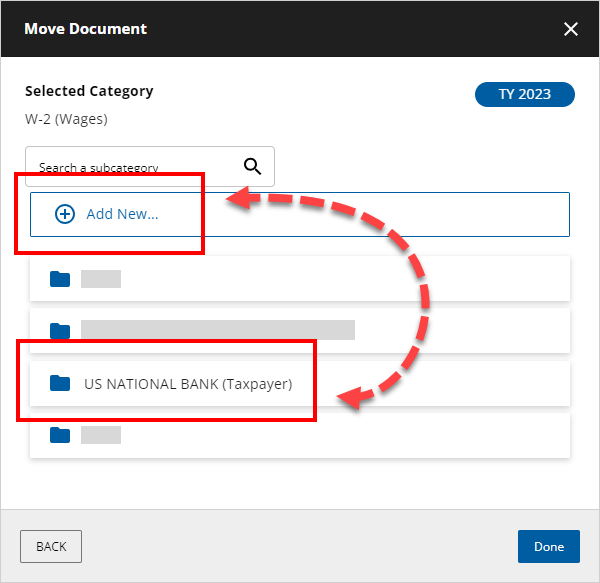
 - Select the subcategory or create a new one, then selectDone.
Move documents from the Document Viewer panel
Follow these steps to move documents from the
Documents Viewer
panel:- Under theUploaded Documentstab, select the document name to view it in theDocument Viewer.

- On the Document Viewer panel, selectMOVE TO.

- Follows the same steps as earlier. When theUploaded Documentswindow appears, select aCategoryandTax Yearfor the document.If you have enabled 1041 tax return profiles on this account, select the correctTax Returnin addition to theTax Yearbefore selecting theCategory.
- You can also select or create a subcategory for the document. To create a subcategory, selectAdd New. Once you have selected a subcategory, selectDone.
Related Content
-
Transfer documents to different client profiles
Format: Article
-
Upload files to client's Uploaded Documents
Format:
Article
-
Document Viewer (PDF Viewer)
Format:
Article
-
Rename documents
Format:
Article
-
Switch between tax documents
Format:
Article

