
Create new user groups
Follow these steps to create a new user group.
- Go toFileRoom,Admin,Users, thenUser Group Management.

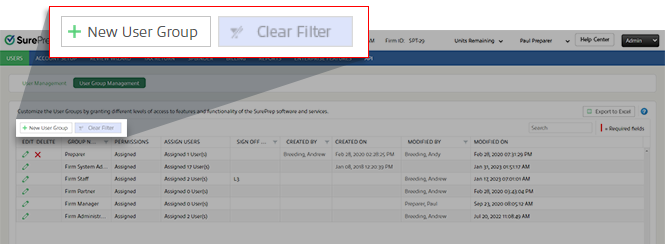
- SelectNew User Groupto add a new row.
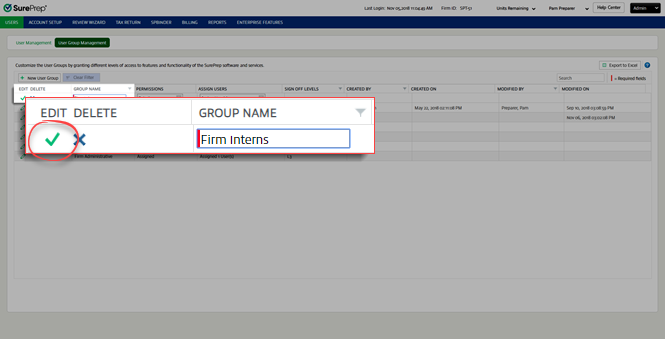
- UnderGroup Name, type a name for the new user group.noteYou can't create groups using SurePrep defined group names.

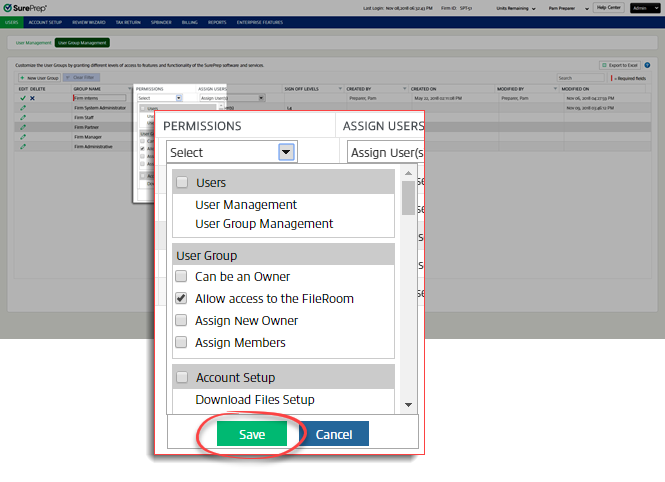
- SelectSelectunderPermissions,select the permissions you want to assign to this user group, and then selectSave.
- SelectAssign User(s), select the users to assign to this user group then selectSave.

- Select theSaveicon
 to save and create the new group.
Related Content
-
User Group Management overview
Format: Article
-
Access the Account Admin
Format:
Article

