
Pay invoices
Show all hidden content
Your tax professional can charge you for their services by creating invoices. These invoices can be viewed, paid, and downloaded.
TaxCaddy.com on PC, Mac, or tablet
Follow these steps to make a payment on your invoice when using TaxCaddy.com on your PC, Mac, or tablet.
- Sign in to TaxCaddy.com
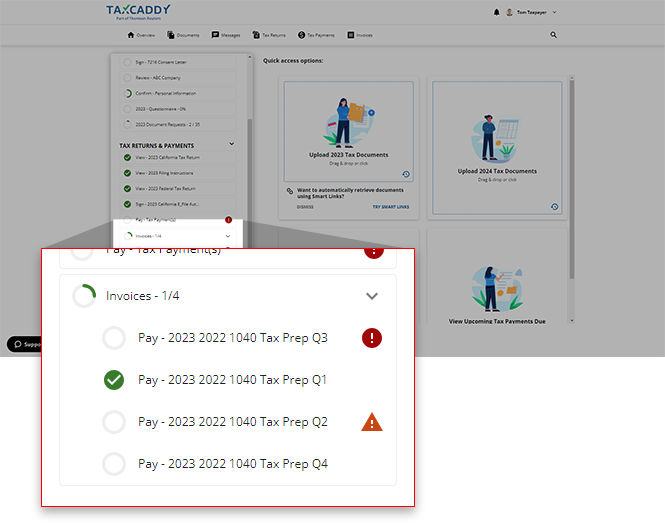
- Invoicesuploaded to your account will be listed in theTask Listfound in theOverviewscreen underTAX RETURNS & PAYMENTS.noteYour progress in fulfilling your invoices will be denoted with theProgressicon. Once you've fulfilled all of your invoices, you will see theCompletedicon.
 If your tax professional has enabled 1041 tax return profiles on your account for trust/estate, selectSWITCH TAX RETURNto select the correct tax return profile.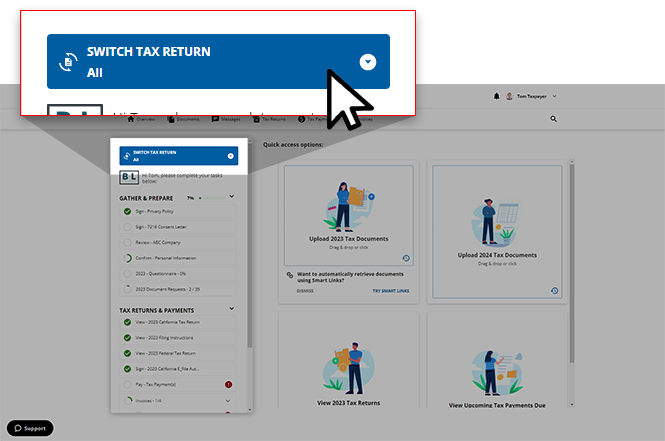
- Select a tile to view the invoice.
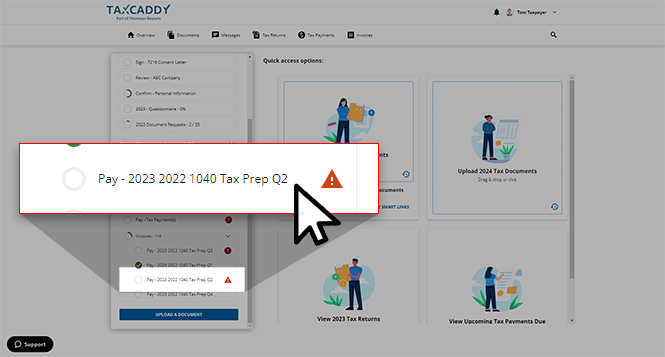
- The selected invoice will appear in theOverviewscreen's document viewer.noteYou can message your tax professional regarding this invoice using theMessageicon.
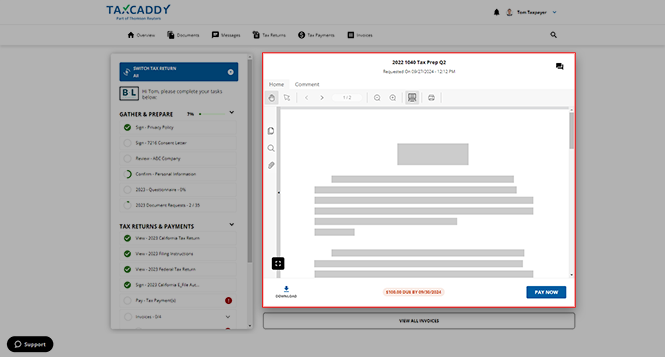
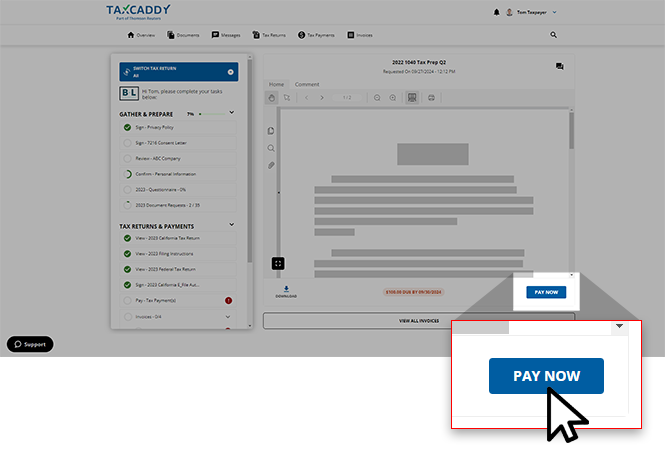
- Once you have verified the invoice amount in theOverviewscreen's document viewer window, selectPAY NOWto make a payment.
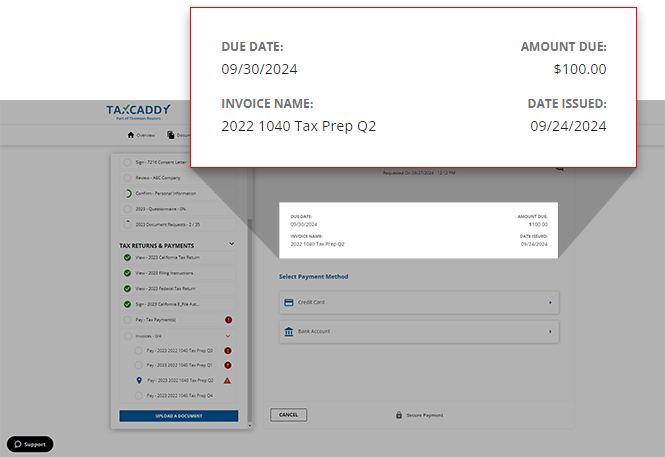
- The invoice details (AMOUNT DUE,DUE DATE,INVOICE NAME, andDATE ISSUED) will appear at the top.
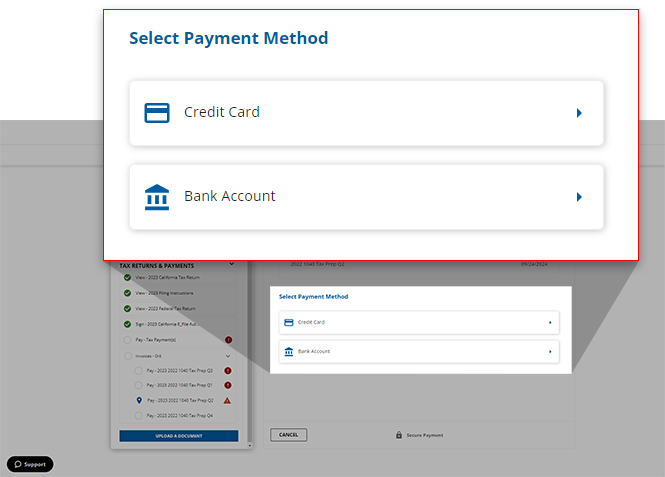
- Once you've reviewed the details, select your preferred method of payment underSelect Payment Method. If your tax professional acceptsCredit CardandBank Accountas a method of payment then you will see both options available.
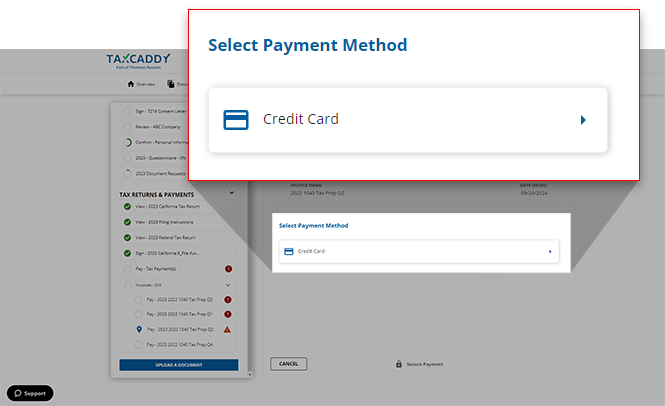
 If your tax professional accepts credit card only, then onlyCredit Cardwill be listed underSelect Payment Method.
 Similarly, if your tax professional accepts bank account only, then onlyBank Accountwill be listed underSelect Payment Method.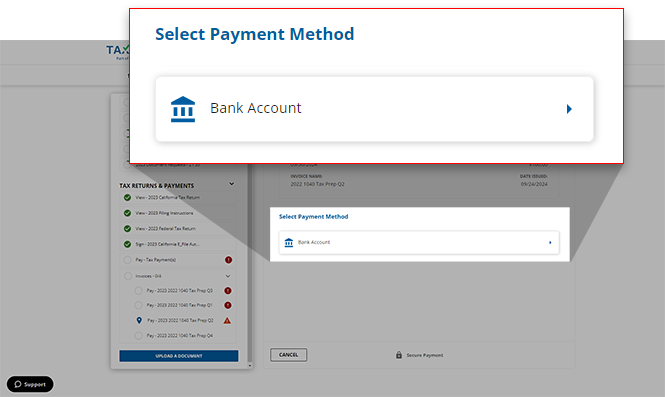
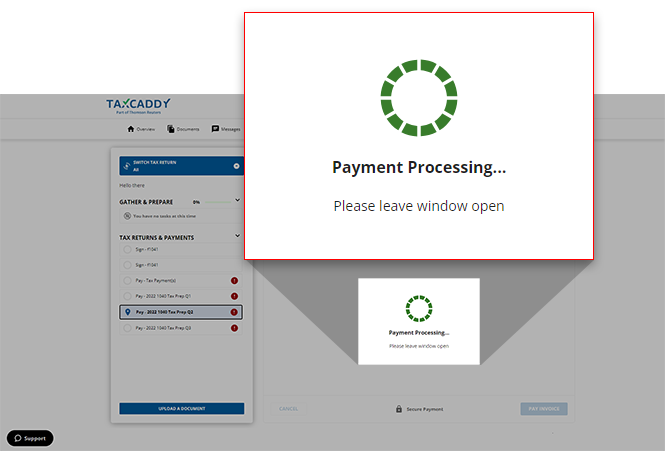
- Once you have made the payment, wait for the payment process to complete.
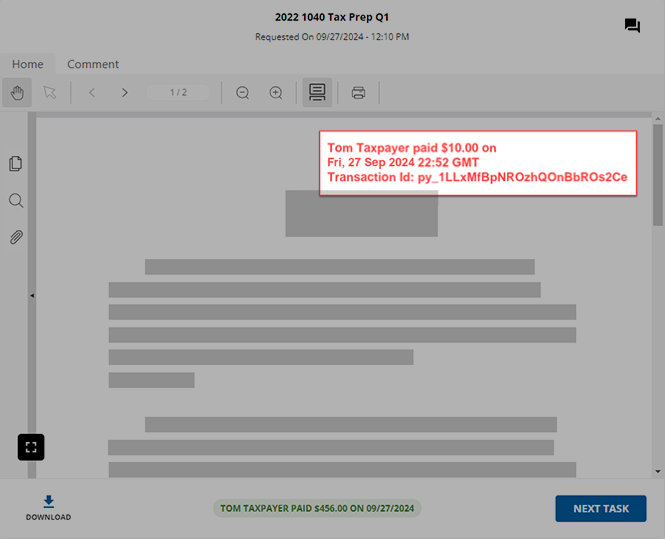
- A stamp is placed on the invoice when you pay an invoice or the invoice has been marked as paid by your tax professional.
iOS mobile app
Follow these steps to pay invoices on your iOS mobile phone app.
- Log in to the TaxCaddy mobile app.
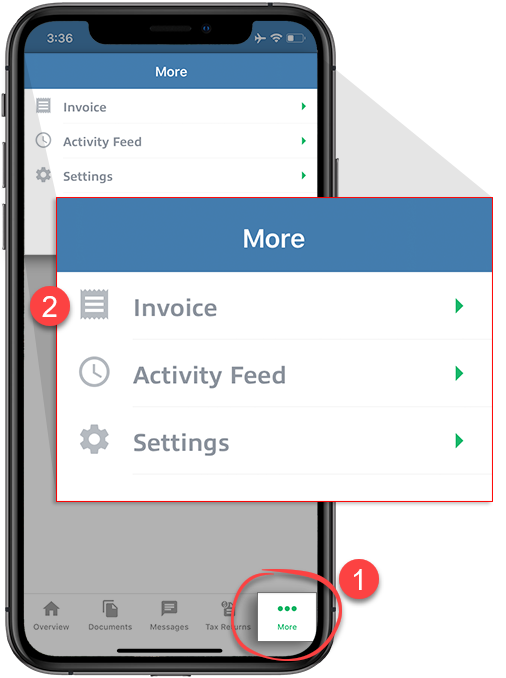
- SelectMoreon the navigation tab bar, then selectInvoice.
- Select the Tax Year on the top left.noteInvoices are only visible under the tax year they were created in by your Tax Professional. Your Tax Professional can place invoices due from a different tax year in a selected tax year. For example, your Tax Professional can make an invoice due the previous year under the current year.
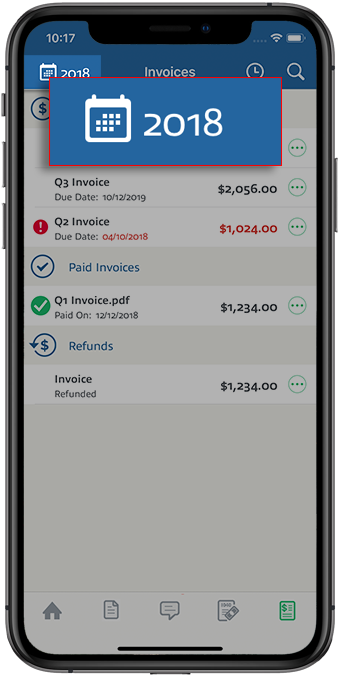 Select the tax year by sliding the tax year up or down. After selecting the tax year, SelectSELECT.
 - The list of invoices created by your Tax Professional will appear for the selected tax year.
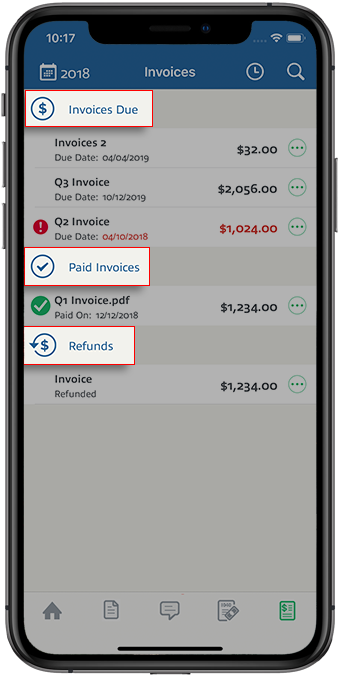 Invoices can appear inside three sections:
- Due: Invoices that need to be paid.
- Paid: Invoices that have been paid.
- Refunded: Paid invoices that have been refunded by your tax professional.
- In Process: Invoice that has been paid and is still in processing.
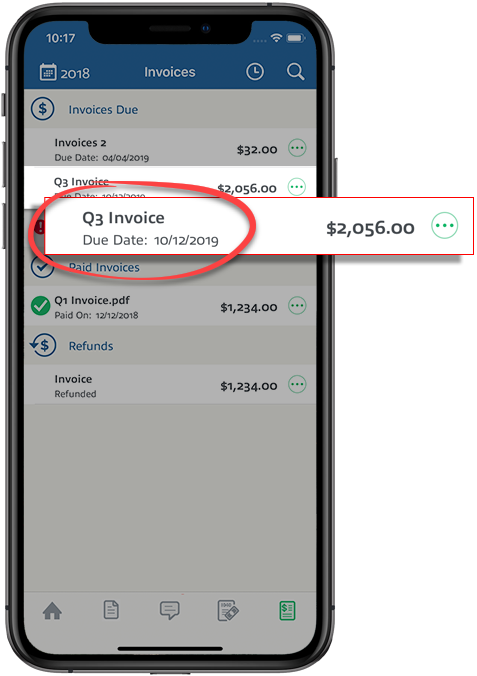
noteYou can only pay invoices under theInvoice Duesection. - Under theDuesection, select on anInvoice.
- When the Invoice opens in the PDF Viewer screen, review the invoice, then selectPAY INVOICE.
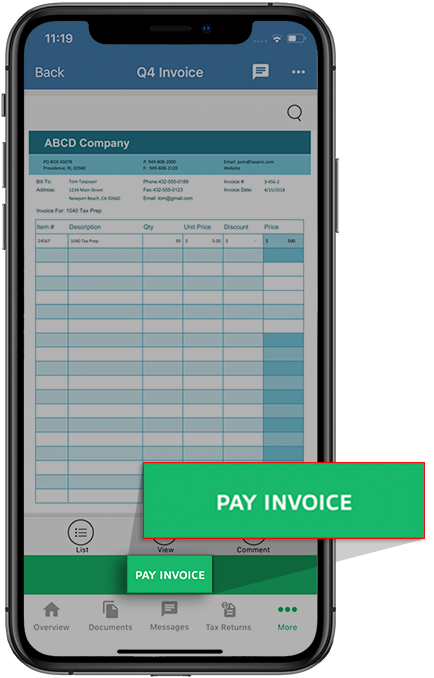 Alternatively, you can select theMenuicon on the invoice you want to pay.
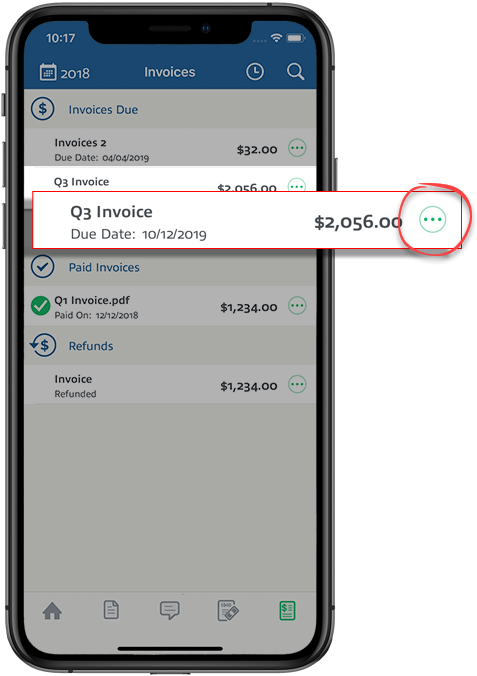 When the window appears, selectPay Now.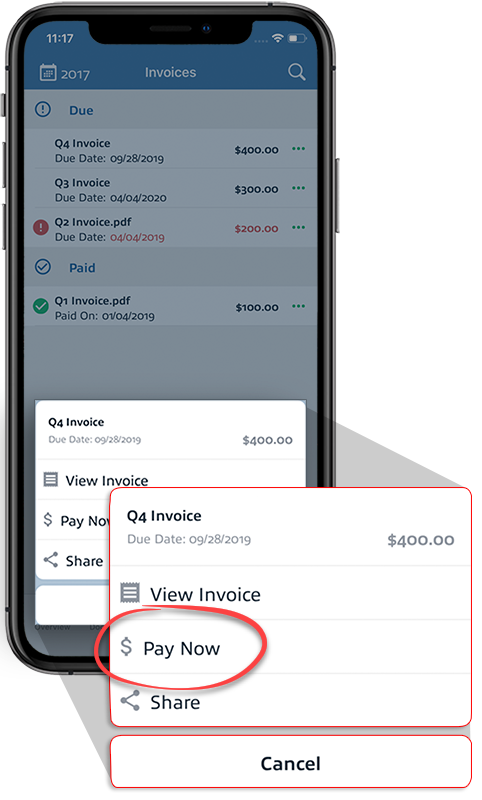
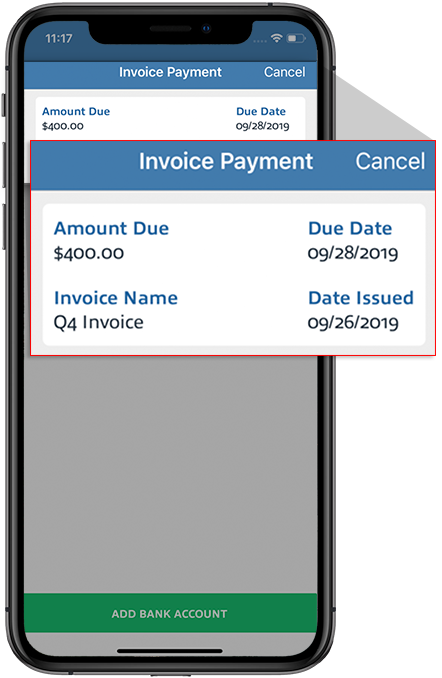
- When theInvoice Paymentscreen appears, you can review the invoice details on top (that is, Amount Due, Due Date, Invoice Name, and Date Issued).
- You can select your preferred method of payment underSelect Payment Method. If your Tax Professional accepts Credit Card and Bank Account as a method of payment, then you will see both options available.
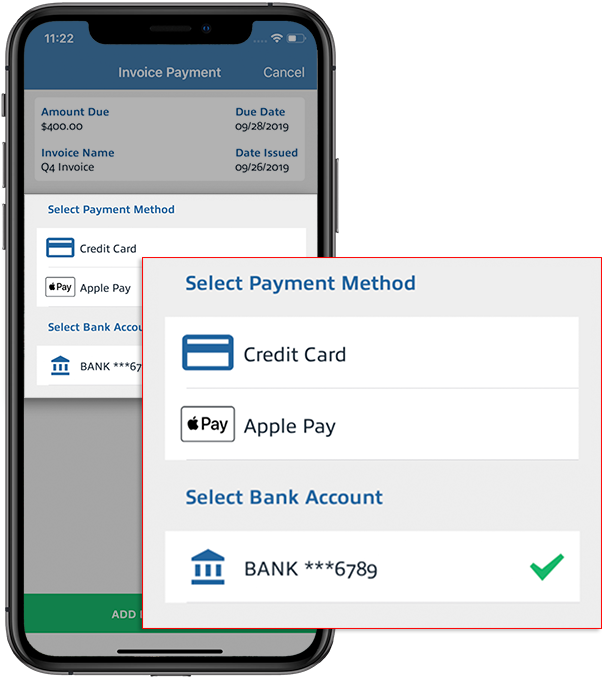 If your tax professional accepts Credit Card only, then you can only pay with a Credit Card. Similarly, if your Tax Professional accepts Bank Account only, then you will only see Bank Account as a method of payment.
 - You will see a confirmation screen once the payment has been submitted successfully. SelectDone toclose thePayment Duescreen. Your payment status will change toIn Processingand you will receive a confirmation email within 5 business days.Bank account confirmation:
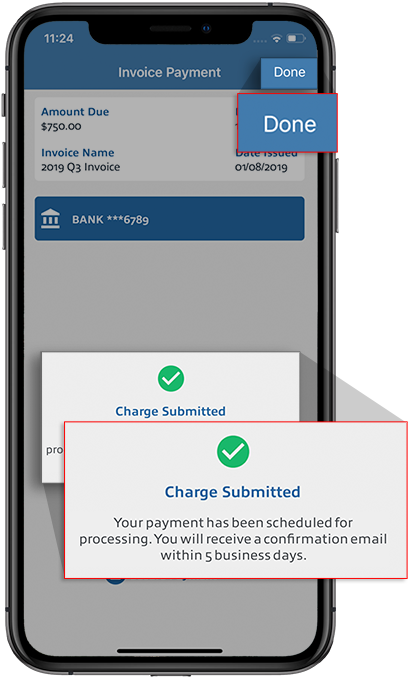 Credit Card confirmation: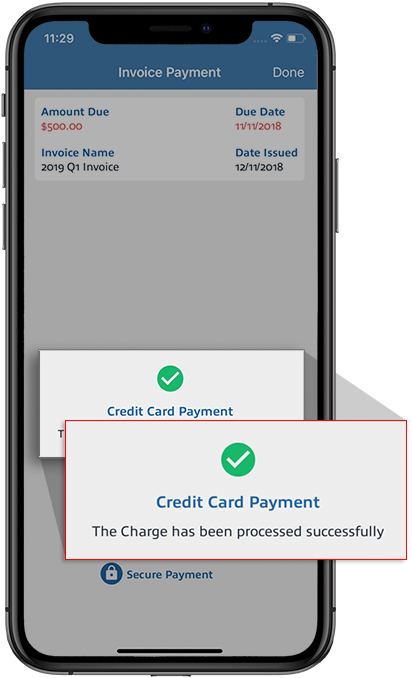
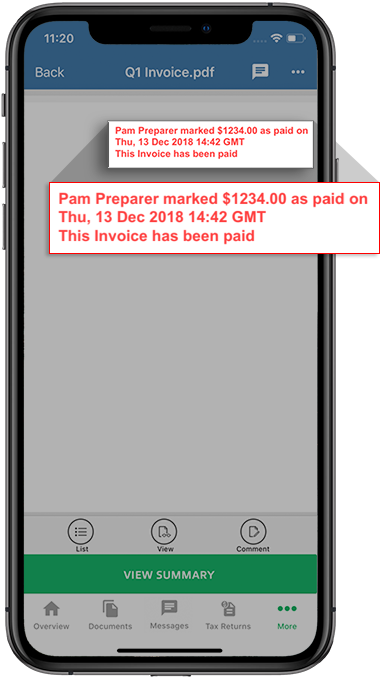
- A stamp is placed on the invoice once you make a payment on an invoice or the invoice has been marked as paid by your Tax Professional.
Android mobile app
Follow these steps to pay invoices on your Android mobile phone app.
- Log in to the TaxCaddy mobile app.
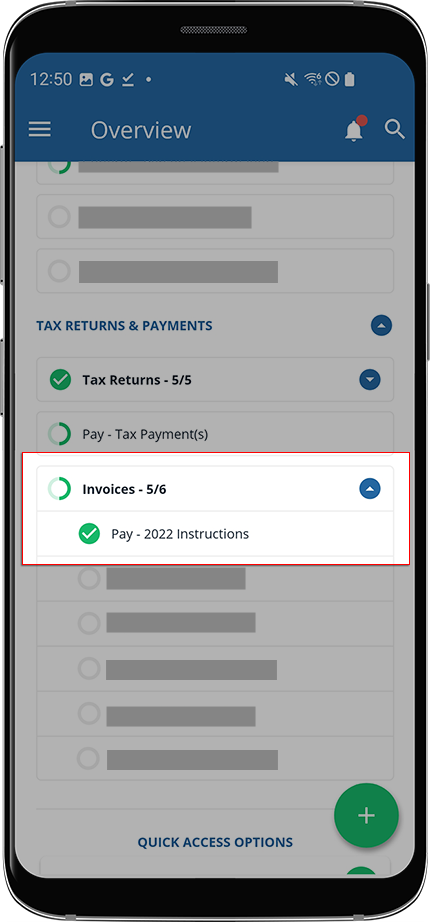
- Invoices that your tax professional has uploaded to your account will appear on theOverviewscreen. Select an invoice to view it.
- Alternatively, you can select theMenuicon.Then select
 Invoicesto be directed to a comprehensive list of invoices uploaded to your account.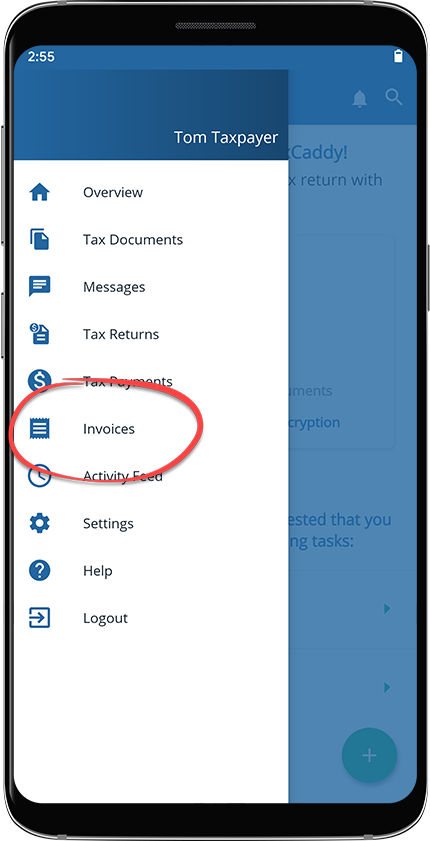
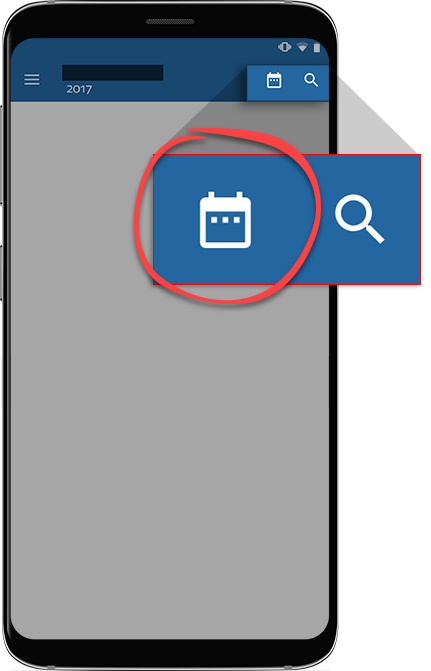
- Select theTax Yearicon to select the tax year.noteInvoices are only visible under the tax year they were created in by your Tax Professional. Your Tax Professional can place invoices due from a different tax year in a selected tax year. For example, your Tax Professional can make an invoice due the previous year under the current year.
- The list of invoices created by your tax professional will appear for the selected tax year. Invoices can appear in three sections:
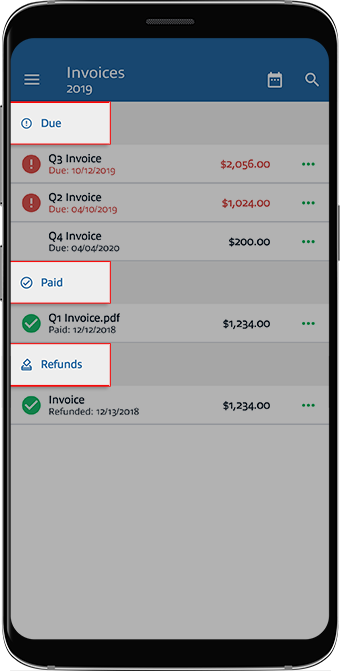
- Invoice Due
- Paid Invoices
- Refunded
- In Process
noteYou can only pay invoices under theInvoice Duesection. - Under theInvoices Duesection, select on anInvoice.
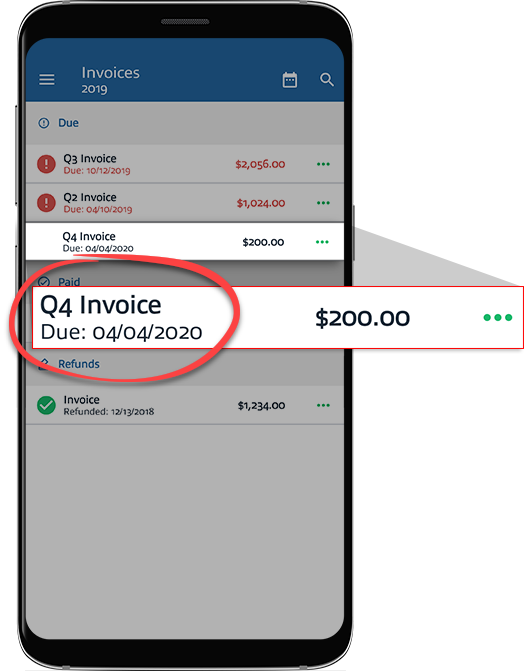
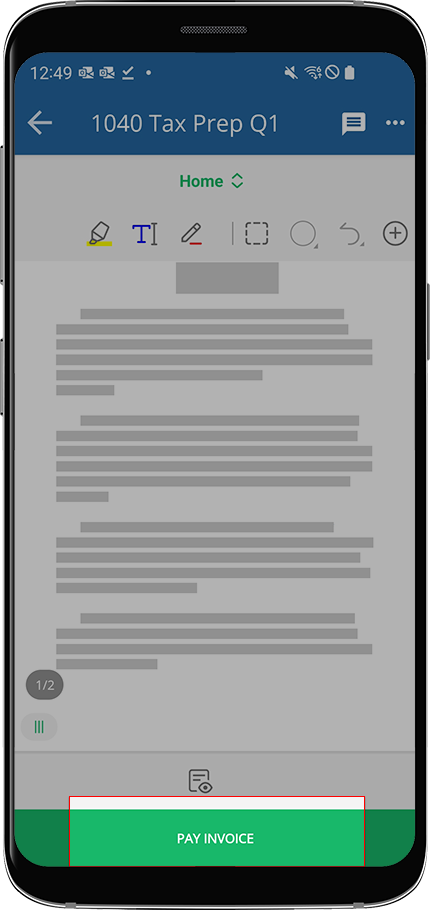
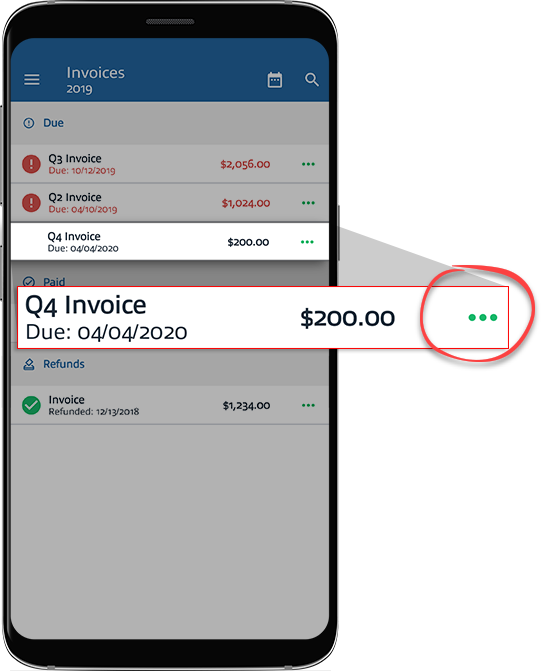
- When the Invoice opens in the PDF Viewer screen, review the invoice, then selectPAY INVOICE.Alternatively, you can select the
 Menuicon on the invoice you want to pay.When the window appears, select
 Pay Now.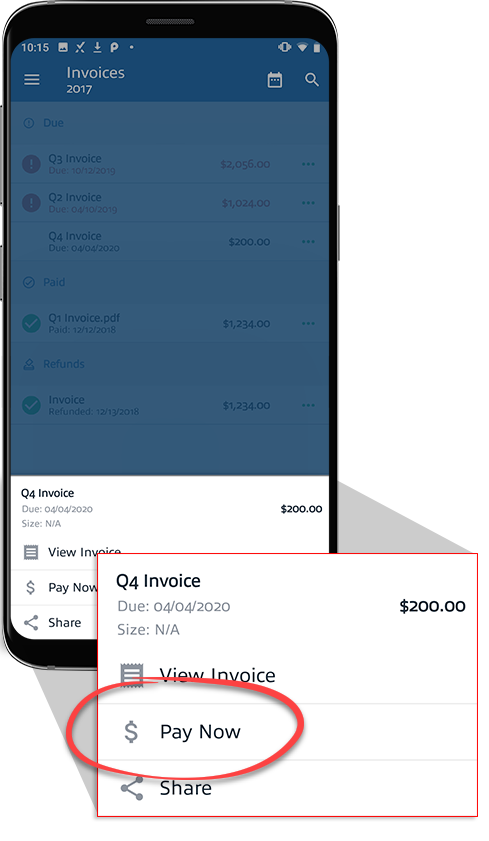
- When theInvoice Paymentscreen appears, you can review the invoice details on top (that is,Amount Due,Due Date,Invoice Name, andDate Issued).
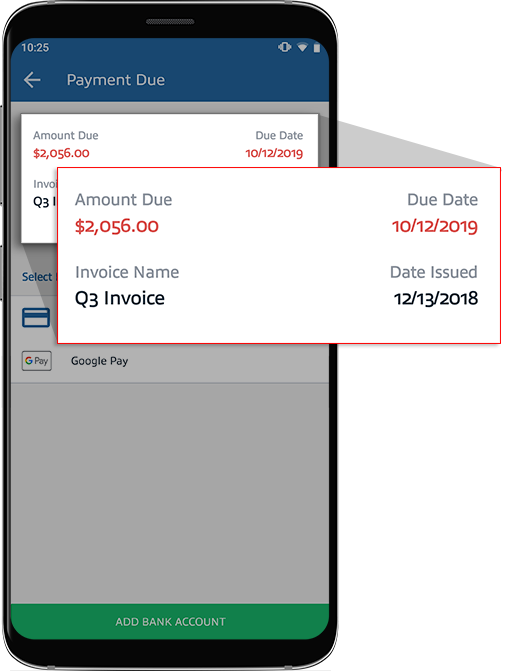
- You can select your preferred method of payment underSelect Payment Method. If your Tax Professional accepts Credit Card and Bank Account as a method of payment then you will see both options available.
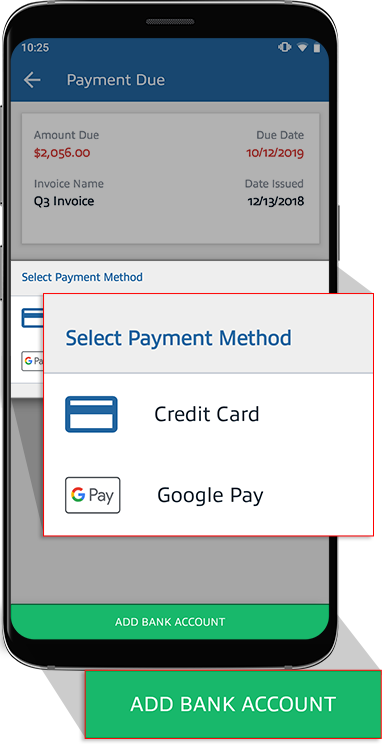 If your tax professional accepts Credit Card only, then you can only pay with a Credit Card. Similarly, if your tax professional accepts Bank Account only, then you will only see Bank Account as a method of payment.
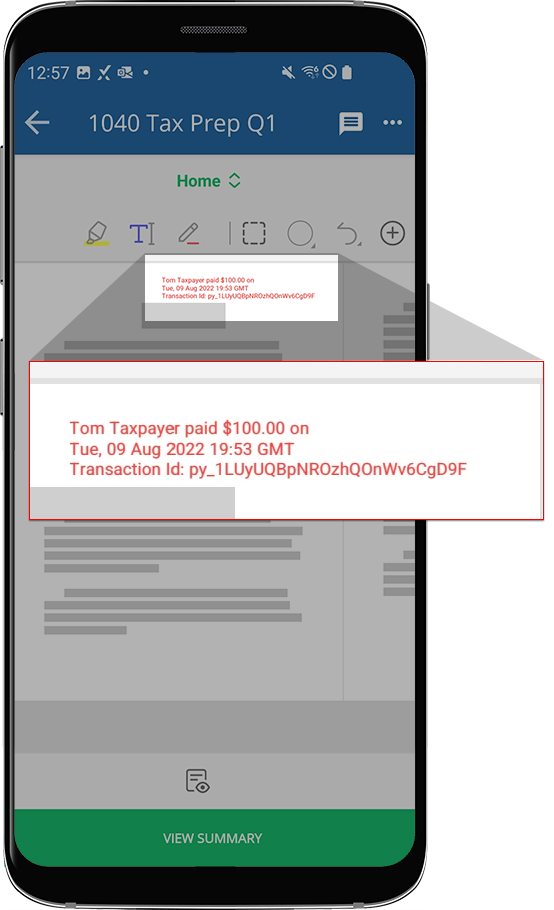
 - A stamp is placed on the invoice once you make a payment on an invoice or the invoice has been marked as paid by your tax professional.
Related Content
-
Pay invoices, Credit card
Format: Article,
9 min read
Article,
9 min read
-
Pay invoices, Bank account
Format:
Article,
10 min read

