Exporting documents
When a Document reaches either the Ready or Executed state, it is possible to export the generated documents and answer file (if applicable) for the document to a document management system. Contract Express allows exporting generated documents to one of the following Document Management Systems (DMS).
Export from document details page
To export a document:
- Select the document you want to export onDocumentstab.
- ClickExportDocumentsaction on the document details page. Log into your DMS if prompted.noteBy default, export to DMS is available for Documents in Ready and Executed statuses, but the availability of Export action is configurable. If Export option is not available on the document details page, check whether Export action is enabled inAdmin>Featuresfor the required document status (see Managing actions availability based on documents' statuses).
- Select the files you want to export to the same DMS folder in theDocumentssection. This section contains all documents associated with the selected Contract Express document, including manually uploaded files.
/selecting_docs_to_export.png/_jcr_content/renditions/original)
- ClickSelect locationbutton to choose the export location for the selected files.A panel will open with the selected documents.
- Select your connection from theSelect export connectiondropdown.
- ClickSelect locationbutton. Log into your DMS if prompted.
- Select a workspace, site or cabinet from the dropdown.
- Select a folder from theSelect foldertree.
/selecting_export_location.png/_jcr_content/renditions/original)
- ClickSaveto save the location.You will then see the files in theDocuments ready for exportsection. From here you can also remove them from selection of documents for export.
/doc_ready_for_export.png/_jcr_content/renditions/original)
- Repeat steps 3-7 for other files if needed.noteExport to DMS is aone-time operation and you willnotbe able to export other files after the first export, so select all the files you need and define export location for them before clicking theExportbutton.
- If all the files you need to export are in theDocuments ready for exportsection with required locations clickExportbutton.Contract Express will export the documents to the selected location and will change the document status to Exported.
You can view the export location in the
History
section of the document details page.Bulk export from document list page
To export multiple documents at once, select up to 20 items on the document list page and click on the
Bulk export
button. If any of the selected documents are not ready for export, cannot be exported together because of incompatible export location settings, or exceed the maximum limit for bulk export, they will be filtered out and a message will display with information about the reason for exclusion. All remaining documents will be listed on the Export page as available for export. Select the relevant documents and follow the same steps as when exporting from the document details page.
note
Only users with Write or Admin access to the Document will be able to export documents.
Using new credentials for DMS
To enter a new set of credentials for the document management system:
- SelectMy Account
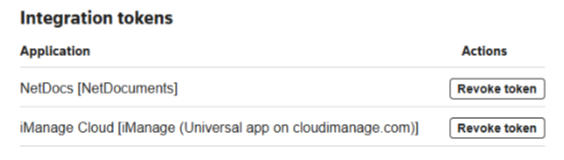
- ClickRevoke tokenfor your DMS. You must then revoke the Contract Express token from within the DMS.