
View stored binder files
The
File
section lets you create a paperless storage system for all related files for a tax return.View files
- Locate the binder with the files you want to view inFileRoom.
- Go to theOPTIONScolumn, then select thePicklist
 icon on that binder.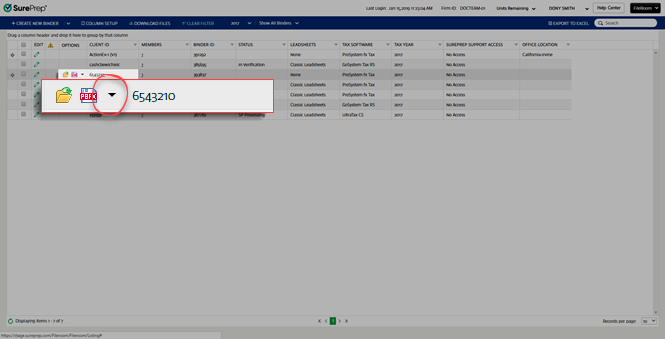
- SelectFilefrom the dropdown menu.

- In theFilewindow, you can select individual folder types, or expand the folder tree.


- Select a subfolder to view files in that folder.

- Select the file name to view (PDF) files directly from your browser.

- You can also download the file to your computer. To download the file, select theDownloadicon
 in the DOWNLOADcolumn.
 noteFor binders with leadsheets, you can use the Download Files feature to download files in bulk.
Each 1040 (individual tax return) and 1041 (trust tax return) binder type includes the following subfolders:
- 1000 Original Files Submitted
- 2000 Tax Workpapers
1000 Original Files Submitted
The
1000 Original Files Submitted
folder contains the original files submitted for processing the binder. 
Subfolders under 1000 Original Files Submitted
: - 1010 Image Files:Contains the originally scanned images.
- 1020 Tax Software:Contains the original tax software files.
- 1030 Subsequent Document Submissions:Contains subsequently submitted documents, if there are any.
- 1040 Proforma Data File:Contains the proforma data tax software file.
You will also see a
Caution
icon next to the file name if an uploaded file couldn’t be processed by SurePrep because it is damaged, password protected, digitally encrypted, or is in read-only mode.
2000 Tax Workpapers
The
2000 Tax Workpapers
folder contains your completed tax workpapers. note
2050 and 2055 DreamWorkpapers will generate for binders with Leads.
- 2050 DreamWorkPapers-****I :This file consists of the original source documents that were scanned and combined into a single referenced Adobe Acrobat PDF file. It will have the tax year in place of asterisks ("****" will be 2024) in the name. In addition, you have the option of saving the Leadsheet output as an Excel file as well.
- 2055 Dream WorkPapers-****I.xls:This is the Excel form of the DreamWorkpaper PDF file. It will have the tax year in place of asterisks ("****" will be 2020) in the name. If you have marked the checkbox for printing 2055 DreamWorkpaper Excel in theDWP Print Setup Admin Function, this file appears in the2000 Tax Workpapersfolder along with the PDF file of DreamWorkpapers.
SPbinder PDF (With or/and Without Markups) will generate for binders without Leads.

- SPbinder PDF: This file consists of SPbinder workpapers with stamps and annotations.
- SPbinder Bookmarks PDF: This file consists of SPbinder workpapers without stamps and annotations.
note
SPbinder PDF
and SPbinder Bookmarks PDF
are only available in the Files window if the PDF was printed on SurePrep Servers. 3000 Copy of Tax Return
3000 Copy of Tax Return: This folder contains the completed copy of the tax return in Adobe Acrobat PDF Format if the return is prepared by SurePrep.
4000 Tax Software Files Prepared by SP
4000 Tax Software Files Prepared by SP: This folder will contain the completed tax software file (except for GoSystem Tax and CCH Axcess Tax) only if the return is prepared by SurePrep.
Related Content
-
Download source document from FileRoom
Format: Article
-
Create a new folder in the FileRoom File window
Format:
Article
-
Add a document in the FileRoom File window
Format:
Article

