
Editing an invoice
Follow these steps to edit an invoice:
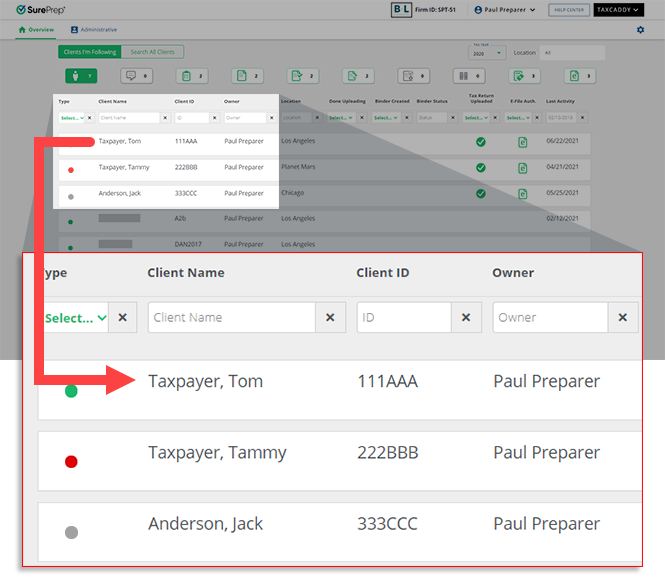
- On theOverviewscreen, select a client tile to view the client profile. You can also search for a client then select the client tile from the search result.
- Select theInvoicestab.

- Select the tax year.

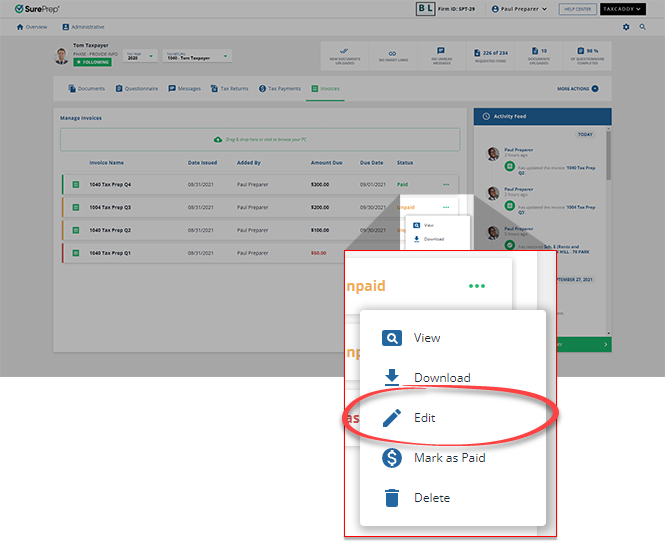
- A list of your client's invoices will appear here. Select theMenu
 icon to view the menu options.
- When the options appear, selectEdit.
 TheEditbutton will be disabled if the Invoice has already been marked as paid or refunded.noteThePaidstatus on your invoice indicates that the invoice has been marked as paid by you or your client.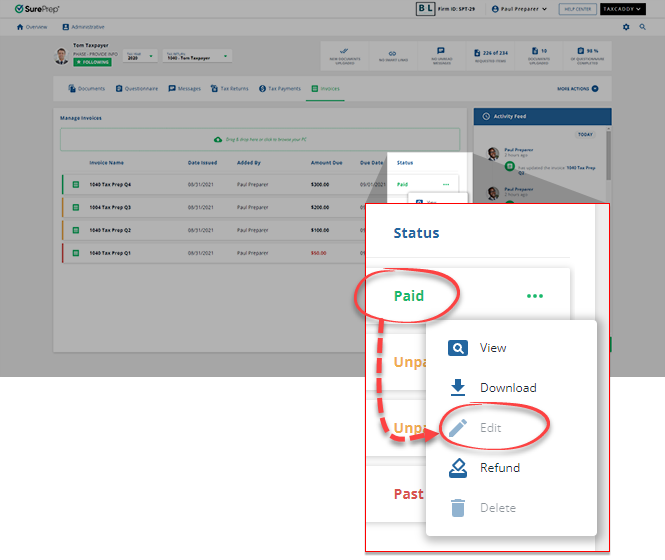
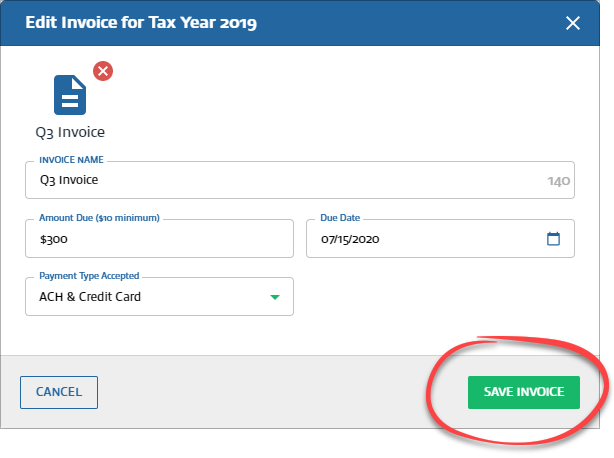
- When theEdit Invoice for Tax Year ...window appears, edit the desired fields then selectSAVE INVOICE. Your client's invoice will be updated to new values.
note
If status notifications are enabled by the user, then in 24 hours only a single notification email will be sent to the user per each notification type (add, edit, delete, refund, or mark as paid). For example: If you add 2 invoices, and delete one, then only 1 invoice will be sent for adding an invoice, and one for deleting an invoice.
Related Content
-
Adding an invoice
Format: Article,
6 min read
Article,
6 min read
-
Invoices Overview
Format:
Article,
2 min read
-
Adding an invoice
Format:
Article,
6 min read
-
Deleting an invoice
Format:
Article,
3 min read
-
Downloading an invoice
Format:
Article,
3 min read

