
FTZ Management: Preparation - Loading Integration Files and File Load Manager
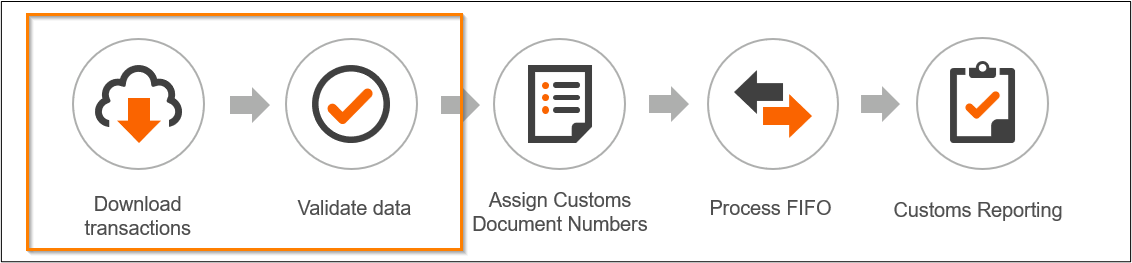
Preparation is the first step of the FTZ Daily Processing and involves loading the daily FIFO transactions into production tables for processing, and then validating the data to ensure all information is populated as required. When looking at the daily processing flow below, Preparation represents the first two steps and the following section details those steps:
Load Integration Files
The
Load Integration Files
screen displays the processing status of files and records transferred from the client’s ERP system to FTZ Management. This screen can be used to manually initiate a transfer or to load and process files from outside the system.Load Integration Files
is typically the first screen you will use for daily processing and can be accessed by choosing Load Integration Files
from the Preparation
menu. To begin the process, select
Load Integration Files
at the bottom of the page.
After the workflow finishes running, the data from each successfully-loaded file automatically transfers to the staging table, where it remains until the
Staging Data Transfer
process takes place.If any error occurs during a file import, the error is considered a “hard stop” and will terminate the process. An error notification message will display on the screen.
If all files load successfully, the last steps shown on the screen will be
Process Complete
and Execution Successful
.
Run this process as often as needed with no impact on any other processes.
File Load Manager
In some cases, files that are imported or uploaded to the ONESOURCE system may contain errors. In these instances, the
File Load Manager
screen can be used to manage and resolve these file issues.To open this screen, click your profile name, Tools and
File Load Manager
. You can also navigate to the screen via a link from the email notification sent when validations are run.
For more information on this functionality, refer to the File Load Manager user guide.
Related Content
-
FTZ Management: Preparation - FIFO Staging Correction
Format: Article
-
FTZ Management: Preparation - Staging Data Transfer Process
Format:
Article
-
FTZ Management: Preparation - Validation Status and Transaction Correction
Format:
Article
-
FTZ Management: Preparation - Resolving Common Validation Messages in FIFO Processing
Format:
Article
-
FTZ Management: Preparation - FIFO Processing Correction (Editing Production Data)
Format:
Article
-
FTZ Management: Preparation - Receipt Data Input - Manually Entering Adjustments and Receipts
Format:
Article
-
FTZ Management: Preparation - Shipment Data Input - Manually Entering Shipment Transactions
Format:
Article
-
FTZ Management: Preparation - Inventory Status Change (Transaction Change)
Format:
Article
-
FTZ Management: Preparation - Product Number Changes Overview - Transactions for PC Parts and IM Parts
Format:
Article
-
FTZ Management: Preparation - Special Processing: Move and Modify Transactions
Format:
Article
-
FTZ Management: Preparation - Craft Beverage Modernization Act (CBMA)
Format:
Article
-
FTZ Management: e214 - Understading the Process
Format:
Article