
Text annotations
Text Annotations let you place special indicators (underline, highlights) on the document's text layer. Text annotations can be useful when you need to bring attention to the document or simply place it as a reminder for yourself.
note
Annotations are saved automatically.
To view the text annotations options, select the
Comment
tab.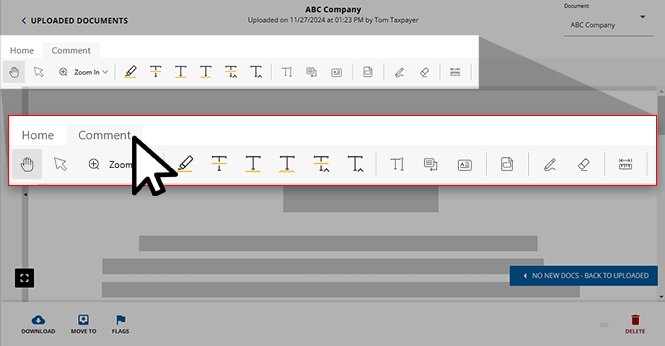
note
Text-based annotations can only be placed on a document with a text layer. You can't select scanned images without a native PDF text layer for text annotations. The
Comment
tab is only available for documents belonging to a 1040 tax return.Use  to highlight text.
Highlight
to highlight text. 
To modify the highlighted area, select  , then the highlighted text. The selected highlight will show the start and end pointers
  . Drag the start or end pointer to modify the highlighted text area.
, then the highlighted text. The selected highlight will show the start and end pointers . Drag the start or end pointer to modify the highlighted text area.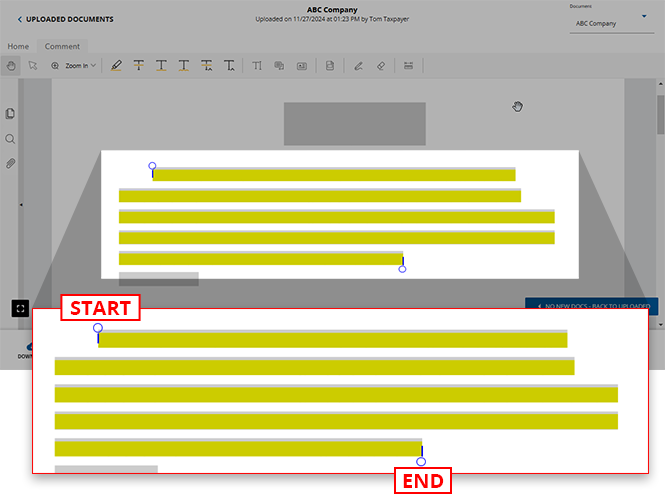
To delete the highlighted text, select icon, then the highlighted text. Right-click the highlighted text and select
icon, then the highlighted text. Right-click the highlighted text and select Delete
on the shortcut menu. Alternatively, you can press Delete
on your keyboard.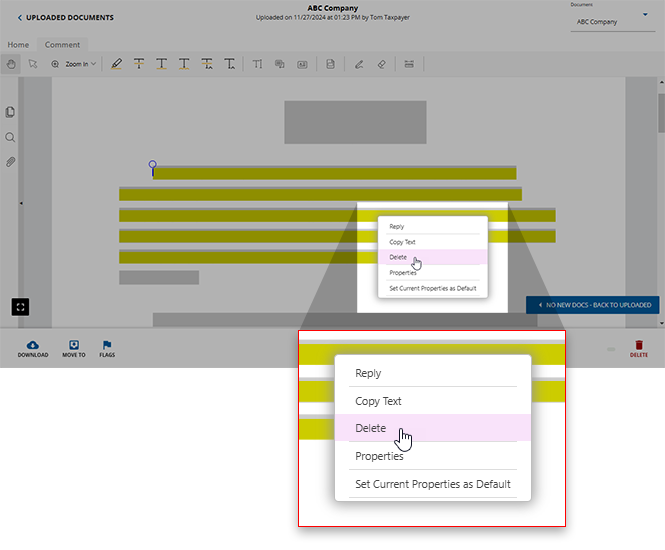
If you want to highlight an area with or without text, use the
Highlight Area
annotation on the Comments
tab.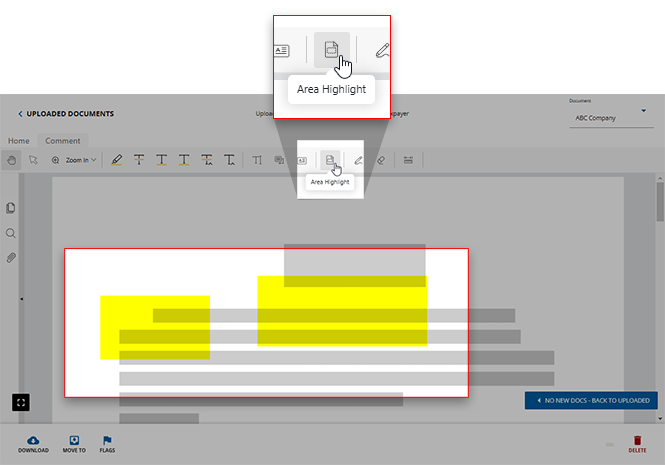
Use  to put a line through text.
Strikeout
to put a line through text.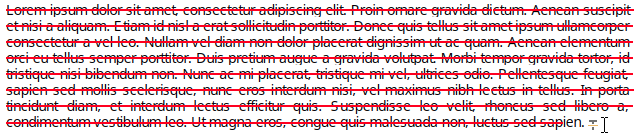
Use  to underline text.
Underline
to underline text.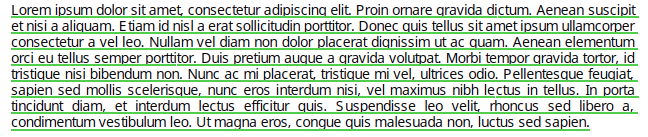
Use  to underline text with a wavy line.
to underline text with a wavy line.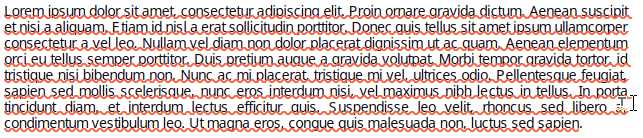
Related Content
-
Document Viewer (PDF Viewer)
Format: Article
-
Textbox annotations
Format:
Article
-
Document Viewer (PDF Viewer)
Format:
Article
-
Rename documents
Format:
Article
-
Switch between tax documents
Format:
Article
-
Shapes annotations
Format:
Article
-
Change annotation style
Format:
Article
-
Delete annotations
Format:
Article
-
Viewing clients' tax documents
Format:
Article

