
Change annotation style
The Document Viewer panel lets you change annotations style. You can customize annotations by changing the highlight color, line color, text color, textbox colors, line thickness, and opacity.
To change the annotation's style, right-click the annotation and select
Properties
from the shortcut menu.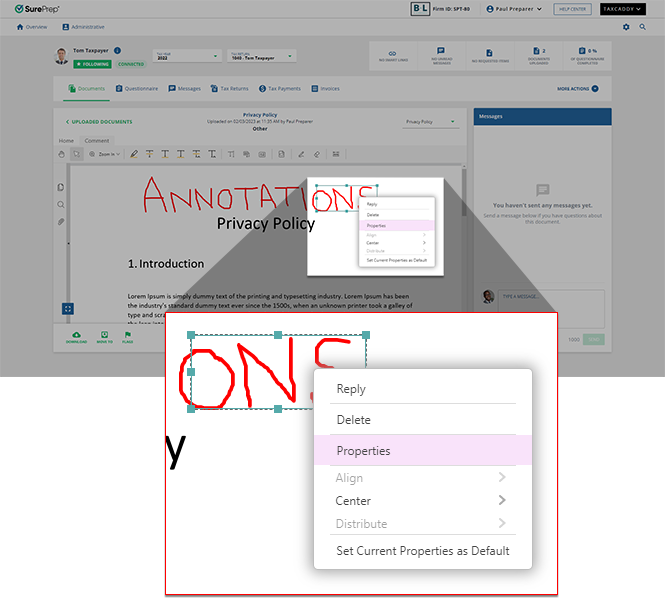
In the
Ink Properties
window, you'll see 3 different tabs for formatting your annotations:- Appearance
- General
- Review History

In the
Ink Properties
window, mark the Lock
checkbox to prevent these properties from being updated. Mark the Set Current Properties as Default
checkbox to apply the currently selected properties to all future annotations.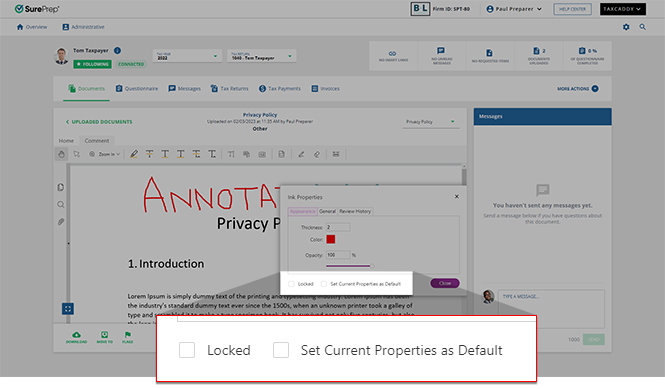
Appearance
In the
Appearance
tab, you can alter the appearance of your selected annotation. The appearance properties you can update include: Thickness
, Color
, and Opacity
of the line annotation.Once you've made your updates, you can move to another tab, or select
Close
to save your changes.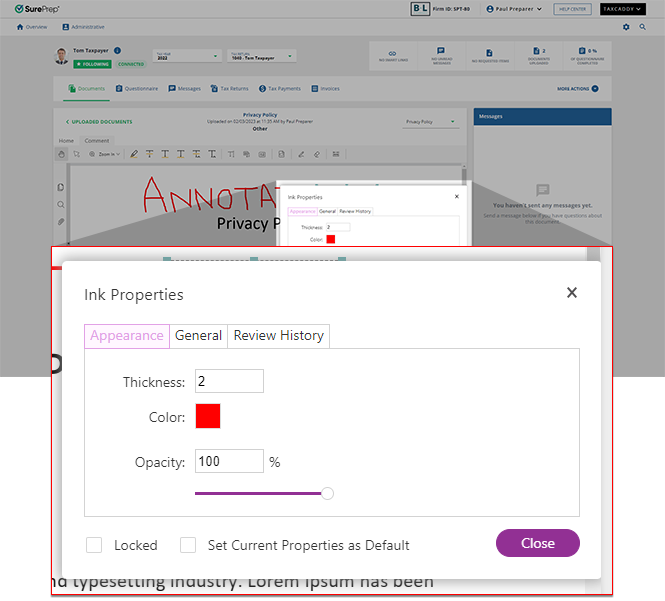
General
In the
General
tab, you can view general information regarding the selected annotation. This information includes Author
, Subject
, Created
date, and Modified
date.Once you've reviewed this information, you can move to another tab, or select
Close
to close the Ink Properties
window.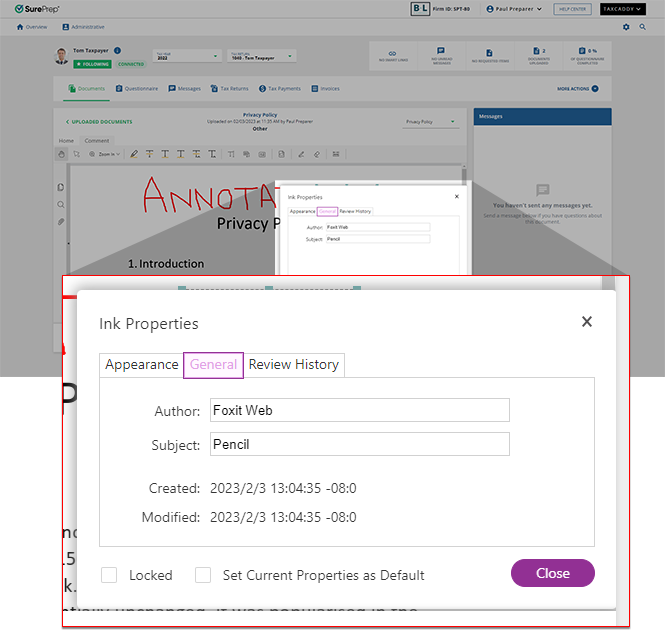
Review History
In the
Review History
tab, you can review the history of the selected annotation. Any changes will be denoted in Review History
.Once you've reviewed this information, you can move to another tab, or select
Close
to close the Ink Properties
window.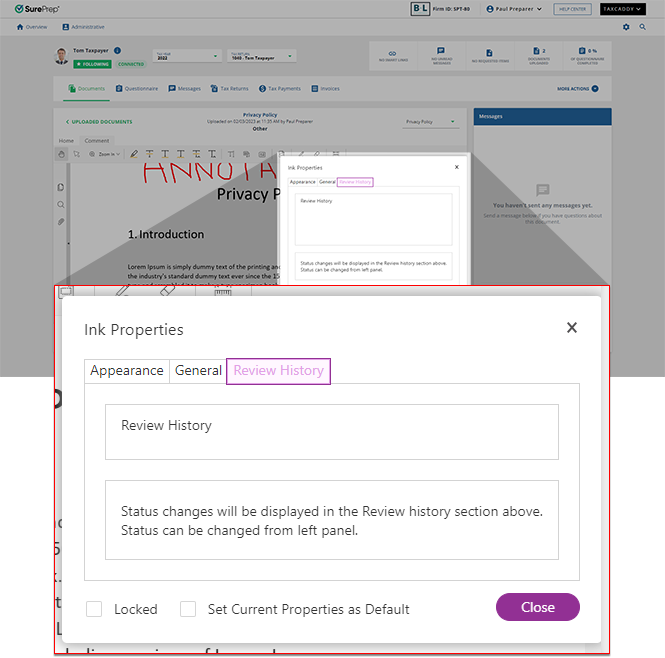
Related Content
-
Document Viewer (PDF Viewer)
Format: Article
-
Textbox annotations
Format:
Article
-
Document Viewer (PDF Viewer)
Format:
Article
-
Rename documents
Format:
Article
-
Switch between tax documents
Format:
Article
-
Text annotations
Format:
Article
-
Document Viewer (PDF Viewer)
Format:
Article
-
Rename documents
Format:
Article
-
Switch between tax documents
Format:
Article
-
Shapes annotations
Format:
Article
-
Document Viewer (PDF Viewer)
Format:
Article
-
Rename documents
Format:
Article
-
Switch between tax documents
Format:
Article
-
Delete annotations
Format:
Article
-
Viewing clients' tax documents
Format:
Article

