
How to monitor and manage data imports/exports in In Out?
Through the
Data Imports/Exports
functionality, you can manage the scheduled
and processed
runs of interfaces integrated with ONESOURCE™ Global Trade solutions. This means that after the interface is scheduled to run, the information for the resulting data imports and exports of these runs is displayed on this screen.tip
What’s changed: click on the video below to see what’s new with this functionality.
Querying scheduled interface data imports and exports
- Access the menuInterfaces > Imports Exports of Data.
- In theScheduled Interfacesside panel, fill in theFilter Interfacesbar with the name(s) of the interface(s) whose data import(s) you want to query.To further narrow the search results, clickAdvanced Filters
 .
. - Select the filtered interface(s).
Automatically, the information from the 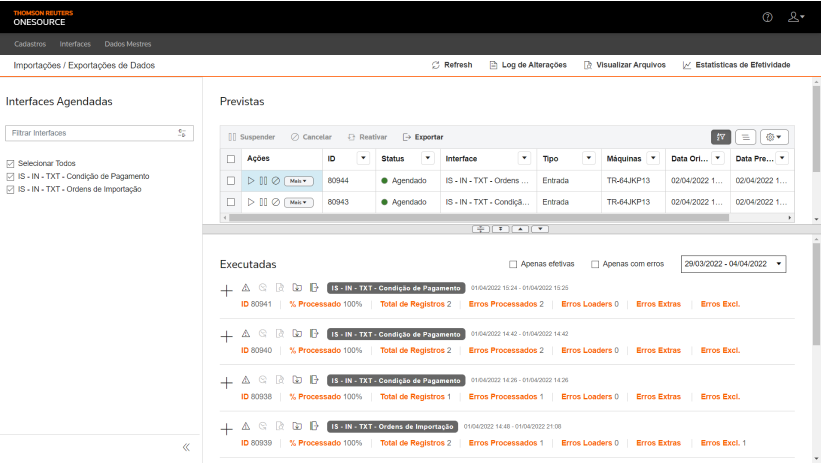
Scheduled
and Executed
runs will be displayed on the right side of the screen. The
Scheduled
section displays information such as interface status, whether the interface is for inbound or outbound use, and the scheduled date. Note that in Executed, information is displayed for interfaces already executed.tip
Click  to administer the
  to narrow the query quickly by selecting only the interfaces you want to query.
Expand/Hide
to administer the Scheduled Interfaces
side panel, which displays advanced filter fields that allow you to narrow the interface query, or click Filter Quick View
to narrow the query quickly by selecting only the interfaces you want to query.Querying change logs
- Access the menuInterfaces > Imports Exports of Data
- Click onChange Log

Records of all activities performed by users are displayed in the table.
note
Table data can be organized using the  ,
,  , and
, and  .
.
Hide Filters
, Show Grouper
, and Show/Hide Columns
buttons. Accessing all data import and export files
- Access the menuInterfaces > Imports Exports of Data
- ClickView Files
 .
. - When the files stored on the interface server are displayed in the table, use the header andActionscolumn buttons to:
- Add

- Export
 : You can export the file descriptions and statuses to an Excel file. To do this, check the desired records and click Export
 , for example: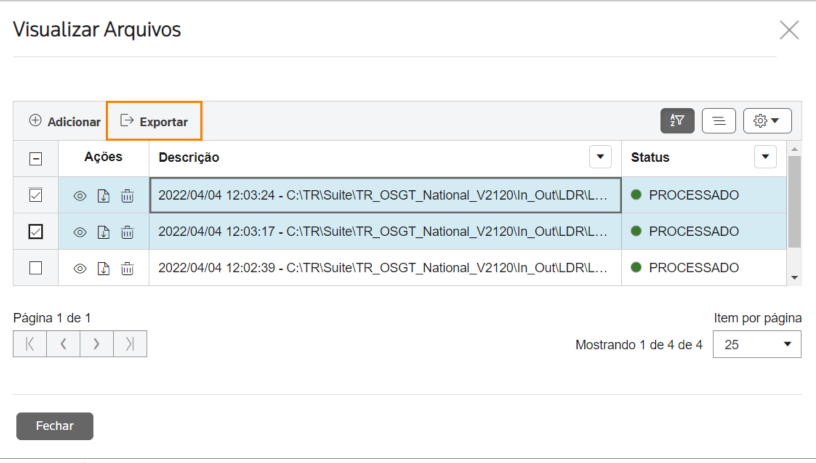
 attentionTo export data from all rows in the table, this marking is not required.
 - View

- Save file
 : Only save is allowed, i.e., download a processed file.
 - Delete
 tipTable data can be organized using theHide Filters, Show Grouper, and Show/Hide Columnsbuttons. Viewing files is especially important in cases where direct access to the server is not allowed.
Checking the effectiveness statistics of data imports and exports
- Access the menuInterfaces > Imports Exports of Data
- Click onEffectiveness Statistics

A table will be displayed with the quantitative data relating to the effectiveness of the interfaces executed by the system. Analyzing this data can help with scheduling reschedules.
note
Table data can be organized using the , , and .
Hide Filters
, Show Grouper
, and Show/Hide Columns
buttons. Querying the import and export logs of the executed interfaces
On the
Data Imports/Exports
screen, records of interface runs are displayed as follows: 
To query the logs, click the buttons:
Button |
Role |
|---|---|
Expand/Hide Log  |
Displays the log of the interface execution. |
Data Import Errors  |
Provides access to the Data Import Errors screen, where details of errors that occurred during data import into In Out are displayed. When you enter this screen, only errors related to the name and Import ID of the interface in question are shown. |
Output Interface History  |
Provides access to the Output Interface History screen, where you can access details of errors that occurred during data export to a system. |
See Loader Errors  |
Displays details of errors that occurred in the LOG and BAD files generated by Oracle's SqlLoader. |
Download Full Log  |
Automatically makes the run log files available on the View Files screen. Therefore, when accessing this screen, these files are displayed with the status "Awaiting Processing". downloading processed files.
attention
Only processed files are allowed to be downloaded. |
Export Notes  |
Exports the run log notes displayed by the button to an Excel file. |
tip
Select the filter option
Only effective
or Only with errors
so that only the executions that were completed or had errors are listed, respectively. Enter the Import Id
to narrow the search result to only the interface you want to view.Exporting scheduled run data from scheduled interfaces
- Access the menuInterfaces > Importações / Exportações de Dados
- In theScheduled Interfacesside panel, fill in theFilter Interfacesbar with the name(s) of the interface(s) whose scheduled runs you want to export.To further narrow the search results, clickAdvanced Filters.
- Select the filtered interface(s).
- In theScheduledsection, mark the runs whose data will be exported.
- To export data from all rows in the table, this marking is not required.
- Table data can be organized using theHide Filters, Show Grouper, and Show/Hide Columnsbuttons.
Managing scheduled interface execution
- Access the menuInterfaces > Imports Exports of Data.
- In theScheduled Interfacesside panel, fill in theFilter Interfacesbar with the name of the interface you want to run, suspend, cancel, reactivate, or release the run.To further narrow the search results, clickAdvanced Filters.
- Select the filtered interface.To hide theScheduled Interfacesside panel, clickHide Tab.
- In theScheduledsection, click the button for the desired action:
- Run
 : Updates the scheduled execution dateto the current date, i.e., use this button to advance a run.
 - Suspend
 : Delays the scheduled run. Once a run is suspended, it will only run if it is reactivated.
 - Cancel
 : Invalidates the scheduled run, which can no longer be reactivated.
 - More
- Reactivate: Makes a suspended or canceled run scheduled.
- Release Execution: Changes the status of an execution that is "running" to "finished" only in the log, allowing another instance of the same interface to run. This does not mean that the interface has been effectively finalized.attentionThis button is enabled only after a preconfigured runtime period. To do this configuration, go to Registrations > System Settings, parameter "Minimum button time: Releases Execution.”
- ClickRefresh
 to have the table data updated with the results of the chosen action.
- To suspend, cancel, reactivate, or export more than one scheduled run at the same time, select the desired runs and click the respective action button located in the table header
 .
. - Table data can be organized using theHide Filters, Show Grouper, and Show/Hide Columnsbuttons.
Possible status of scheduled interface runs
The
scheduled
interface runs, displayed on the Data Imports/Exports
screen, can display the following statuses
:
Color |
Status |
|---|---|
Blue  |
Running |
Green  |
Scheduled |
Red  |
Canceled |
Yellow  |
Not completed |
Gray  |
Inactive |
White  |
Suspended |
Related Content
-
How do I create and manage interface groups in In Out?
Format: Article
-
How do I register and configure interfaces in In Out?
Format:
Article
-
How do I create and manage interface schedules?
Format:
Article
-
How do I check the status of the interfaces?
Format:
Article
-
How do I resolve data import errors in In Out?
Format:
Article
-
How do I take manual appointments of interfaces in In Out?
Format:
Article
-
How to register and manage machines in In Out?
Format:
Article
-
How do I set up notifications from users and entities in In Out?
Format:
Article