
How to register and manage machines in In Out?
Machines
that will be available for the execution of interfaces, that is, those that will be designated to communicate In Out
with the Oracle database and the other ONESOURCE™ Global Trade solutions, must be registered
in this functionality.Registering a machine
- Access the menuInterfaces > Machines.
- ClickAdd
 .
. - According to the definitions, complete the fields on theCreate Machines Available for Importscreen:
 * Required fields
- Machine Name*:Name of the machine responsible for interfacing and transmitting data between ONESOURCE™ Global Trade and the Oracle database.
- IP:Internet Protocol of the machine.
- Oracle TNS:Connection string to the Oracle database, used by SQL Loader to exchange information with ONESOURCE™ Global Trade.importantIf the database architecture is Oracle Real Application Clusters, it is recommended that this field be populated with the name of the uniquely created service so thatIn Outprefers to connect to one of the database servers, avoiding hotblocks. For more information, see theOracle Real Application Clustersarticle in theONESOURCE™ Global Trade installationguide available in the Customer Center.
- Loader path:Access path to SQL Loader on the machine.attentionIf this field is not populated,In Outwill fetch the Loader from the Oracle installation directory.
- ClickSave.
Editing a machine registration
- Access the menuInterfaces > Machines.
- On theMachines Available for Importscreen, click theEdit
 button of the record whose information will be updated.To view or delete a record, click theView
 and Delete
 buttons, respectively.
 - On theEdit Machines Available for Importscreen, change the requiredinformation.
- ClickSaveTable data can be organized using theHide Filters
 , Show Grouper
 , and Show/Hide Columnsbuttons
 .
.
Exporting registered machine names
- Access the menuInterfaces > Machines.
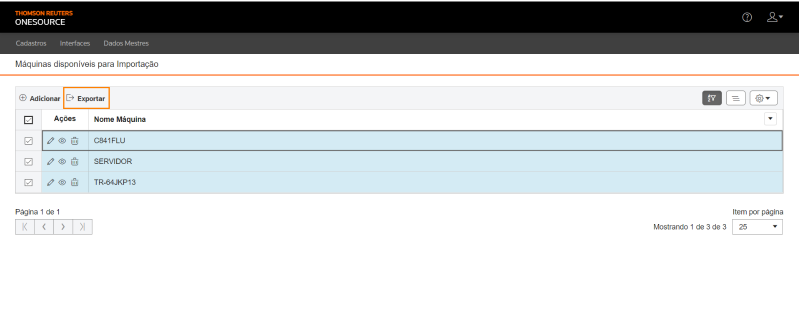
- On theMachines Available for Importscreen, select the machines whosenamesyou want to export.
- To export data from all rows in the table, this marking is not required.
- Table data can be organized using theHide Filters, Show Grouper, and Show/Hide Columnsbuttons.
- ClickExport
 .
.
An Excel file will be generated with the machine names, for example:
Related Content
-
How do I create and manage interface groups in In Out?
Format: Article
-
How do I register and configure interfaces in In Out?
Format:
Article
-
How do I create and manage interface schedules?
Format:
Article
-
How to monitor and manage data imports/exports in In Out?
Format:
Article
-
How do I check the status of the interfaces?
Format:
Article
-
How do I resolve data import errors in In Out?
Format:
Article
-
How do I resolve data import errors in In Out?
Format:
Article
-
How do I take manual appointments of interfaces in In Out?
Format:
Article
-
How do I set up notifications from users and entities in In Out?
Format:
Article