
Set up a Prompt library and Collections
Preset prompts for CoCounsel
A system admin can create preset prompts and collections to help users extract relevant information from documents.
Prompts created in the library are available when users select files for analysis with CoCounsel.
note
A system admin must first Set up CoCounsel in HighQ.
Setting up prompts in System admin
Either open
Prompt Library and collections
, from your profile menu, or open System settings
then select Generative AI settings
from the options on the left.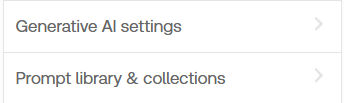

The Prompt library and collections section allows you to create
Document Review
or Summarize
skills, and also group these skills into Collections
for your users.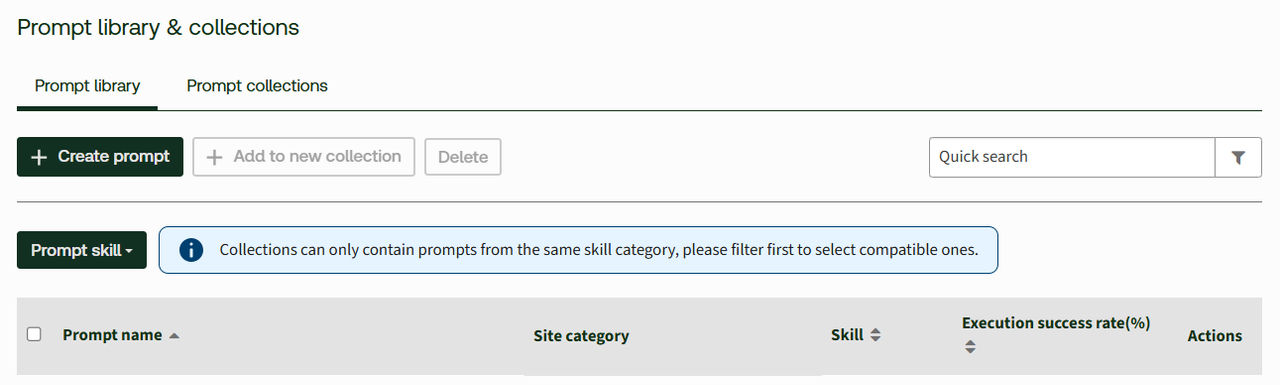
Create a prompt
Select
Create prompt
to open the Build and test prompts
window: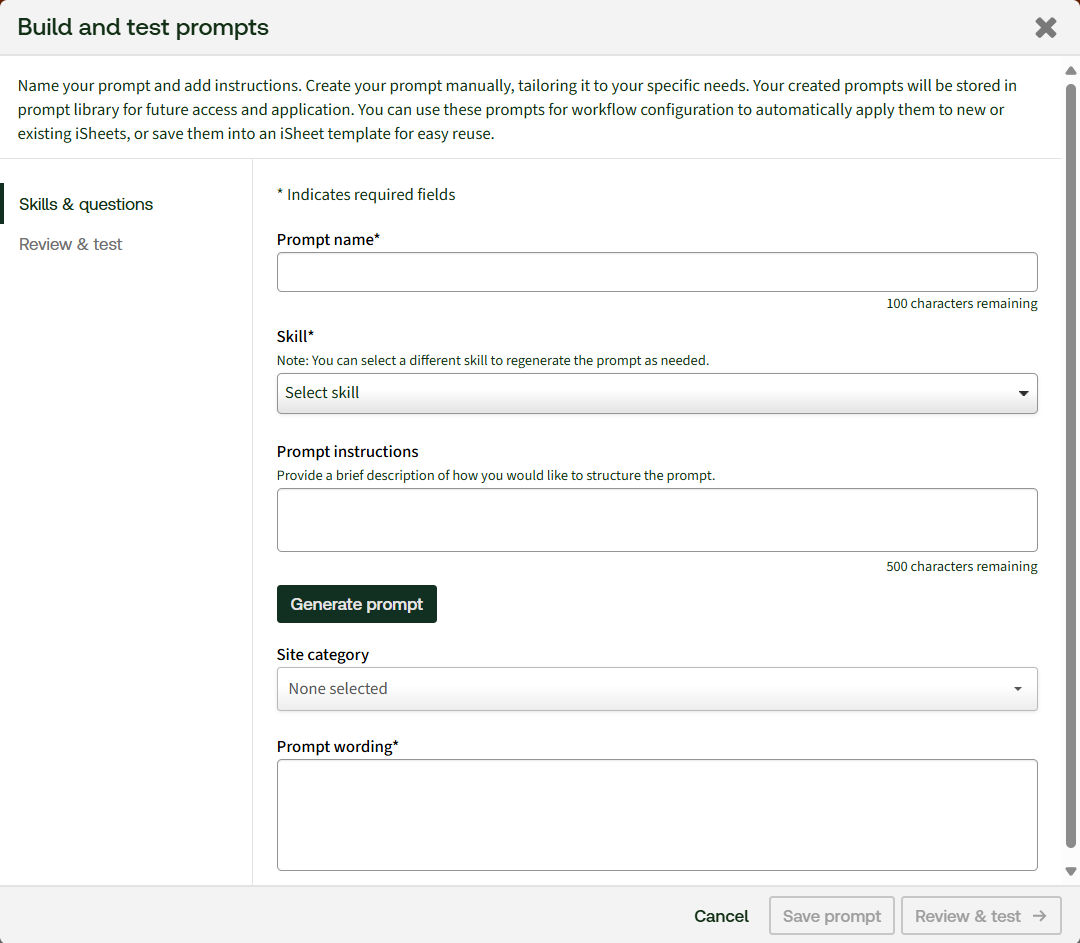
Enter the required information:
- Prompt name- use a name that is easy to identify; this is added to selection menus.
- Skill- selectDocument Review, orSummarizeto categorise your prompt.
- Prompt instructions- describe the information you want to extract. This is not the prompt itself, but a definition of what the prompt will look for in a document.
Select
Generate Prompt
to generate the prompt wording
.note
Site category
(optional) - select one or more types of site that should use this prompt to help organise your prompts.- Prompt Wording- a default prompt is created when you selectGenerate prompt. You can test the prompt, or edit the prompt, before youSaveit to the list.
Review & test
After the generation AI adds the
Prompt wording
, click Review & test
to see example output. If this output is acceptable, select Save prompt
, if it does not generate the desired output, edit the Prompt wording
(or Generate a new Prompt wording
) and try again. For example:
Prompts are added to the main list. Select a skill type from the
Prompt Skill
button to filter the list: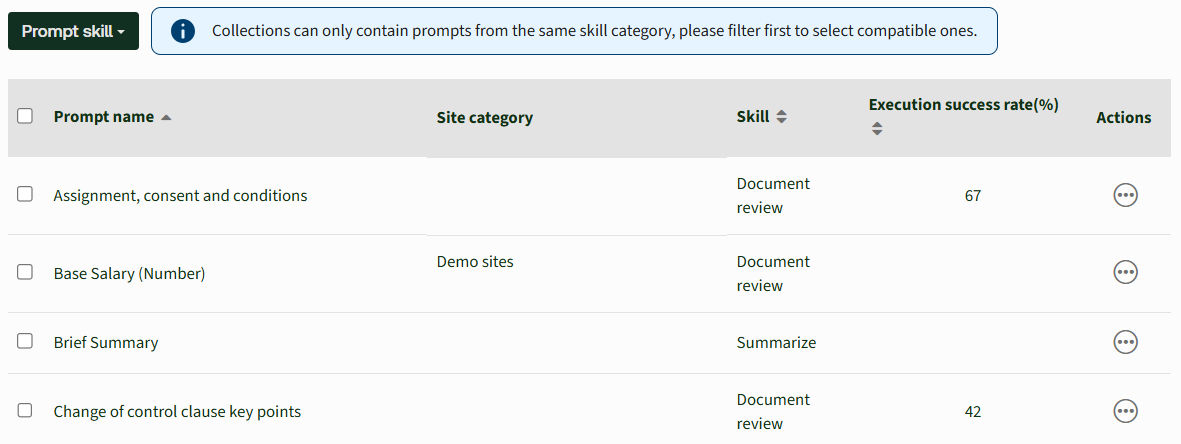
Click the name of the prompt to view the configuration, or select
Clone
, Edit
or Delete
from the More actions
menu to make changes.Prompt collections
Select the
Prompt collections
tab to create or view a collection of prompt skills.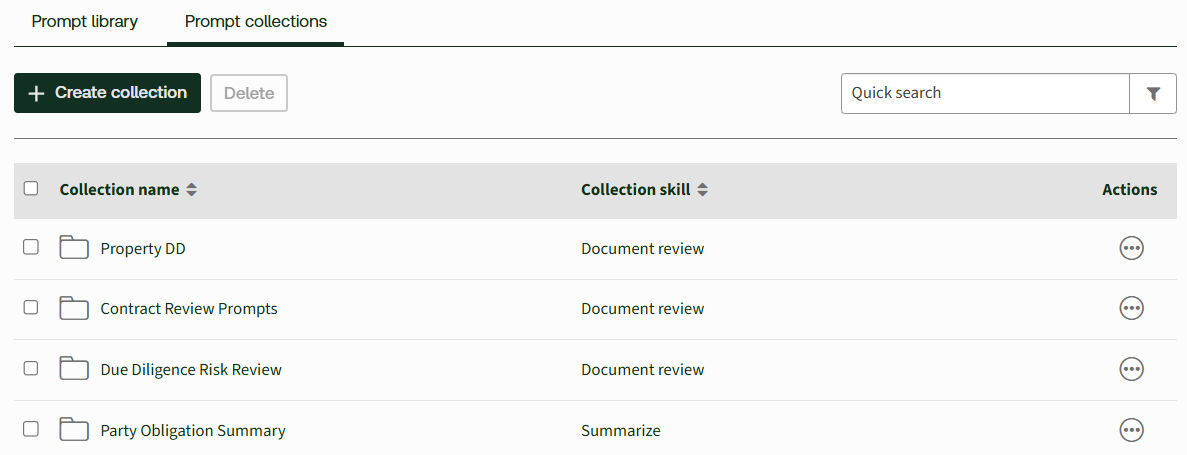
Select
Create collection
.The
Prompt library
opens; select the type of Prompt skill
, then select skills to add to the collection. 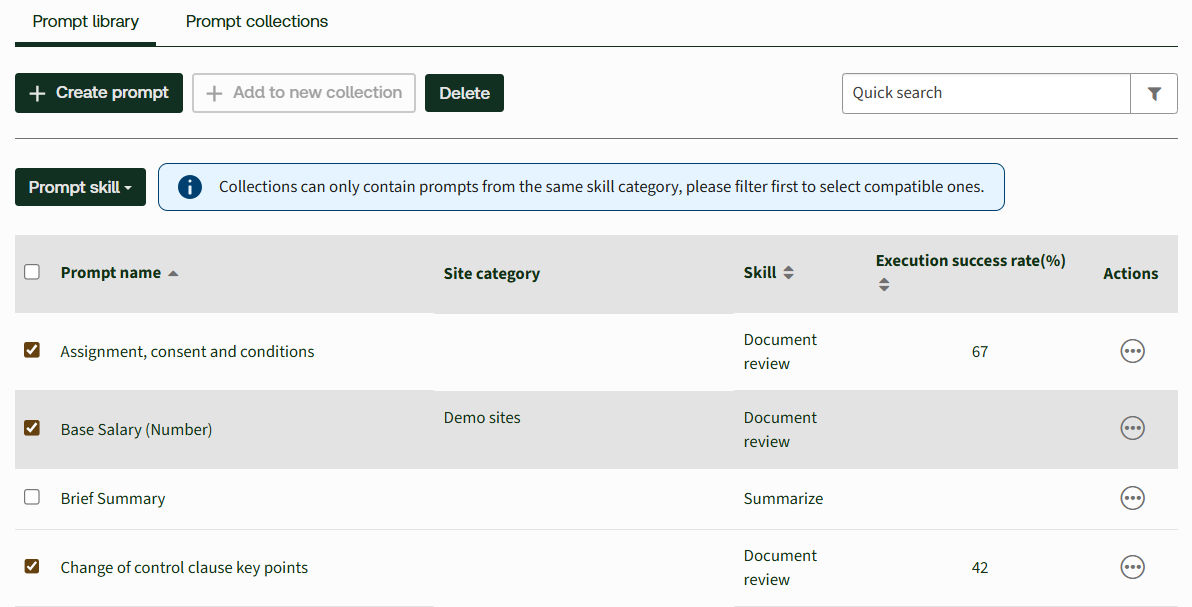
note
A collection can only contain prompts from
one type of skill
, and can include up to 10 prompts.Select
Add to new collection
:
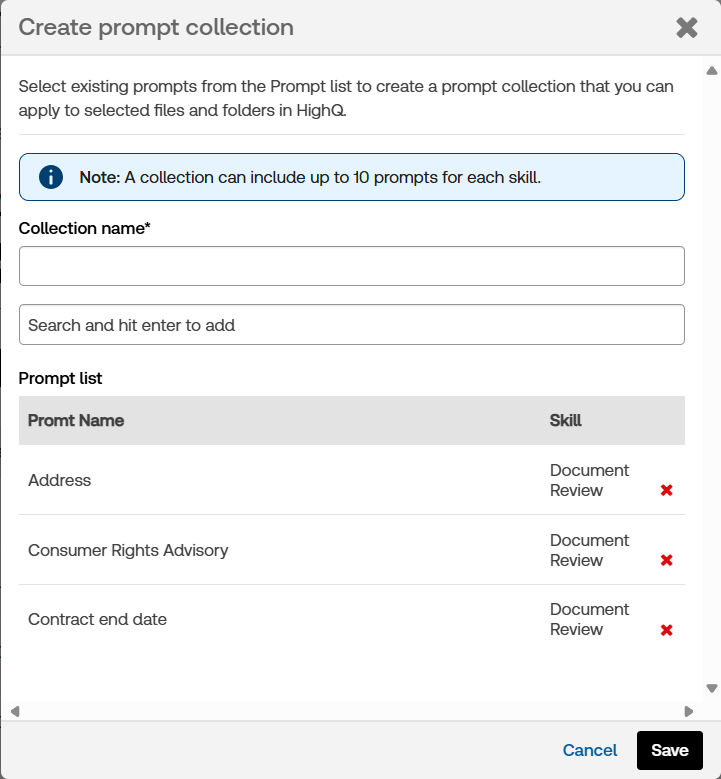
Enter a name for the collection, then check the included prompts and
Save
.
The collection is added to the list.
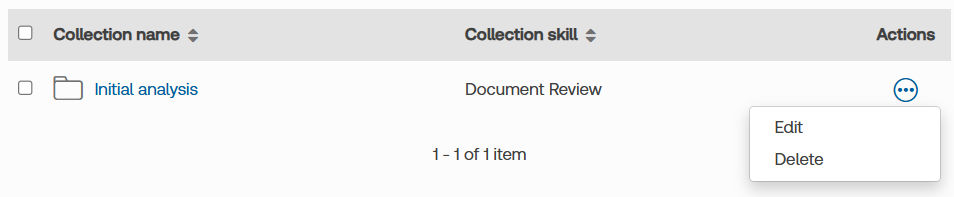
Click the name of the collection to view it, or select
Edit
or Delete
from the More actions
menu to make changes.Setting up prompts in site admin
Mapping skill prompts simplifies the experience for end users when using prompts, and maximises the benefit of the document review and summarisation skills. Mapping skill prompts from the Prompt Library to File metadata iSheet columns allows skill responses to be visible and actionable in iSheet views.
note
The page shows the name of the configured File metadata iSheet, or a warning message if one does not exist.
Mapping prompts to iSheet columns
Open the
Admin
module then select Prompt Library
from the AI Hub
options on the left.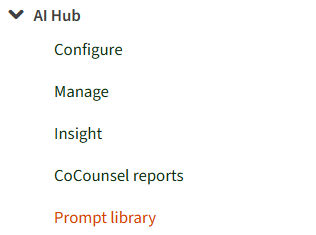
note
Before you map prompts to columns, make sure the iSheet contains dedicated columns (one for the brief results and another for detailed results).
The
Prompt Library
section in Admin
allows a site admin to map columns in an iSheet to the results extracted by CoCounsel.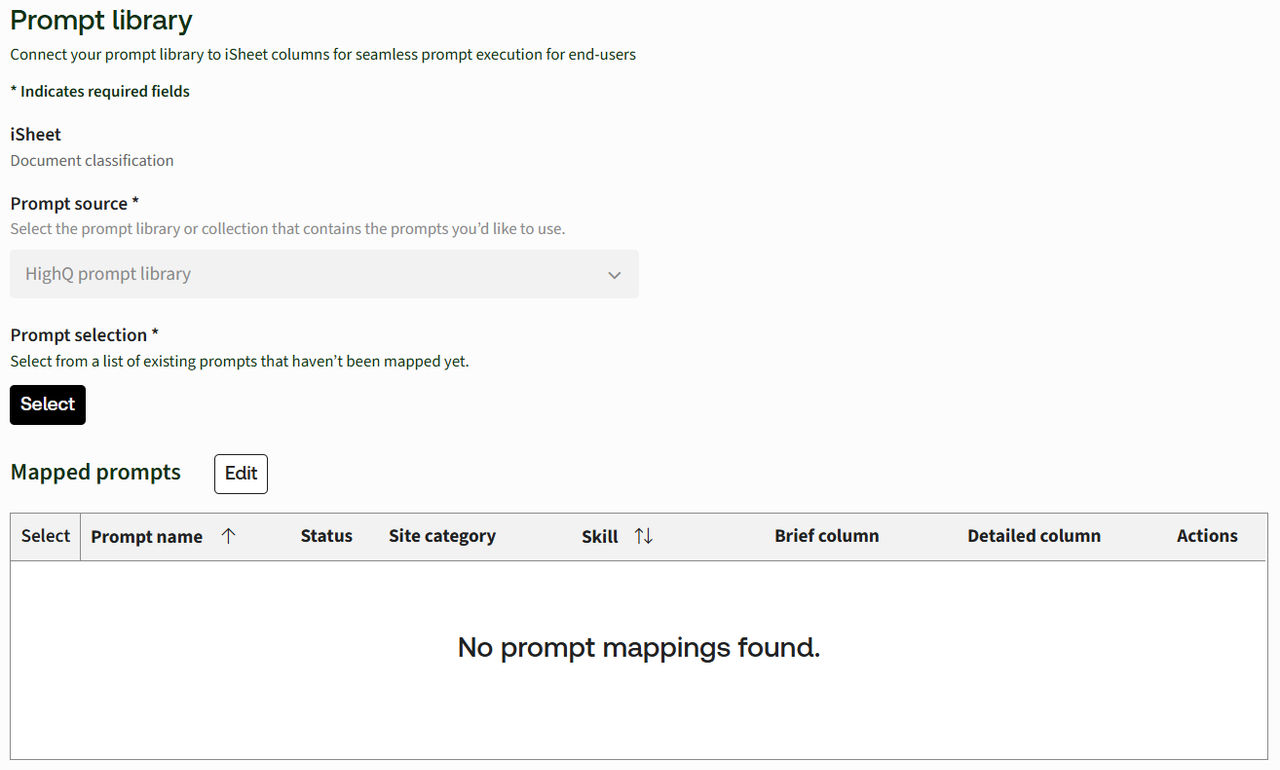
Click
Select
to open a list of prompts without assigned mapping.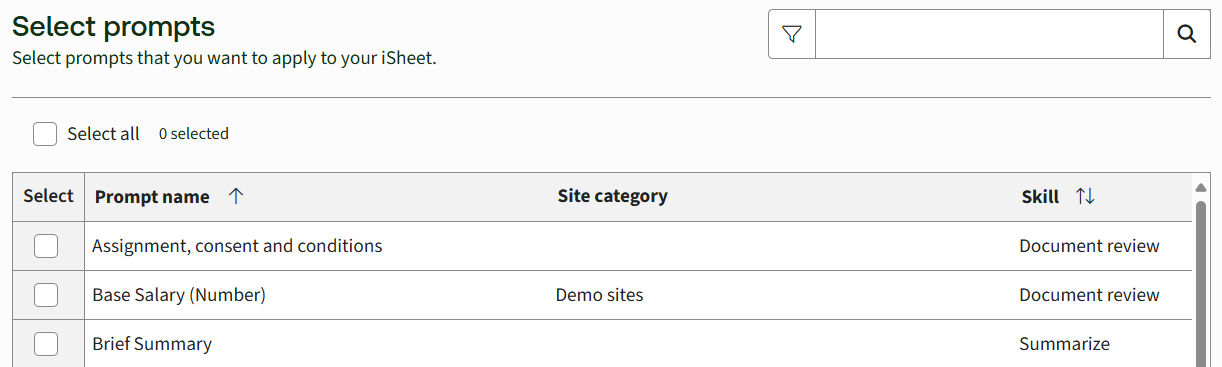
note
Prompts already mapped to columns are greyed out so that they are visible but cannot be selected.
Select the prompts that require mapping on the site:
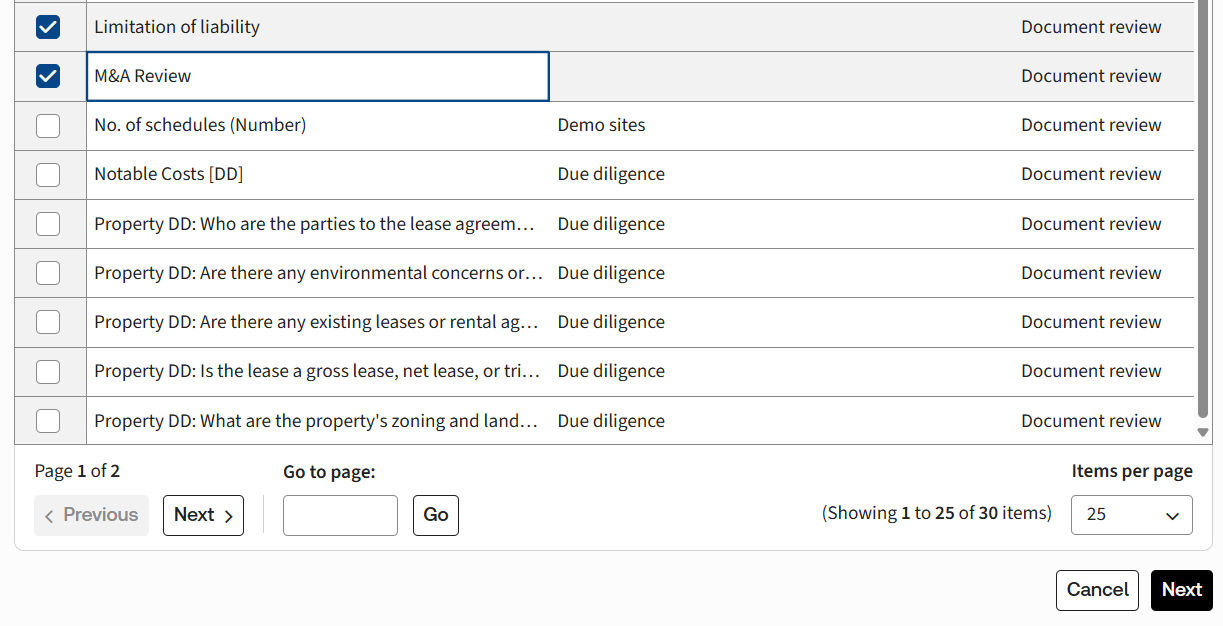
Select
Next
at the bottom of the page.You can select the 'Brief column' and 'Detailed column' for each selected prompt.
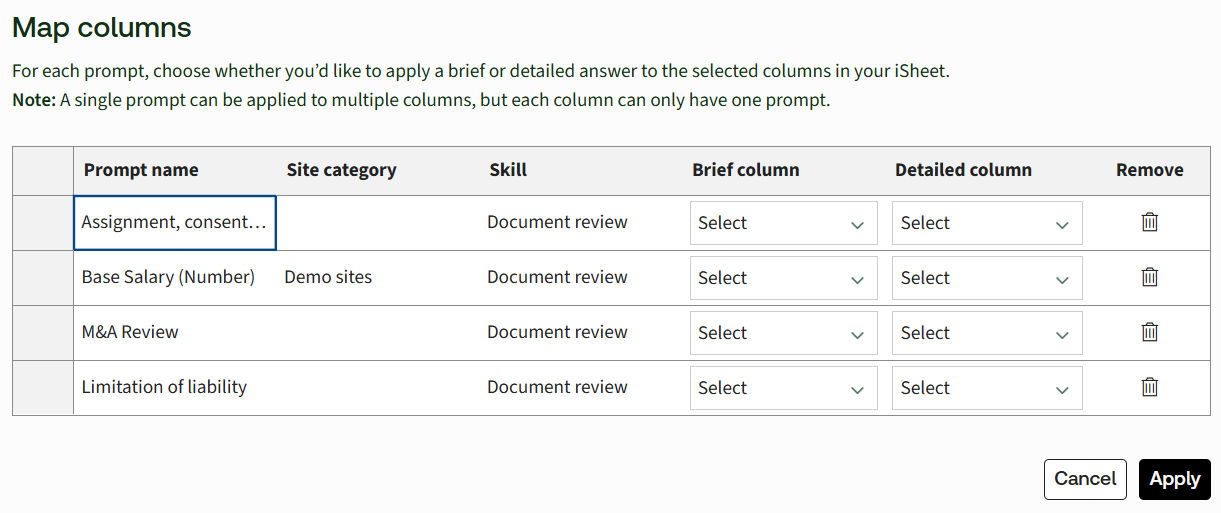
Select the column or columns to store results from the skills for each prompt.
note
The
Summarisation
skill returns a single textual response that requires a multi-line text column; therefore, you must select a Detailed column
. However,
Document review
skills can return specific answers such as Yes/No, dates, numbers and even choice column values, plus
a detailed response explaining how the value was derived from the file; both responses can be stored in different columns and mapped to column types appropriate for the nature of the answers.Click the
Select
menu and choose a column for each type of extracted data: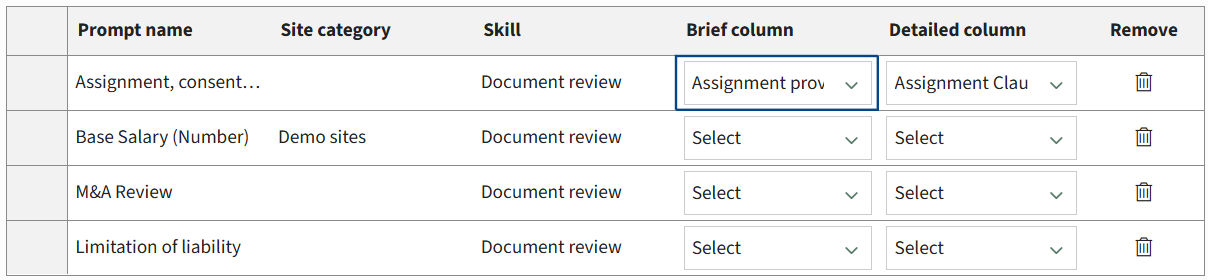
note
Click the 'delete' icon to remove a prompt that does not require a map.
Click
Apply
to save the selected mappings and return to the Prompt library
page.Mapped prompts are shown in a table:
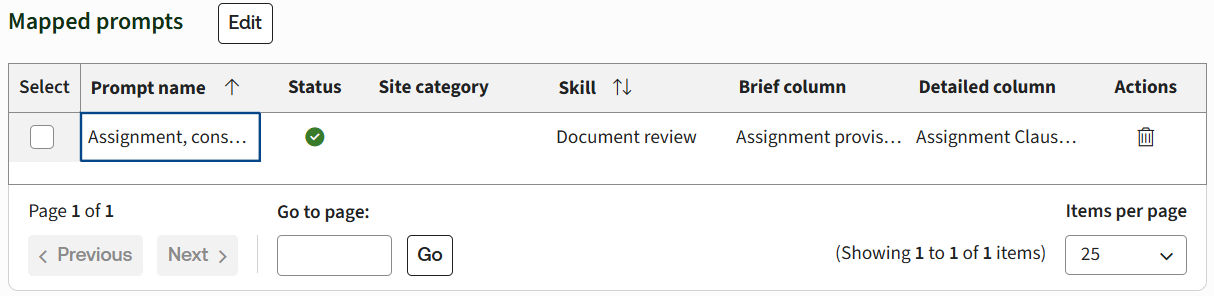
Select prompts with the checkbox, then click
Edit
to adjust the Brief
or Detailed
column selections. Click the bin icon to delete a mapping
Tracking and reviewing CoCounsel usage in sites
Site Administrators can use the CoCounsel reports page to keep track of document review and summarisation skill activity. The
Upload requests
or Skill requests
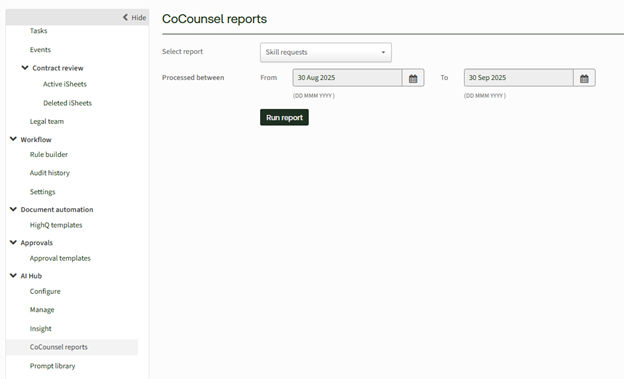
reports show which prompts have been used and which files have been uploaded to CoCounsel, plus identify any processing issues.Open the
Admin
module, then select CoCounsel reports
under AI Hub
.Select the type of report required (
Upload requests
or Skill requests
), then the required date period (the default is the previous calendar month), then click Run report
.
A list of actions opens, with details of which user performed each task and from which module.
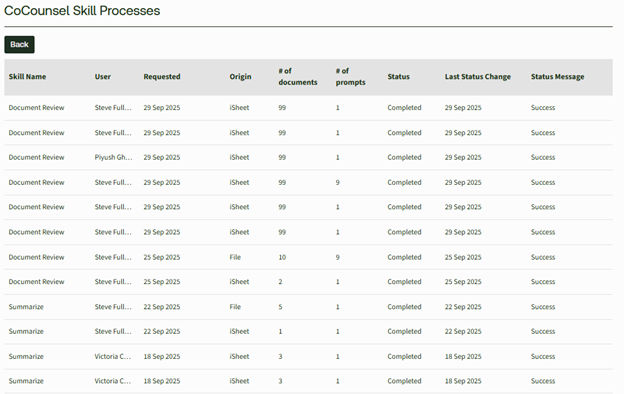
Click a
Skill Name
item to see more details of the user’s request. Click the
Status message
column to alter if there was a failure when processing a file, or when retrieving responses and copying the data to iSheets. 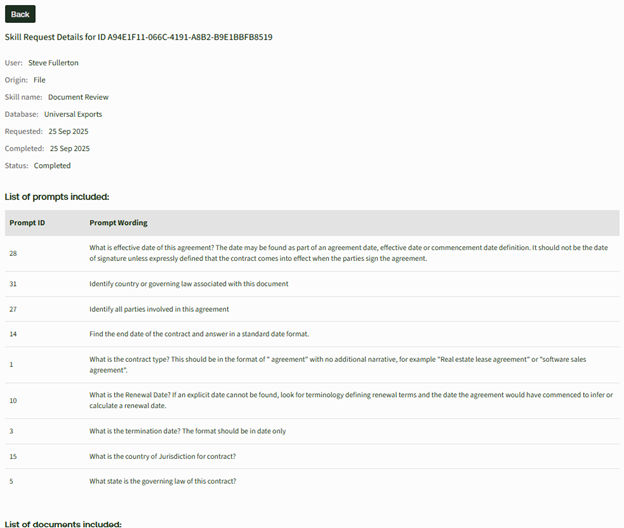
Using CoCounsel with HighQ
Select a topic for more help:
Optional CoCounsel tools are available for HighQ:
Related Content
-
CoCounsel integration - Introduction and Overview
Format: Article