
Enabling CoCounsel Document Skills in HighQ
System and site admin
The HighQ CoCounsel integration provides generative AI capabilities in the Files and iSheets modules, supported with a Prompt library.
note
HighQ CoCounsel integration requires:
- HighQ Support to enable the CoCounsel integration,
- CoCounsel Document Skillsare enabled in site admin, and
- You have a CoCounsel account (with access via OnePass or a Thomson Reuters user account).
Get insights from contracts
Get insights with the document review skill.
note
Setting up CoCounsel Skills
To use any Skills, you must have access to CoCounsel to log in, create a Database, and link it to your site. While Preset Prompt and Collections of prompts are optional, we recommend having them for consistent usage of skills across multiple documents.
Your iSheet must also have a Multiple-line text column to store answers for each question you intend to ask.
If you are signed in to your CoCounsel account, you can access the CoCounsel menu by opening the Files or iSheet module.
Enable CoCounsel Document Skills in HighQ sites
important
CoCounsel Document Insights are available to all HighQ Premium tier customers who have also purchased CoCounsel Core licenses or have CoCounsel Core available through their Westlaw or Practical Law subscriptions.
Ask your Thomson Reuters Account Manager, Customer Success Manager, Solutions Consultant or Professional Services contact to discuss enabling the features in your HighQ instance.
If the CoCounsel integration is enabled for your instance, additional CoCounsel options are available for site administrators in the AI Hub section of
Admin
.
Navigate to the
Admin
section, then choose Configure
within the AI Hub.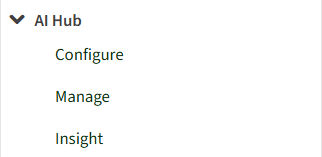
Find the
CoCounsel Document Insights
section.
To enable CoCounsel Document Insights, the integration must first be configured to define how data is transferred to and stored in CoCounsel databases via
More actions
> Configure CoCounsel integration
.
note
There are considerations to keep in mind when sharing data with CoCounsel:
- The content of your HighQ site may be highly sensitive or permissioned, and the integration may be purely to extract data and summarise files, without providing access to other users, or the ability to use content with other skills or processes.
- Conversely, the site content or purpose may require flexibility, allowing users to use and process files not only with the integrated skills but also with other skills, such as Document Comparison or Timelines, or to search a database populated from the site in a contextual, natural language.
Therefore, site administrators are offered a choice when configuring the integration for each site.
Administrators may be prompted to log in to CoCounsel if they have not done so for more than seven days. If you see this notification, click the link to log in to your CoCounsel account.

After logging in, proceed to configure the CoCounsel integration settings.
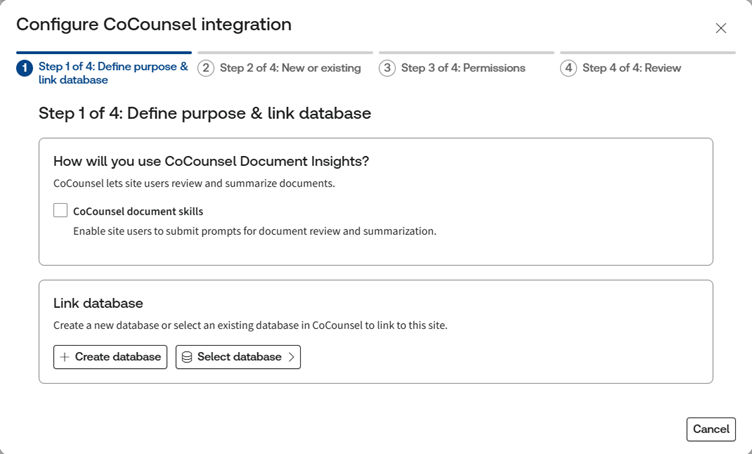
First, determine whether end users should see the feature enabled immediately after configuration by selecting the
CoCounsel document skills
checkbox. To configure the site first and enable the feature for end users later, leave the checkbox cleared. Next, configure the connection to a CoCounsel database by choosing to create a new database or selecting an existing database from the CoCounsel system to fully enable "
CoCounsel Document Insights
".note
If a database already exists in CoCounsel and it is appropriate for storing files from your site, you can select that database. However, if no such database exists, you may create a new database.
If you want to create a new database, select
Create database
to configure a new database in CoCounsel.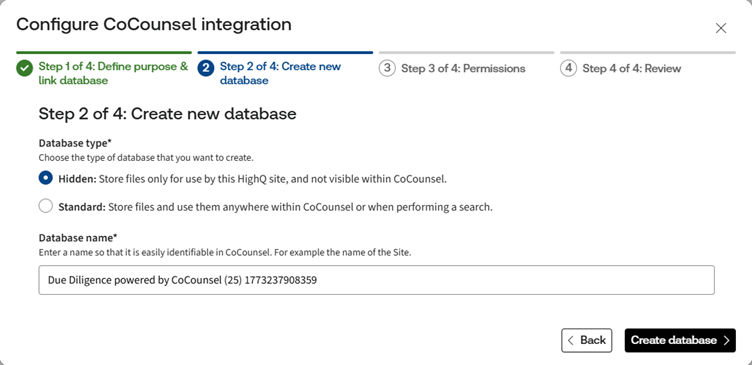
Specify whether the new database should be
Standard
(visible and usable by other CoCounsel users if files from this site can be pulled into CoCounsel chats and matters) or Hidden
, which is the default type, to secure and isolate the files. Enter a name for the new database that clearly identifies its association with the HighQ site. By default, the site name, identifier, and a timestamp are pre‑filled to ensure uniqueness and easy identification.
note
Even if you create a
Standard
database, it is still hidden from other users until it is shared with individuals or your whole organisation; however, files in it are available for use with other skills by you.Select
Create database
to continue to the Permissions step.Select database
Alternatively, if you selected
Select database
to use an existing database, locate the required database in the list using paging, filters, or search as needed.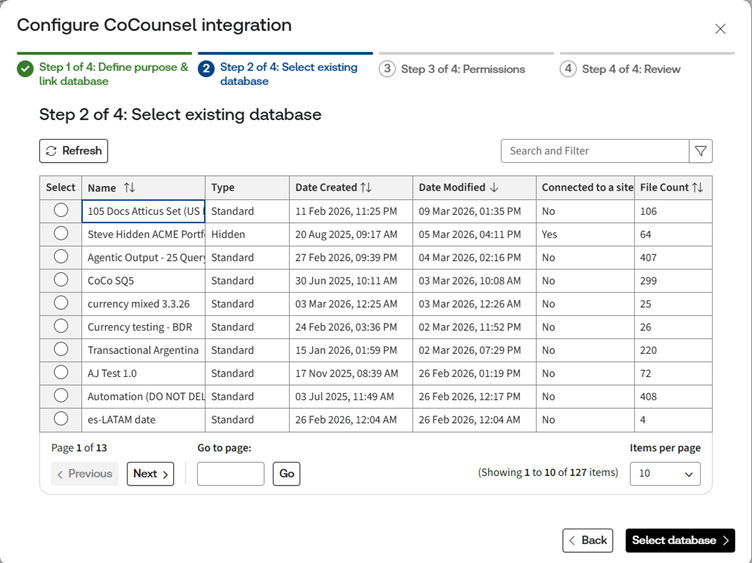
note
To prevent connecting a database to more than one site, the
Connected to site
column indicates if a database is already connected to a site. Select
Select database
to continue.Permissions
Specify the options available to end users when using skills on files in your site. Select the appropriate permission group for this integration; however, if the database type is
Hidden
, no options are available because hidden databases are designed to keep site content stored in a single, restricted database.when it is a
Hidden
database: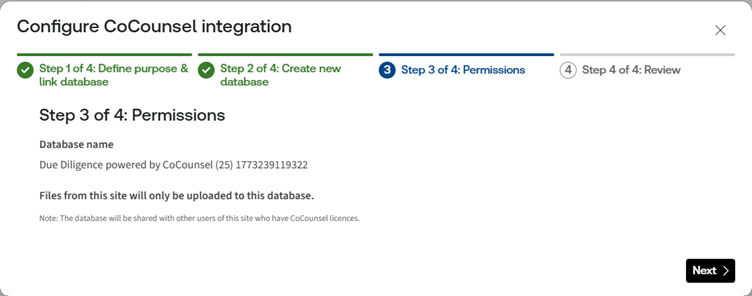
and when the database is
standard
: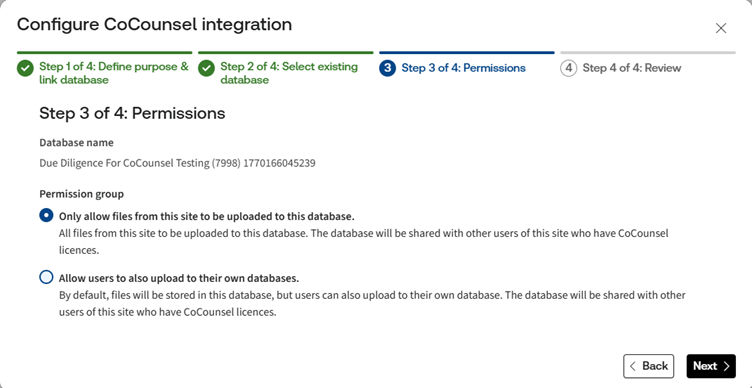
Select
Only allow files from this site to be uploaded to this database
to ensure files are only uploaded to the configured database. This simplifies the end-user experience and ensures data is not unnecessarily duplicated. However, if users are allowed to use files in their own databases or in CoCounsel chats, select
Allow users to also upload to their own databases
.Select
Next
to continue.Review
Finally, review your selections and choices, and click
Back
to make adjustments, if needed.Standard
database and feature selected.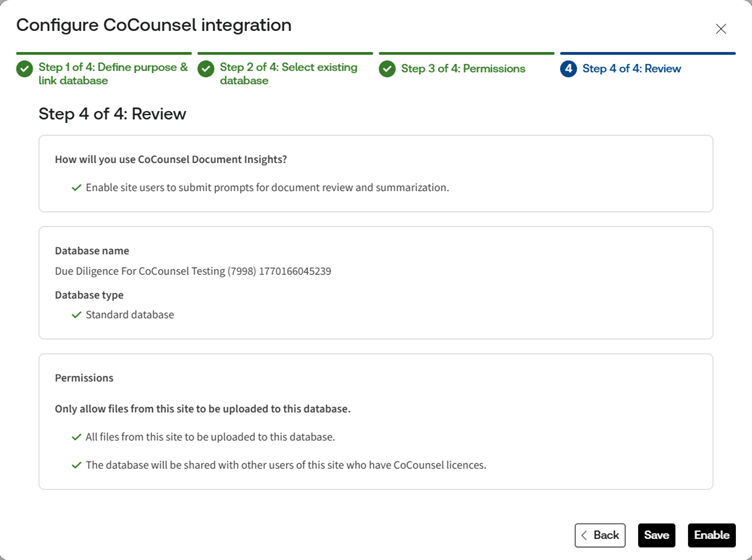
Hidden
database and feature unchecked: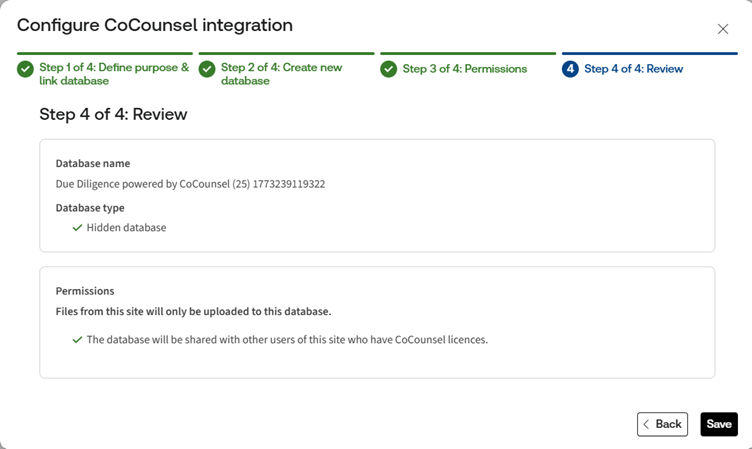
note
HighQ shares the configured database with other site users who have a CoCounsel account. You do not need to use the CoCounsel application to share databases manually.
Click
Save
to store the configuration, or click Enable
to store the configuration and enable CoCounsel Document Insights
. The window closes and the AI Hub admin page refreshes to reflect your changes.The status of the connection is now shown on the page:

Once the feature is enabled, the CoCounsel menu and activity count appear in iSheets and Files.
Change a site database link
If a database is no longer required for your site or you wish to change settings, select
More actions
> Reconfigure CoCounsel integration
to edit the configuration.
You can change the linked database by creating a new one or selecting an alternative database using the steps described above.
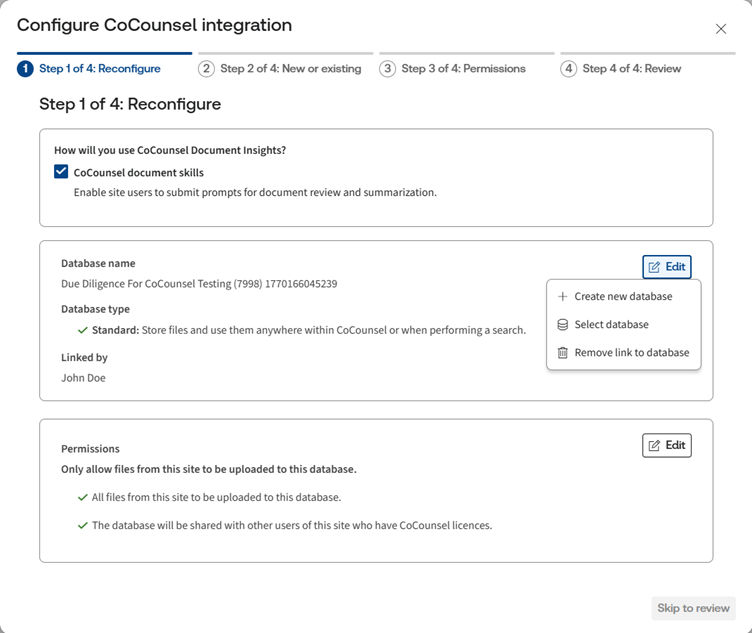
During the review stage, you can review all changes before they are committed. If you need to remove the previously linked CoCounsel database from the site and delete it to ensure that files transferred from HighQ are also deleted in CoCounsel, select
Unlink and delete database
on the confirmation screen.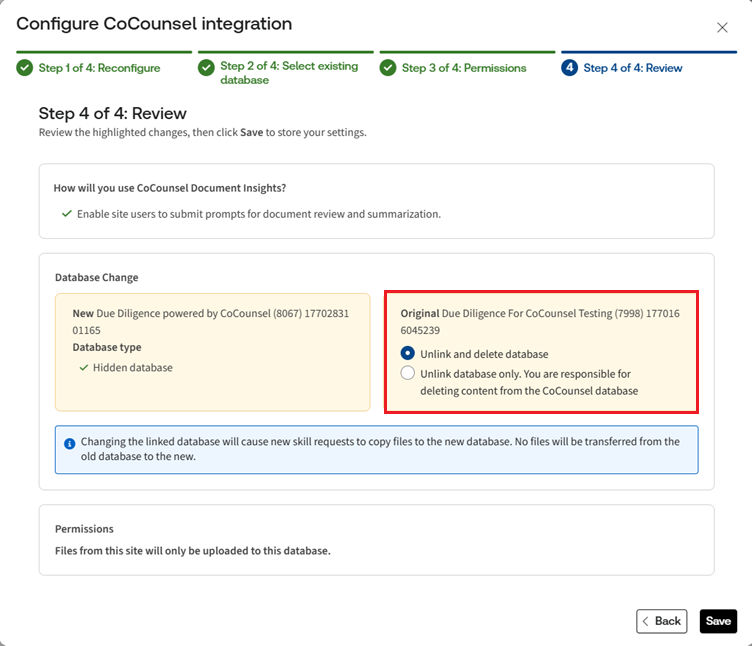
If you want to remove the link to the database only, select
Remove link to database
from the options mentioned above, then click Skip to review
.If you need to remove the CoCounsel database from the site and delete it to ensure that files transferred from HighQ are also deleted in CoCounsel, select
Unlink and delete database
on the confirmation screen.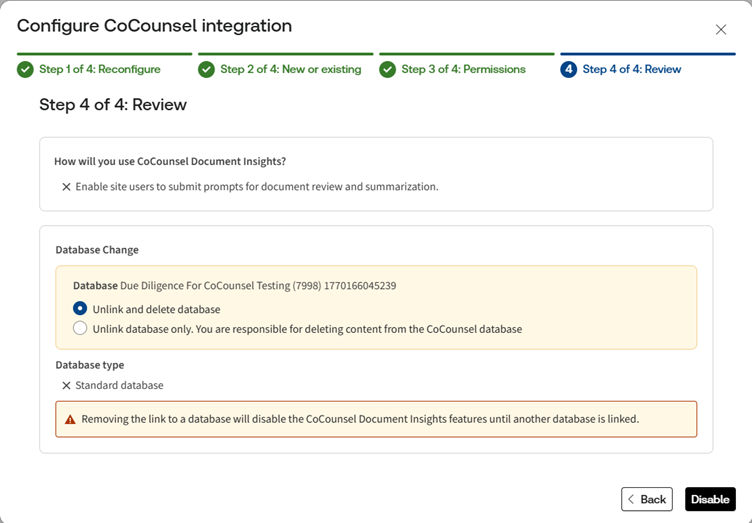
note
If no database is linked, the CoCounsel functionality is disabled for the site.
HighQ files transferred to CoCounsel are not automatically removed from CoCounsel when they are deleted from HighQ or moved to other sites. You are responsible for removing content from CoCounsel, except when a database is deleted as part of removing a database link from a site.
Setting up a Prompt Library and collections
A system admin can set up preset prompts and collections to help users extract relevant information from documents.
Mapping Prompts to iSheet columns
Mapping skill prompts simplifies the experience for end users when using prompts, and maximises the benefit of the document review and summarisation skills. Mapping skill prompts from the Prompt Library to File metadata iSheet columns allows skill responses to be visible and actionable in iSheet views.
Using CoCounsel with HighQ
Select a topic for more help:
Optional CoCounsel tools are available for HighQ:
Related Content
-
CoCounsel integration - Introduction and Overview
Format: Article