
Using CoCounsel to analyse documents in the Files and iSheets modules
The CoCounsel
Document Skill
feature allows HighQ users with a CoCounsel subscription to seamlessly run AI-powered prompts to extract document insights and summaries. note
If you have not yet registered a CoCounsel licence or been asked to log in to CoCounsel from within HighQ, then you will be asked to. For more information, see Signing into CoCounsel and Registration Key setup.
Files module
To initiate the process in the Files module, select one or more files, then select the
CoCounsel
option. 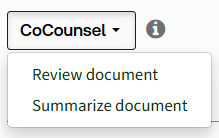
Or use the 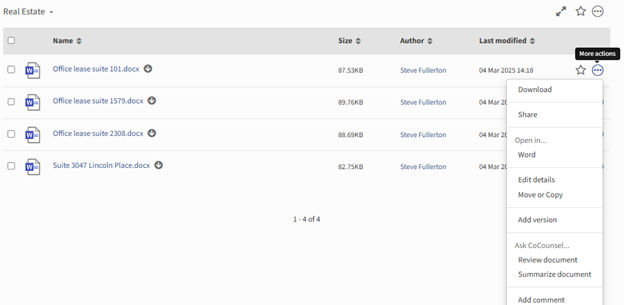
More actions
context menu for an individual file.iSheets module
To initiate the process in the iSheets module, select one or more rows, then select the
CoCounsel
option. Or use the
More actions
context menu for an individual row.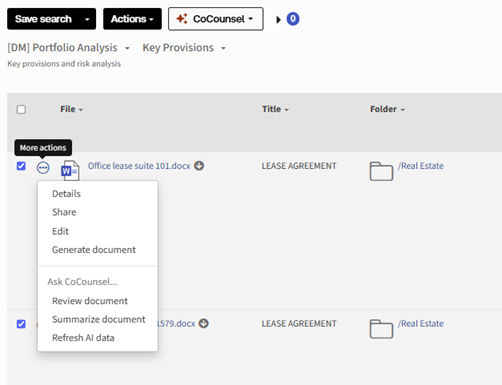
note
This is only available for 'File metadata' type iSheets.
Alternatively, when using the document viewer, select the
CoCounsel
panel on the right-hand side.Authentication
Before continuing, it is essential to authenticate your identity using the OnePass sign-on system. Upon successful authentication, the
Review documents
or Summarise
window is displayed at the top of the page, allowing you to begin your tasks. note
The Prompt Library and Collections allows administrators to prepare prompt instructions for re-use, and also group questions that are commonly asked together as 'Prompt Collections'. This can speed up typical document review processes.
note
To use AI capabilities, content must be uploaded to the CoCounsel system and organized in a
database
to run specific skills effectively. They should be available on a shared basis with your colleagues who also work in the HighQ site. It is primarily the responsibility of site administrators to create and manage databases aligned with the needs of their respective sites, clearly identifiable by name. However, if you create and manage CoCounsel databases and matters of your own, in some circumstances, you may be able to upload files to those.
To perform a review or summarise a file, select appropriate values and enter prompt wording as follows:
note
The options available depend on the configuration of the integration for the site
- Databases:Select a database shared with or owned by you. Site Administrators may have configured a default database, which will be pre-selected for you, or may have stipulated a specific database; in which case, you do not have to select a database, but see it labelled.
- Skill:The skill selected by you (Document Review or Summarize) is labelled and its use described, to assist you in entering prompt wording and specifying the iSheet column(s) to store results.
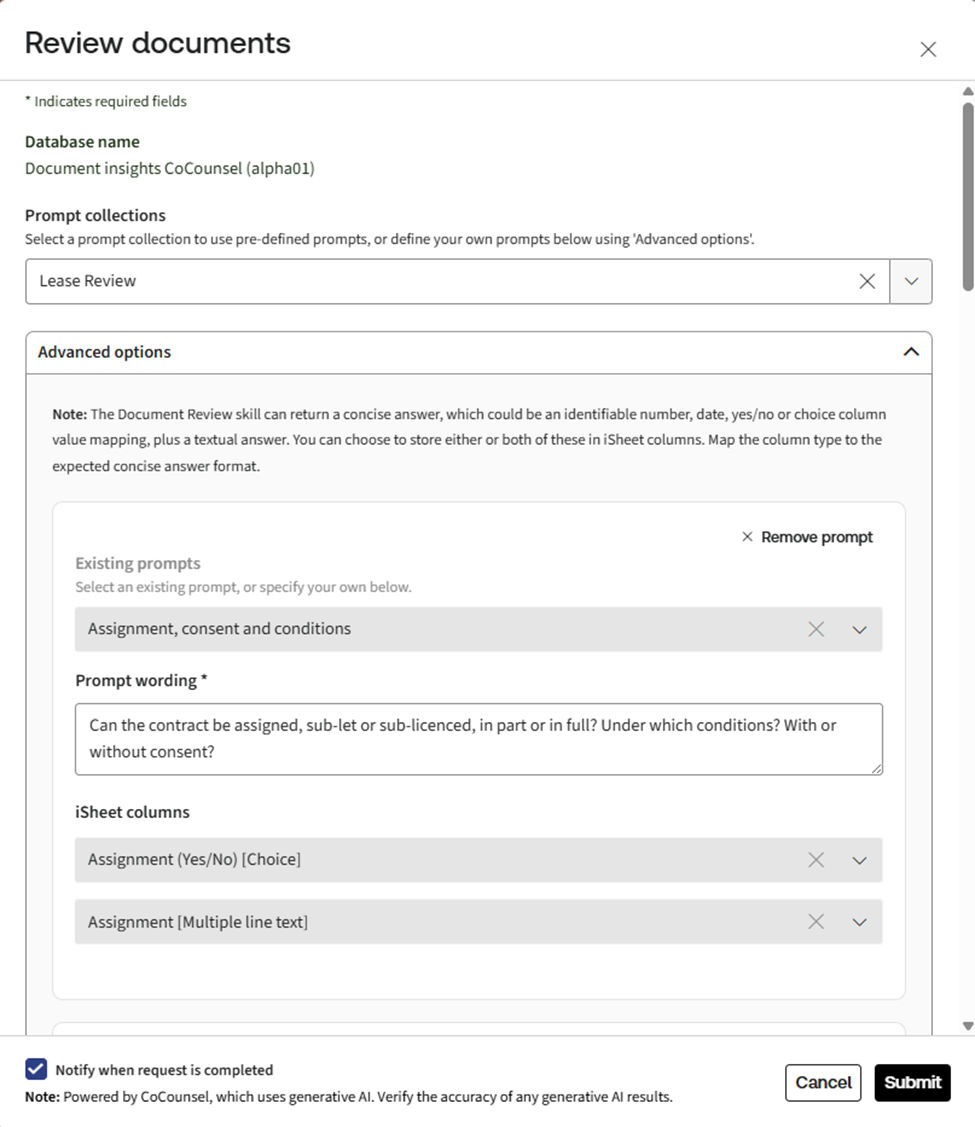
- Prompt Collection:The prompt library contains lists of pre-written prompts designed to perform review tasks on types of matters or files, up to ten at a time. Selecting a collection will pre-load the prompt wording boxes below. You can alter the wording for this execution of the prompts if required, but you cannot re-select individual prompts.
- Prompts:The prompt library contains pre-written generative AI prompts designed to extract specific information from files. You may choose to use any existing prompt individually or create custom worded prompts as needed.
- Prompt Wording: On selecting an existing prompt from the Prompt Library, the prompt wording field is pre-filled, but can be edited. Alternatively, type in a question or instruction in natural language, which can be as simple or as expressive as needed.
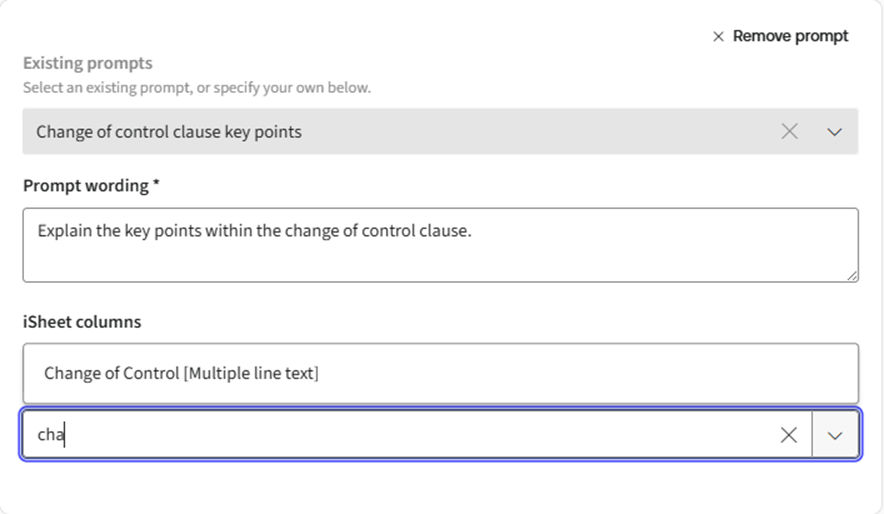
- iSheet Column: Outputs from CoCounsel skills can be entered into selected iSheet columns related to the file, in a File metadata iSheet. Different skills may provide different options for storing concise and detailed answers from CoCounsel, depending upon the nature of the question or instruction you provide.
note
The Document Review skill can return concise answers to questions such as “Is there…?” and “What is the … date?” with “Yes/No” or formatted dates, numbers, or even mapped to the values in choice-type iSheet columns. Such columns and their values are often used to trigger automation and update dashboards. You can choose to store both the concise answers and the detailed text returned from CoCounsel, which provides the evidence for the answer and references to the text in the file.
note
A Site Administrator should have pre-configured a File metadata iSheet with columns suitable for storing the text, dates, numbers or answers from the prompts you are submitting. If the iSheet column selection boxes are empty or do not contain suitable columns for your work, contact your Site Administrator. However, you can still submit the prompts as all prompt answers are shown in the Document Viewer alongside the file contents.
Generate your own prompts
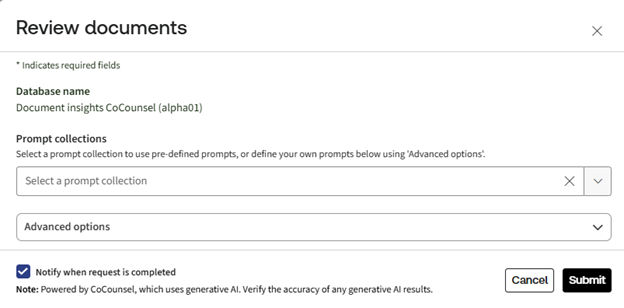
To enter your own wording, select the
Advanced options
section to see the prompt wording and iSheet column selections that store the answers.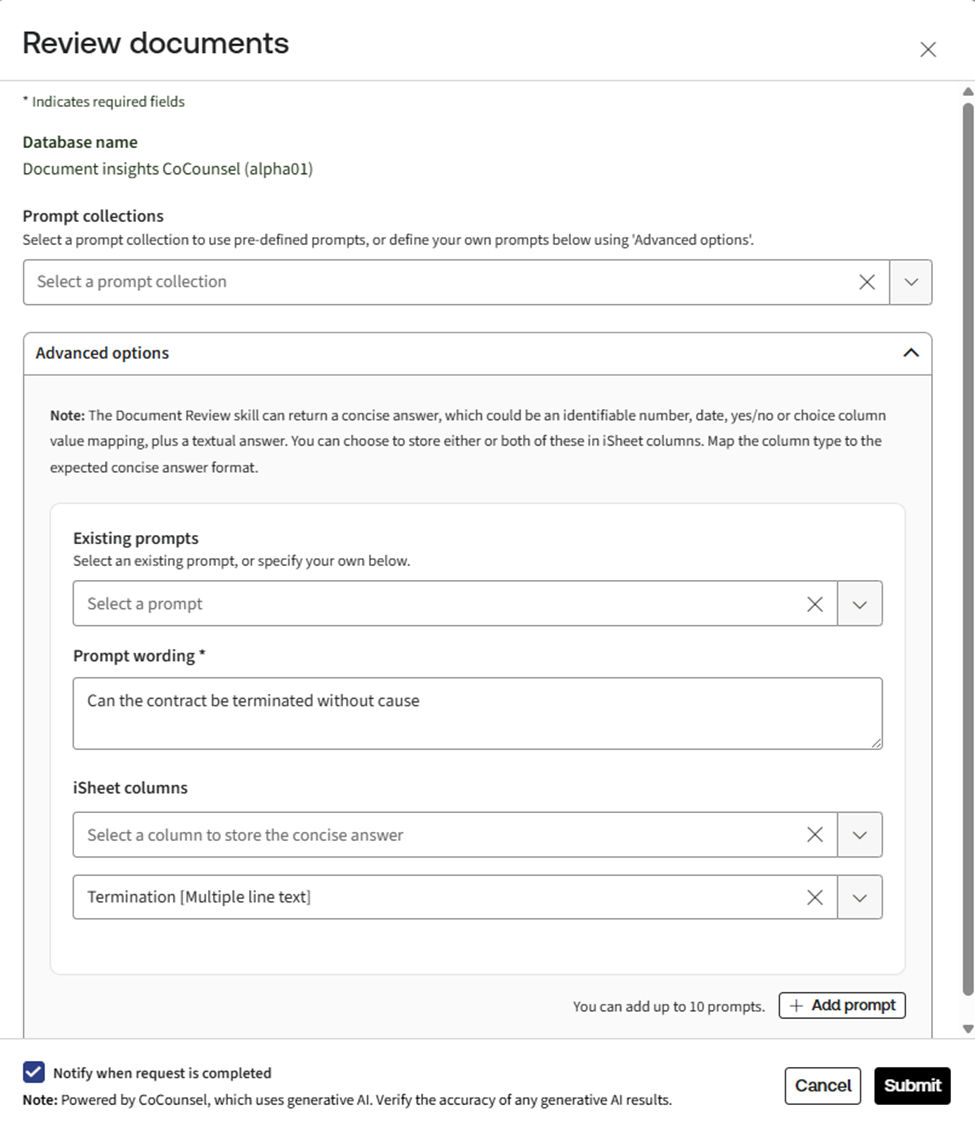
Prompt wording
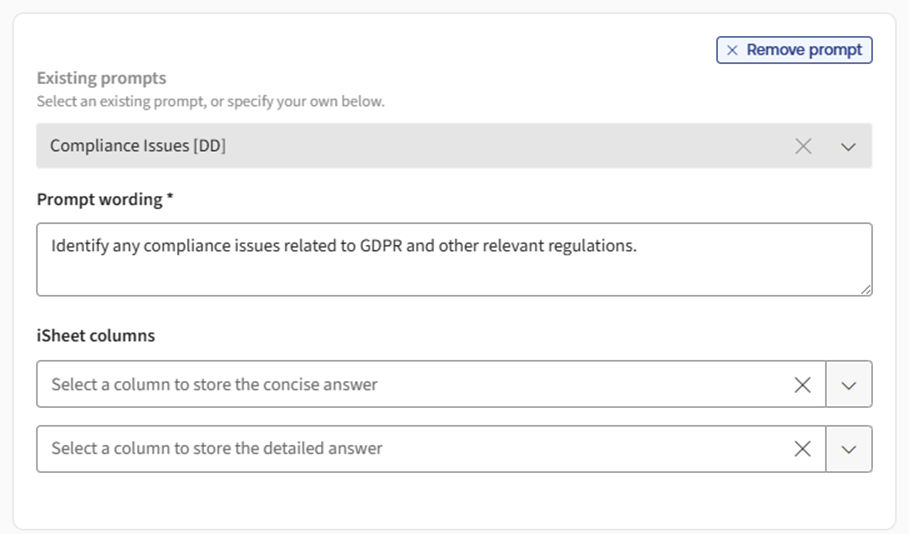
iSheet columns
Track requests submitted to CoCounsel skills in the 'Request status panel', visible next to the CoCounsel button. This provides a count of all ongoing processes from all users, and lists the three most recently updated request processes. Once your process is complete, if you are on the iSheet page, then you must refresh the page to see the updated results. A Notification is posted when your request is complete if the 'Notify me' checkbox was checked when submitting.
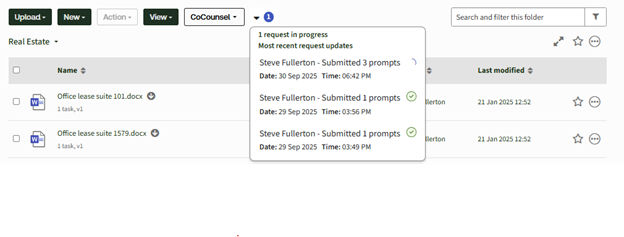
When in the Document Viewer, the 'Request status panel' reflects only skill requests involving the open file. Below the CoCounsel button and status panel, a full history of prompt requests and their responses can be viewed, paged, searched, filtered and managed so that all users can review the insights gathered with the context of the document at hand.
The status of skill requests can also be tracked in the File module in the 'CoCounsel analysis' page, which details all users’ requests made in the site, and can help troubleshoot issues if data is not appearing in iSheet columns as expected.
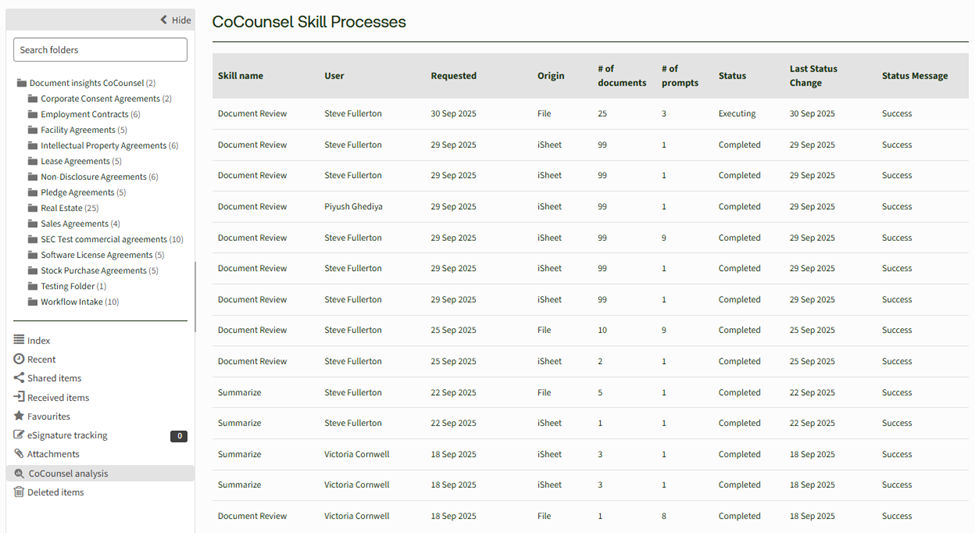
Click on a skill name to reveal the details of the request, the prompts and files involved, and status messages detailing any issues which may have occurred when transferring files, executing prompts or retrieving results.
Using CoCounsel with HighQ
Select a topic for more help:
Optional CoCounsel tools are available for HighQ:
Related Content
-
CoCounsel integration - Introduction and Overview
Format: Article