
Step 2 - Verification
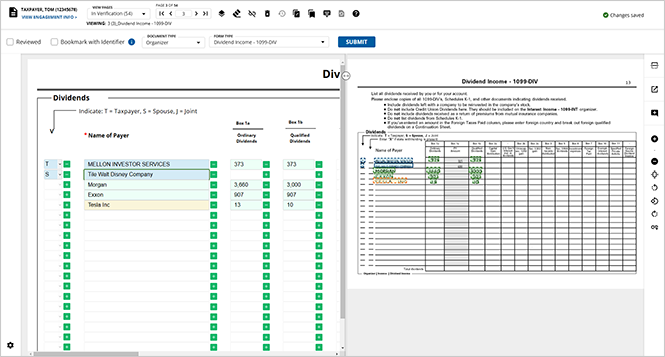
Once you finish step 1 pre-verification, you're onto step 2 verification. Displays all uploaded pages for you to verify for accuracy. Here you can view a side-by-side view of document and text field with value captured by optical character recognition (OCR). Make any necessary corrections or added new values that were overlooked. Can also review document associations and manually associate non-standard documents.
Engagement information
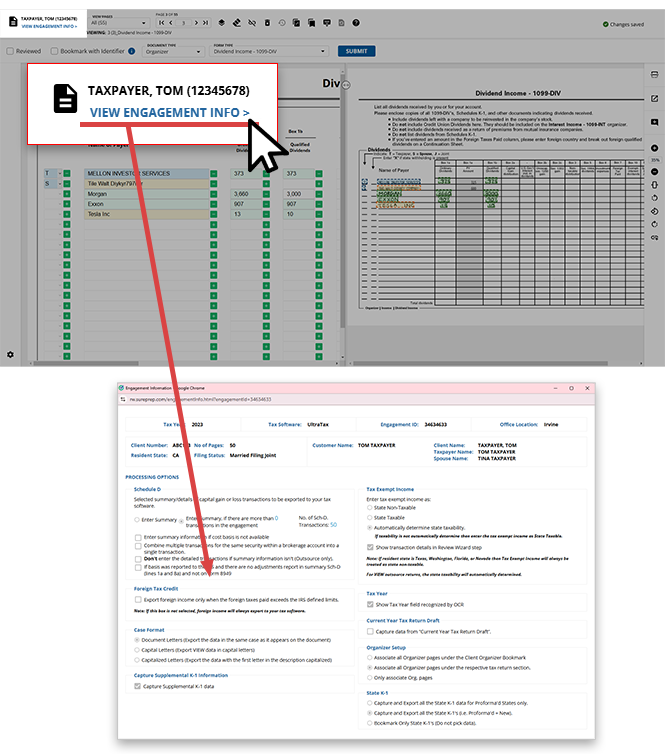
Review Wizard will display the name and engagement ID of the client you're currently viewing. Users can select
VIEW ENGAGEMENT INFO
to open the Engagement Information
window to view the full information for this client including Client Number
, Filing Status
, PROCESSING OPTIONS
.
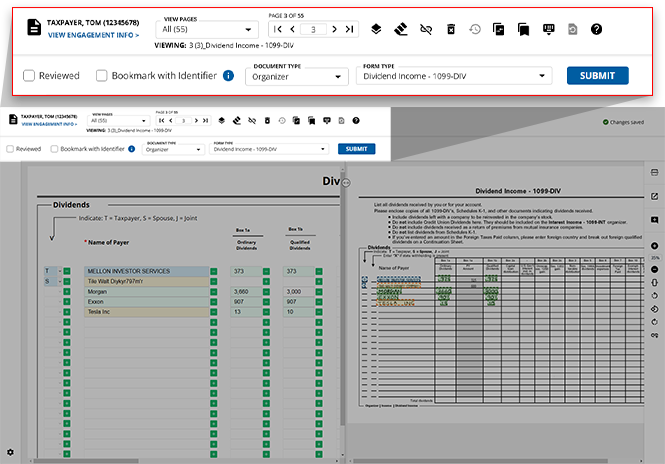
Verification wizard toolbar
Once past pre-verification, you're onto the verification step. With verification, you have access to additional features to streamline the process.
Accepted source documents
SurePrep only captures information for the following standard documents:
- IRS Forms
- Tax application organizer pages
- Consolidated Brokerage Statements (for example, 1099-B)
- Grantor Letters
- Government output forms (for example, Form 1040)
- Non-standard documents won’t have any information captured.
note
Non-standard documents won’t have any information captured.
Related Content
-
Dual screen for Review Wizard on Web
Format: Article
-
Editing fields
Format:
Article
-
Field types and highlight colors in the Verification Wizard
Format:
Article
-
Working with references
Format:
Article
-
Changing document or form type
Format:
Article
-
Tax year in Review Wizard
Format:
Article
-
Reviewing data in Verification
Format:
Article
-
Verification Wizard settings
Format:
Article
-
Deleting transactions
Format:
Article
-
Engagement Information
Format:
Article
-
Document Viewer Toolbar
Format:
Article
-
Verification Wizard toolbar
Format:
Article
-
Bookmarking Pages
Format:
Article
-
Bulk Bookmark
Format:
Article
-
Bulk Superseded
Format:
Article
-
Capture Supplemental K-1 Data
Format:
Article
-
Disassociating documents
Format:
Article
-
Display capital gain and loss transactions
Format:
Article
-
Elimination of 'New Form Review Wizard' from the Review Wizard process
Format:
Article
-
Keyboard Shortcut for Step 2: Verification Wizard
Format:
Article
-
Linking Pages
Format:
Article
-
Matching Masked EINs
Format:
Article
-
Matching security descriptions
Format:
Article
-
Overriding amounts verified by business rules
Format:
Article
-
Replicate Template
Format:
Article
-
Restore OCR Data
Format:
Article
-
Selecting a placeholder SSN for spouse
Format:
Article
-
Skipping the Verification Wizard
Format:
Article
-
Verification Step Skipped
Format:
Article
-
Submitting clients' binders
Format:
Article
-
Step 1 - Pre-Verification
Format:
Article
-
Step 3 - Superseded Documents
Format:
Article

